Table of Contents
Project management Monday can set the tone for your entire week, but it often feels like a scramble of tasks, deadlines, and shifting priorities. What if you could cut hours from your weekly workload just by changing how you manage projects at the start of the week?
In this guide, I’ll share practical Monday tips that not only save time but also keep projects moving smoothly. Which strategies actually make the biggest difference when it comes to shaving hours off repetitive work? Let’s dig in.
Start Mondays With a Clear Project Dashboard
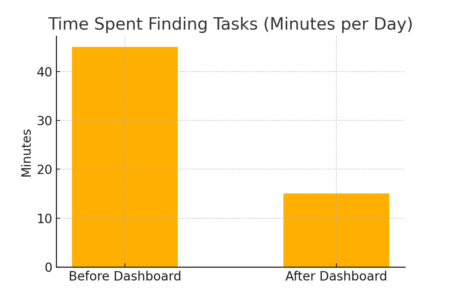
A cluttered Monday morning usually leads to a scattered week. That’s why I recommend starting with a clean, focused dashboard inside Monday.com.
Think of the dashboard as your project control center—it should tell you at a glance what matters most, who’s doing what, and where potential problems might appear.
Use Boards To Visualize Priorities In Seconds
Boards in Monday.com are like digital whiteboards where tasks, owners, and timelines all live together. Instead of scanning emails or sticky notes, you can open a board and instantly see where projects stand.
Here’s how to do it:
- From the left sidebar, click + Add > New Board.
- Choose a board type (Main, Private, or Shareable). I suggest starting with a Main board for team-wide visibility.
- Add columns such as Status, Owner, and Due Date so everyone knows exactly what’s on their plate.
Example: On my “Content Calendar” board, I use the Timeline View to visualize publishing schedules. A quick glance on Monday shows me which articles are going live this week and which are still stuck in review. It eliminates the back-and-forth of asking teammates for updates.
Customize Views For Different Teams And Roles
Not everyone needs to see the same thing. A project manager might need the big picture, while a designer just wants their next task. Monday lets you create multiple views on the same board so each role gets what’s useful to them.
How I set it up:
- From your board, click + Add View in the top right.
- Select from options like Kanban, Calendar, or Workload.
- Save the view so team members can toggle without cluttering the board for others.
For example, my developers prefer the Kanban view to move tickets through “To Do → In Progress → Done,” while I stick with a Table view for tracking deadlines. Same data, but two perspectives—this cuts down on confusion and unnecessary explanations.
Apply Color Coding To Spot Bottlenecks Faster
Colors aren’t just pretty—they speed up decision-making. In Monday.com, you can assign colors to status columns, and I promise this is one of the simplest hacks to save time.
Here’s my system:
- Green = On Track
- Yellow = Needs Attention
- Red = Blocked
Try Monday.com’s dashboard builder!
See all your projects, deadlines, and bottlenecks in one place—without digging through emails or scattered docs.
When I open my dashboard Monday morning, I scan for red first. If three tasks are red, I immediately know where to focus. No long reports, no guessing—it’s right there in color.
Pro tip: Use conditional coloring in the Timeline or Calendar view so overdue tasks automatically light up. That way, you never miss a deadline because it was buried in a list.
Automate Recurring Project Management Tasks
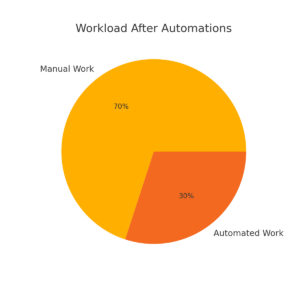
If you find yourself repeating the same steps week after week—assigning tasks, sending reminders, or moving items through a pipeline—it’s time to automate.
Monday.com has a built-in automation center that can handle routine work for you, giving you back hours each week.
Set Up Automated Reminders For Deadlines
We’ve all had that sinking moment when a deadline slipped because no one remembered to check the board. Monday fixes this with automated reminders.
How to set it up:
- Go to your board and click Automations > Create Custom Automation.
- Use the recipe: “When the due date arrives, notify the owner.”
- You can even adjust it to trigger one day or one week before the deadline.
I use this for client deliverables. For example, two days before a campaign launch, Monday automatically pings the designer in Slack: “Reminder: Final graphics are due Thursday.” No manual chasing required.
Build Templates For Repeated Project Workflows
If your team runs similar projects over and over (campaigns, product launches, sprint cycles), don’t start from scratch each time. Instead, create a board template once and reuse it.
Steps I take:
- Build the board with all the standard columns, automations, and views.
- Click Board Settings > Save as Template.
- Next time, select your template under Choose from Templates when creating a new board.
I use a “Blog Production” template that includes everything: draft → review → edit → publish. When a new article project begins, I duplicate the template and it’s ready in 30 seconds. No wasted setup time.
Trigger Notifications For Task Dependencies
Projects often fall apart not because of individual tasks, but because one person didn’t know they were waiting on someone else. That’s where dependency automations save the day.
Here’s an example:
- In your board, add a Dependency Column linking tasks (e.g., “Design Banner” depends on “Write Copy”).
- Then set an automation: “When a status changes to Done, notify the owner of the dependent item.”
In practice, once my copywriter marks “Blog Draft” as complete, Monday automatically alerts the editor that it’s their turn. This simple chain keeps projects moving smoothly without anyone needing to ask, “Is it ready yet?”
Automate your weekly workflows with Monday.com
Set up reminders, dependencies, and time-saving triggers in minutes—so tasks move forward even when you’re not chasing them.
Streamline Team Communication In One Place
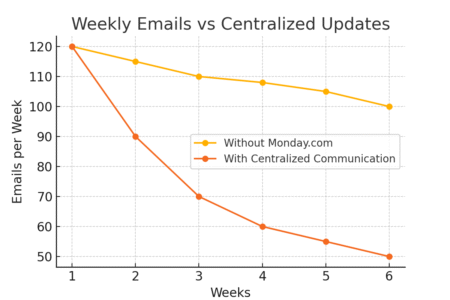
One of the biggest time drains in project management is scattered communication. When half the updates are stuck in emails, some are in Slack, and others live in a Google Doc comment, no one has the full picture.
Monday.com solves this by pulling conversations into the same place where work happens, which makes your Mondays (and the rest of the week) a whole lot smoother.
Centralize Conversations Around Tasks And Projects
Instead of asking, “Did you see my email?” or “Where’s that update?”, you can attach conversations directly to the task they’re about.
Here’s how I set it up:
- Click into any task (Monday calls them “items”).
- Use the Updates tab to post comments, upload files, or tag teammates with @mentions.
- All discussions stay tied to that task, so you’re not digging around trying to remember which thread had the answer.
Example: On my marketing campaign board, the designer drops draft images straight into the task. The copywriter can review them, and I can approve—all without switching to email. It creates one single source of truth.
Replace Long Email Threads With Real-Time Updates
Email is great for formal communication, but it’s not built for quick back-and-forth project updates. Monday.com updates move faster and prevent inbox clutter.
Here’s my rule: If it’s about a task, it goes in Monday—not in email.
- Use the reply thread under each update to keep conversations structured.
- Tag the exact person responsible instead of CC’ing a dozen people.
I’ve found this especially useful when deadlines are tight. Instead of sending three emails and waiting for replies, you can see who viewed the update (thanks to the seen by feature). No more “I didn’t see that message.”
Use Integrated Chat Tools To Reduce Meeting Time
Sometimes you need a quick ping instead of a full update. That’s where integrations help. Monday.com connects with Slack, Microsoft Teams, and other chat tools, so notifications show up where your team already spends time.
A practical example:
- Go to Integrations > Slack > Add to Board.
- Choose a recipe like: “When a status changes to Done, notify channel #project-team.”
Now, instead of calling a meeting to say, “Hey, this is finished,” the update goes out automatically in Slack. I’ve seen teams cut 1–2 unnecessary weekly check-in meetings this way, which easily saves an hour or more every week.
Plan Weekly Goals With Time-Saving Frameworks
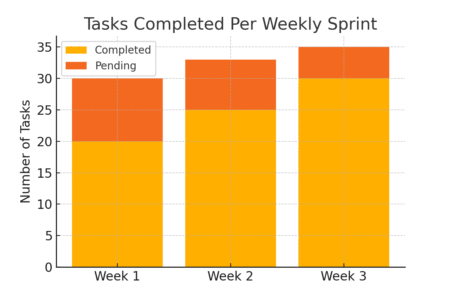
A successful Monday isn’t just about knowing what’s due—it’s about shaping the week so the team works with focus, not chaos.
Monday.com’s flexibility makes it easy to turn broad project goals into manageable weekly plans.
Break Projects Into Weekly Sprints For Focus
Borrowing from agile frameworks, I like to structure projects into short weekly “sprints.” This keeps goals realistic and prevents the feeling of staring at a never-ending to-do list.
How to set it up in Monday:
- Add a Group for each week (e.g., “Week of Oct 7”).
- Move only the tasks you expect to complete in that timeframe into the group.
- Use the Sprint Template in the templates library if you want a prebuilt setup.
The benefit: When Monday morning comes, your team knows exactly which tasks are in play that week—no distractions from future items.
Assign Clear Ownership To Eliminate Guesswork
One of the fastest ways to waste time is when nobody knows who’s responsible for what. That’s why I always use the People column in Monday to assign ownership.
Steps:
- Add the People column to your board.
- Assign one owner per task. If multiple people are collaborating, create sub-items and assign each individually.
Example: On a product launch board, I’ll assign the designer to “Landing Page Graphics” and the copywriter to “Landing Page Copy.” That way, no one is waiting around, and there’s zero guesswork.
From experience, this small habit saves hours each week by eliminating “Who’s doing this?” conversations.
Use Milestones To Track Weekly Progress Quickly
Milestones are like mini finish lines—they give everyone a sense of progress without waiting for the full project to wrap up.
How to create them in Monday:
- Use the Timeline or Gantt view.
- Mark specific tasks as milestones (e.g., “First Draft Complete” or “Prototype Ready”).
- Tie dependent tasks to the milestone so the board automatically reflects when the milestone shifts.
A practical example: On a campaign board, hitting the “Design Approved” milestone means copywriting and development can officially start. By marking it in Monday, the next steps unlock automatically, and I don’t need to manually update three different boards.
This also makes stakeholder reporting easier. Instead of showing a long list of tasks, I can highlight: “We’ve hit 3 out of 5 milestones this week.” Simple, clear, and fast.
Integrate Tools You Already Use With Monday
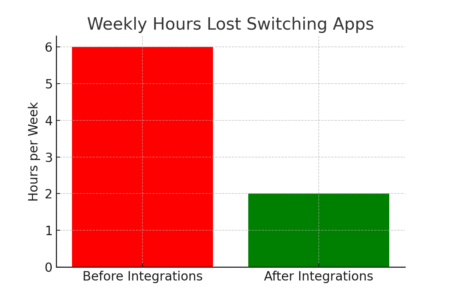
One of the smartest ways to save time in project management Monday workflows is by connecting Monday.com with the apps you already rely on daily.
Instead of bouncing between Slack, Google Drive, Zoom, or your CRM, you can pull everything into one place and cut hours of switching back and forth.
Connect Monday With Slack, Google Drive, And Zoom
Slack
If your team lives in Slack, bring your project updates there.
- Go to Integrations > Slack > Add to Board.
- Choose a recipe like: When status changes to Done, notify channel #team-updates. This way, you don’t have to announce every small update in meetings—Slack handles it for you.
Google Drive
Files should live where people can actually find them.
- Add the Files column to your board.
- Upload or link directly from Google Drive.
For example, I connect campaign assets to their related tasks so no one wastes time asking, “Where’s the final version of the graphic?”
Zoom
Instead of hunting for meeting links, embed them in Monday tasks.
- Add the Zoom Integration from the app marketplace.
- Set it up so when a meeting task is created, a Zoom link is auto-generated. Now, every calendar event is paired with the actual project item. No scrambling five minutes before a call.
Sync Calendar Apps To Avoid Double Scheduling
Missed deadlines and double-booked schedules often come from using too many calendars. I strongly suggest syncing your team’s calendars directly to Monday.com.
Here’s how:
- Go to your board and click Integrate > Google Calendar (or Outlook).
- Set a rule like: When a due date arrives, create an event in my calendar.
I use this for my editorial calendar. When an article’s due date is set in Monday, it shows up automatically in my Google Calendar. This stops tasks from being “invisible” outside the board and prevents me from scheduling calls during heavy deadline days.
Pull Data From CRM And Sales Tools Automatically
If you’re juggling client projects or sales pipelines, this integration is a game-changer. Monday connects with CRMs like HubSpot, Salesforce, or Pipedrive so you can sync deals, contacts, and timelines without manual entry.
Example setup:
- In Integrations, connect Salesforce.
- Create a rule: When a new deal is added in Salesforce, create an item in Monday board “Client Projects.”
This is how I keep client onboarding seamless. The moment a contract is signed, Monday auto-creates a project board with kickoff tasks—no manual copying, no delays.
Track Project Performance With Smart Reporting
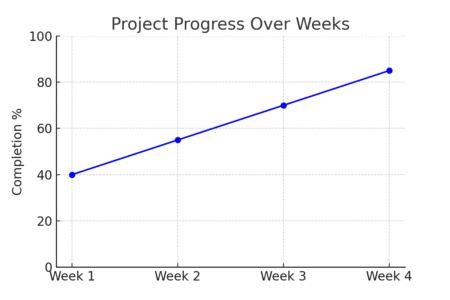
Managing projects isn’t just about assigning tasks—it’s about knowing whether the work is on track.
Monday’s reporting features turn your boards into actionable dashboards that help you spot issues before they grow.
Use Dashboards To See Progress At A Glance
Monday dashboards combine data from multiple boards, so you see the big picture without digging.
Steps I take:
- From the sidebar, click Dashboards > New Dashboard.
- Add widgets like Progress Tracking, Workload, or Numbers.
- Connect multiple boards (like Marketing + Sales + Operations) for cross-team visibility.
For example, I run a dashboard showing project completion percentages by week. It only takes 10 seconds to see if we’re ahead, behind, or right on schedule.
Create Custom Reports For Stakeholders Instantly
Not every stakeholder wants the nitty-gritty. Some only care about high-level updates. Monday lets you create reports tailored to them.
Here’s what I do:
- Build a dashboard with just the relevant widgets (timeline charts, high-level KPIs).
- Use the Share option to generate a shareable link or email export.
Example: For executives, I share a dashboard with milestones hit versus missed. They get exactly what they need—no extra clutter, no endless slide decks.
Monitor Workload Distribution To Prevent Burnout
Work doesn’t just need to get done—it needs to get done sustainably. Monday’s Workload view shows who’s overloaded and who has capacity.
How to use it:
- On your board, click + Add View > Workload.
- Assign effort values (like hours or story points) to each task.
- The workload graph shows when one teammate is stretched too thin.
This has saved my team countless late nights. For instance, when I saw one developer with 120% capacity while another was at 60%, we quickly reassigned tasks. Balanced workloads mean faster delivery and happier teammates.
Cut Down Meeting Time With Shared Project Boards
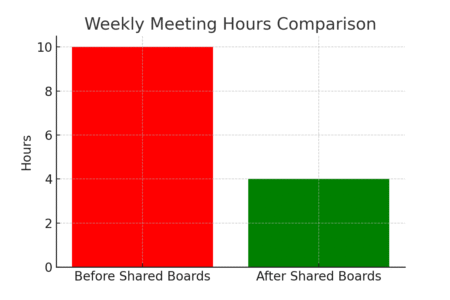
Most teams I work with have too many meetings, and most of those meetings are just “status checks.”
Monday’s shared boards and dashboards eliminate the need for repetitive check-ins, freeing up hours every week.
Replace Status Meetings With Transparent Updates
Instead of gathering everyone in a room to hear “I’m still working on it,” let the board do the talking.
- Each task’s status column reflects progress in real time.
- Teammates update their items as they move through stages.
For my weekly marketing sync, we actually canceled the standing status meeting. Everyone just checks the board before Monday morning. The information is the same—but without a 45-minute call.
Share Project Dashboards Instead Of Slide Decks
Slide decks take hours to prepare, and they’re outdated the moment you present them. Monday dashboards are live, which means stakeholders can view progress anytime.
How I handle it:
- Build a clean dashboard with key widgets.
- Click Share > Create Link for external access.
For example, I no longer build quarterly campaign slides. Instead, leadership gets a dashboard link showing budget spent, tasks completed, and milestones hit.
They love it because it’s always up to date, and I love it because it saves me at least half a day of prep time.
Encourage Async Check-Ins For Faster Collaboration
Meetings aren’t bad—unnecessary ones are. I suggest using async check-ins where each team member posts an update inside the board.
Example flow:
- Add a Daily Standup Board.
- Each team member posts: “Yesterday I finished __. Today I’m working on __. I’m blocked by __.”
- Everyone reads updates on their own schedule.
When I implemented this, our daily standups dropped from 20 minutes to about 3 minutes of reading per person. Multiply that by five days, and you’ve got nearly two hours back every week.
Use Tags And Filters To Find Tasks Instantly
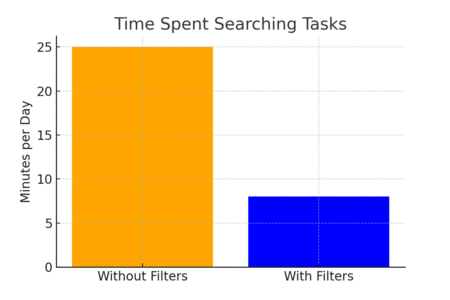
On busy Mondays, nothing wastes more time than digging through boards to find the one urgent task you need.
That’s where tags and filters in Monday.com come in—they cut through the clutter so you can jump straight to what matters.
Add Priority Tags To Highlight Urgent Work
Tags are labels you attach to tasks (or “items” in Monday’s language) to categorize them however you like.
How I set it up:
- Open your board and add the Tags column.
- Create tags like High Priority, Client Work, or Internal Project.
- Apply them to items so they stand out immediately.
Example: On my client delivery board, I use a red “Urgent” tag for anything due this week. Monday morning, I filter by that tag and know exactly where my focus should go. No scanning through dozens of tasks.
Use Filters To Drill Down By Team, Date, Or Owner
Filters are like your shortcut keys to clarity. You can apply them across any column to narrow down a huge board in seconds.
Quick path:
- Click the Filter funnel icon at the top right of your board.
- Choose filters like Status = Stuck, Person = Me, or Due Date = This Week.
I use this every Monday to see just my tasks due in the next 5 days. It gives me a personal to-do list without leaving the team board.
Save Custom Views For Frequent Searches
If you find yourself applying the same filters over and over, don’t repeat the work. Save them as a custom view.
Steps:
- Apply your filters.
- Click Save as New View in the top right.
- Give it a name like “My Weekly Tasks” or “Client Deadlines.”
Now it’s just one click away. For me, my “Weekly Sprint View” is the first tab I check every Monday morning—it’s basically my filtered dashboard that auto-loads with just what I need.
Keep Mondays Focused With Personal Productivity Hacks
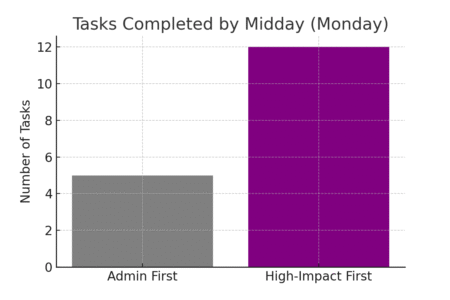
Even with the best project management tools, Mondays can slip away if you don’t protect your focus. I’ve found that a few simple productivity habits, layered on top of Monday.com, can make the difference between a chaotic day and a streamlined one.
Time-Block Project Work To Avoid Context Switching
Context switching—jumping between different tasks—is one of the biggest time killers. I suggest pairing Monday.com with a time-blocking approach.
Here’s what I do:
- Use your calendar integration to block 1–2 hour chunks for deep project work.
- During that block, filter your Monday board to show just that project.
- Silence notifications so you’re not tempted to peek elsewhere.
Example: On Mondays, I block 9–11 a.m. for strategy work and filter my “Campaign Board” to only show planning tasks. No multitasking, no admin clutter—it’s amazing how much progress you make.
Start With High-Impact Tasks Before Admin Work
It’s tempting to clear email or tiny tasks first, but that often eats your most productive hours. I recommend flipping that around.
My flow:
- Open my filtered “Priority” view in Monday.
- Tackle the hardest, most valuable item before 11 a.m.
- Leave admin tasks like emails or minor updates for the afternoon slump.
That single habit ensures I end Monday already feeling accomplished instead of behind.
Use Notifications Wisely To Stay On Track
Notifications are powerful, but if you let them ping you all day, they’ll drain your focus. Monday.com gives you flexibility here.
Quick tips:
- Go to Profile > Notifications and choose only what matters (e.g., “When I’m assigned a new task” instead of “Every comment ever”).
- Use Slack or Teams integrations to centralize alerts in one place.
For example, I set it so I only get pinged when deadlines are close or when I’m tagged in a blocker. Everything else I check once daily. It turns noisy updates into meaningful reminders.
Review And Reset At The End Of Each Monday
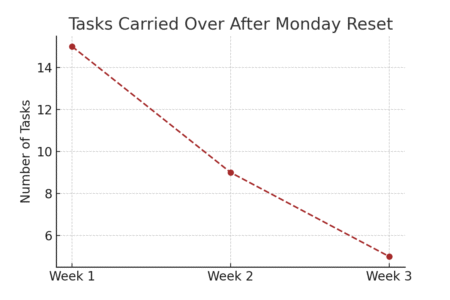
Mondays aren’t just about kicking things off—they’re also about setting the pace for the week. Spending 15 minutes at the end of your Monday to review and reset creates a smoother flow for the days ahead.
Run Quick Progress Checks Before Wrapping Up
Before shutting down, I run a quick board scan to see what’s moved and what’s still pending.
Steps:
- Switch to the Timeline or Status Overview widget in your dashboard.
- Check which tasks are on track (green), at risk (yellow), or blocked (red).
- Add quick updates so teammates know the latest before Tuesday.
This way, you avoid surprises midweek and catch issues before they snowball.
Adjust Deadlines Based On Realistic Capacity
Sometimes the Monday plan doesn’t match reality. Maybe a task took longer than expected, or someone got pulled into urgent work. It’s better to adjust early.
In Monday:
- Click into tasks with slipping due dates.
- Update the Timeline column or drag-and-drop in Gantt view.
- Notify owners with a quick @mention so they’re aligned.
I believe it’s better to reset expectations Monday night than to let unrealistic deadlines drag stress across the week.
Reset Your Dashboard For A Fresh Tuesday Start
Finally, I clear visual clutter so my Tuesday starts clean.
How I do it:
- Archive completed tasks (right-click > Archive).
- Reapply filters so only active work shows.
- Move any rolling tasks into a “This Week” group.
It feels a bit like tidying your desk at the end of the day—your future self thanks you. By Tuesday morning, the board is fresh, focused, and free from yesterday’s noise.