
Table of Contents
Some links on The Justifiable are affiliate links, meaning we may earn a small commission at no extra cost to you. Read full disclaimer.
The QuillBot tool has become a go-to for writers who want to rewrite or polish content without losing its original meaning. But how do you actually use it to rewrite like a pro—not just rephrase words, but improve tone, structure, and clarity?
In this guide, I’ll walk you through how to master QuillBot’s features, from its rewriting modes to its advanced grammar tools, so you can turn any draft into a polished piece of writing.
Understanding How The QuillBot Tool Works
The QuillBot tool is built to help writers rewrite, refine, and elevate their content through AI-powered paraphrasing.
It doesn’t just swap words; it restructures sentences for better clarity, tone, and readability.
How QuillBot Uses AI To Rewrite Content
At its core, QuillBot uses Natural Language Processing (NLP) — a branch of AI that understands human language — to interpret your sentences and generate new versions that retain meaning but differ in phrasing.
Think of it as a virtual writing partner trained to understand grammar, semantics, and context.
When you enter a sentence, QuillBot analyzes it in real-time using its machine learning model. It then rewrites your text through:
- Context Recognition: Detecting the sentence’s intent before rewriting.
- Synonym Replacement: Choosing alternative words that fit contextually.
- Sentence Restructuring: Reorganizing phrases for smoother flow.
Example:
- Original: “The QuillBot tool helps improve writing quality.”
- Rewritten: “QuillBot enhances your writing by improving clarity and flow.”
The difference is subtle but meaningful. It feels more natural, human, and polished.
What Makes QuillBot Different From Other Paraphrasing Tools
Most paraphrasers rely on simple synonym swapping, which often produces awkward or robotic sentences. QuillBot stands out because it rewrites contextually.
It understands nuance—whether you’re writing an essay, a blog post, or professional copy.
What makes it unique is its combination of AI rewriting modes, grammar correction, and integrations. For instance, you can use it directly in Google Docs, Microsoft Word, or even Chrome through its extension.
That means no more switching tabs or juggling tools—it adapts to your workflow.
Another plus: QuillBot continuously learns from user data (anonymously) to improve its sentence prediction accuracy, which explains why rewrites feel progressively smoother over time.
Key Benefits Of Using QuillBot For Writers And Marketers
QuillBot’s benefits go beyond rewriting. It’s designed to enhance productivity and maintain your voice while polishing text.
Here are the standout advantages:
- Time Efficiency: Rewrite long paragraphs in seconds.
- Consistency: Maintain tone across multiple drafts.
- SEO Optimization: Paraphrase keyword-heavy text while keeping readability intact.
- Grammar and Style Polishing: The built-in grammar checker catches issues instantly.
- Idea Expansion: Use “Expand Mode” to elaborate on ideas when stuck.
I often recommend QuillBot for content marketers who need to rewrite blog intros or repurpose articles without triggering duplicate content flags.
It’s also handy for freelancers who want to sound professional but stay efficient.
Try QuillBot Free and Rewrite Your First Paragraph Instantly!
Choosing The Right QuillBot Mode For Your Goal

Each QuillBot mode serves a specific writing purpose. The magic lies in knowing when and how to use them.
When To Use The Fluency Mode For Polished Grammar
The Fluency mode ensures your sentences sound natural and grammatically correct without straying too far from your original meaning.
I use it when rewriting articles that need subtle grammar and flow improvements—like polishing drafts or email content.
For example:
- Original: “This tool are helpful for bloggers.”
- Fluency Rewrite: “This tool is helpful for bloggers.”
It’s ideal for quick fixes where readability matters more than creativity.
How Standard Mode Keeps Your Writing Balanced
The Standard mode is QuillBot’s default setting, offering a healthy balance between accuracy and creativity. It rephrases sentences moderately—enough to improve them but without changing meaning.
Use this mode when you want:
- To rewrite blog posts while keeping tone consistent.
- To improve clarity without altering your brand voice.
- To paraphrase SEO content safely.
I often rely on Standard mode for website copy or guest posts that need refinement without sounding “AI-written.”
Using Creative Mode To Add Style And Variety
When you want your text to sound unique, Creative mode is your best friend. It injects flair, rearranges phrasing, and often produces unexpected—but engaging—sentence structures.
Example:
- Original: “This tool helps users write better.”
- Creative Rewrite: “Writers can effortlessly elevate their craft using this tool.”
Just keep an eye on meaning shifts. I suggest reviewing each rewrite to make sure creativity doesn’t override accuracy.
How Formal Mode Elevates Professional Writing
The Formal mode rewrites text with polished, professional language—perfect for reports, proposals, or LinkedIn articles.
Example:
- Original: “We’ll fix your content fast.”
- Formal Rewrite: “Your content will be refined promptly and efficiently.”
It’s subtle but ideal when you want to sound authoritative and composed.
Choosing Shorten And Expand Modes For Content Length Control
If you’re editing for word count, these two modes are lifesavers:
- Shorten Mode: Condenses text without losing meaning—ideal for summaries or meta descriptions.
- Expand Mode: Adds detail and explanation—useful for expanding blog sections or essay paragraphs.
From my experience, combining both modes can create balance. Draft in Expand Mode for depth, then refine in Shorten Mode to tighten flow.
How To Rewrite Sentences Effectively Using QuillBot
Rewriting effectively isn’t about pressing “Paraphrase” and copying the result—it’s about collaborating with the AI.
Step-By-Step: Rewriting A Paragraph Without Losing Meaning
Here’s how I recommend approaching it:
- Paste your original text into QuillBot’s input box.
- Select the appropriate mode based on your goal (Standard for balance, Fluency for grammar, etc.).
- Adjust the synonym slider—keep it lower for subtle rewrites and higher for more creativity.
- Review each suggestion carefully, especially longer ones.
- Copy the best version, then read it aloud to check tone and natural flow.
This method ensures your rewrite sounds authentic while still benefiting from AI precision.
How To Compare QuillBot Suggestions And Choose The Best Rewrite
QuillBot conveniently offers side-by-side comparisons.
I suggest:
- Reviewing highlighted changes to understand word swaps.
- Using Freeze Words for brand terms you don’t want altered (like product names).
- Combining multiple rewrites to create the strongest final version.
Think of QuillBot as your first draft assistant—it gives you structure, but you still bring the voice.
Avoiding Common Mistakes When Rewriting With AI Tools
Even advanced tools like QuillBot need mindful use.
Here are a few pitfalls to avoid:
- Over-reliance: Don’t trust every suggestion blindly. Always verify accuracy.
- Loss of Tone: Too many rewrites can dilute your voice. Keep your phrasing style consistent.
- Keyword Damage: In SEO writing, QuillBot can unintentionally drop keywords. Always recheck after paraphrasing.
- Grammar Assumptions: Even with AI checks, scan your text using tools like Grammarly or Hemingway.
I believe the real power of QuillBot lies in using it as a collaborative partner, not a replacement. It’s there to refine your thinking, not erase it.
Using The Grammar Checker And Co-Writer Features
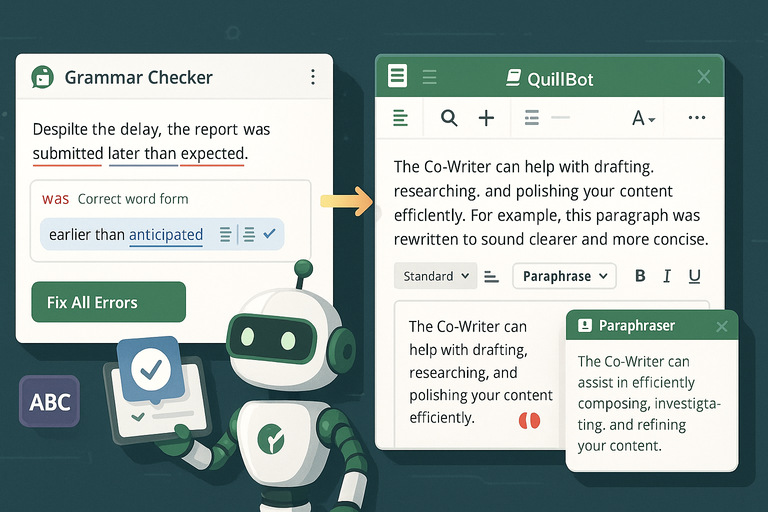
The QuillBot tool isn’t just for rewriting—it’s also a smart editor that helps you clean up grammar, polish tone, and even draft new ideas.
Let’s look at how its built-in grammar checker and Co-Writer feature work together to make writing easier and faster.
Fixing Grammar And Style Issues Effortlessly
The Grammar Checker inside QuillBot automatically scans your text for grammatical errors, awkward phrasing, and punctuation issues.
It’s similar to Grammarly, but with a twist—it integrates seamlessly with the rewriting engine, so you can correct and rephrase within one window.
How it works in practice:
- Paste your text into QuillBot’s Grammar Checker.
- Errors appear underlined in red (grammar) or blue (style).
- Hover over suggestions to see explanations and alternatives.
- Accept or ignore changes with one click.
Example: If you write, “The report were submitted late,” QuillBot instantly suggests “was” instead of “were.”
Beyond fixing the mistake, you can send the sentence to the Paraphraser tool to improve tone—turning it into “The report was submitted later than expected.”
What I like most is that it doesn’t just correct—you learn why something’s wrong. Over time, this builds your instinct for cleaner writing.
I recommend using it before rewriting, so your AI paraphrases start from a strong foundation.
How QuillBot’s Co-Writer Helps With Research And Drafting
The Co-Writer is QuillBot’s all-in-one writing workspace—a combination of word processor, paraphraser, grammar checker, and summarizer in one dashboard.
If you’re working on long-form pieces like blog posts, academic essays, or reports, this feature keeps everything in one place.
Here’s a simple UI path to access it: Login → Dashboard → Co-Writer (left sidebar).
You can:
- Research directly in the editor: Use the built-in web lookup to find relevant information.
- Paraphrase inline: Highlight any sentence and click “Paraphrase” without switching tabs.
- Check citations: Generate and insert citations automatically for references.
In my experience, the Co-Writer shines for content planning. I often draft outlines, then highlight sections to rephrase or expand instantly.
It keeps the creative flow going without interruption—a big win when writing multiple articles in a day.
Integrating Grammar Tools Into Your Writing Workflow
To get consistent results, I suggest setting up a simple routine that blends QuillBot’s grammar tools into your daily workflow:
- Draft Freely: Write your first version without worrying about grammar.
- Run Grammar Check: Use QuillBot’s Grammar Checker to fix sentence-level issues.
- Refine With Paraphraser: Improve tone and structure using Standard or Fluency mode.
- Use Co-Writer For Final Edits: Review flow and citations before exporting.
This process ensures your writing is clear, accurate, and polished before it reaches readers. You’ll spend less time editing and more time creating.
Combining QuillBot With Other Writing Tools
To really get the most from the QuillBot tool, integrate it with your existing setup.
It plays well with other editors like Grammarly, Google Docs, and Microsoft Word—creating a seamless writing environment.
How To Use QuillBot With Grammarly For Stronger Editing
Both QuillBot and Grammarly have their strengths. QuillBot excels at rewriting and sentence structure, while Grammarly specializes in grammar depth and tone detection.
Here’s how I use them together effectively:
- Run your text through QuillBot first to rephrase or polish.
- Paste the output into Grammarly to check readability, clarity, and tone.
- Review Grammarly’s tone suggestions to make sure your writing feels natural.
Example workflow: You paraphrase a blog section in QuillBot. Then Grammarly flags it as too formal. You tweak tone, and suddenly your article sounds conversational yet professional.
I believe this combination delivers professional-level editing—great for freelancers or marketers who want consistent quality.
Pairing QuillBot With Google Docs Or Word For Seamless Writing
If you use Google Docs or Microsoft Word, QuillBot integrates directly through extensions.
To connect it in Google Docs:
- Go to Extensions → Get Add-ons → Search “QuillBot.”
- Install and pin it to your toolbar.
- Highlight text → Click QuillBot → Paraphrase.
For Word, download QuillBot’s Microsoft Add-In from the Office Store. You’ll then find it under the “Home” tab.
This setup saves enormous time. You don’t have to copy and paste between tabs—you can rewrite paragraphs directly within your document.
I’ve used this especially for client reports and proposals, where small phrasing improvements make a big difference.
Exporting And Reusing QuillBot Outputs For Blog Posts And Emails
After refining your writing in QuillBot, exporting is simple. You can:
- Copy text directly from the Paraphraser or Co-Writer editor.
- Download it as a .DOCX or .TXT file.
- Paste it into your CMS (like WordPress) or email tool (like ConvertKit).
A practical example: I often draft email subject lines in Creative mode to spark variety, then export the polished ones into my email campaigns. The time saved across multiple rewrites really adds up—especially when writing at scale.
Advanced Tips To Rewrite Like A Pro With QuillBot

Once you’re comfortable with the basics, you can start using QuillBot like a professional editor—guiding tone, voice, and nuance instead of just relying on automation.
How To Train Your Eye For Better Word Choice
AI can suggest multiple rewrites, but your judgment determines which sounds best. I recommend reading rewritten sentences aloud—your ear will quickly catch awkward phrasing or rhythm issues.
Another trick is to use the highlight comparison tool inside QuillBot. It shows original vs. rewritten phrases, so you can learn which edits improve clarity. Over time, you’ll notice patterns that elevate your writing instinctively.
Using QuillBot’s Synonym Slider For Maximum Control
The Synonym Slider lets you control how aggressively QuillBot replaces words. You’ll find it above the editing panel—move it left for subtle rewrites, right for more creative phrasing.
Here’s how I usually use it:
- Low setting: For client work that needs accuracy.
- Mid-range: For blog posts needing light tone adjustment.
- High setting: When rewriting repetitive content or brainstorming headlines.
The trick is moderation. Too high, and you risk losing context; too low, and the rewrite may sound too close to the original.
How To Preserve Tone And Voice While Rewriting
Preserving tone means keeping your personality intact even when using AI. Before paraphrasing, I suggest identifying your desired tone—friendly, formal, persuasive—and reading QuillBot’s output through that lens.
For instance, if your brand sounds casual, avoid using Formal Mode. Instead, start in Standard or Fluency mode, then tweak sentences manually to retain warmth.
Also, freeze unique terms—like brand names or product titles—using the Freeze Words option to prevent QuillBot from changing them.
Balancing Automation With Your Personal Writing Style
AI can speed up your process, but your voice makes writing memorable. The best results come from collaboration—let QuillBot handle structure and flow, while you focus on emotion, storytelling, and authenticity.
Here’s a quick mental rule I follow:
- QuillBot handles mechanics; I handle meaning.
Treat the tool as your creative partner, not your replacement. When used this way, the QuillBot tool becomes more than a paraphraser—it’s a writing assistant that amplifies your human touch while sharpening your content’s quality.
Common QuillBot Limitations And How To Overcome Them
Like every AI writing assistant, the QuillBot tool has its limits. It’s powerful, but it’s not perfect. The key is knowing where it can go wrong—and how you can step in to guide it.
Recognizing When QuillBot Changes Meaning
One of the most common challenges I see is when QuillBot subtly shifts a sentence’s meaning during rewriting. This happens because its AI predicts alternative phrasings that sound right but might slightly alter the original intent.
For example:
- Original: “This tool helps users write more effectively.”
- AI Rewrite: “This tool ensures users always write perfectly.”
At first glance, it looks fine—but “effectively” and “perfectly” mean different things. One focuses on clarity; the other implies flawlessness.
Here’s how I deal with this:
- Read aloud: If a rewrite sounds off or changes tone, revert or tweak it.
- Compare side-by-side: Use QuillBot’s highlight comparison feature to check word swaps.
- Use the Freeze Words option: Protect specific terms (like technical words, brand names, or keywords) so QuillBot doesn’t alter them.
I suggest you treat QuillBot like a co-editor—helpful, but one that still needs your guidance to stay on track.
How To Edit AI Rewrites Without Losing Context
Editing AI-generated rewrites takes a bit of finesse. You don’t want to lose flow, but you also don’t want robotic phrasing sneaking in.
Here’s a method I use regularly:
- Start with the Standard mode for a balanced rewrite.
- Highlight unclear sentences and re-run them through Fluency mode.
- Check transitions: Make sure sentences connect logically (AI often breaks flow).
- Manually reinsert tone cues: Add emotional words, rhythm, or phrases that sound natural to you.
For example, if QuillBot turns “I suggest testing this first” into “It is advisable to test this initially,” I’ll humanize it back: “I’d suggest testing this first to see if it fits.”
This small tweak restores warmth and keeps context intact.
Why Human Editing Still Matters For Final Drafts
Even the smartest AI can’t fully understand intent. It can refine, reword, and polish—but it doesn’t think strategically about audience, tone, or brand voice. That’s where you come in.
I recommend always doing a human pass before publishing, especially for:
- Tone alignment: Making sure your content sounds consistent.
- Fact-checking: QuillBot doesn’t verify accuracy—it only rewrites.
- Readability testing: Run your draft through readability tools like Hemingway or Yoast.
Think of AI as the heavy lifter—it gets your draft 80% there. Your job is to finish the remaining 20% with personality and precision. That final layer of human touch is what separates good writing from great content.
Expert Workflow: My Proven QuillBot Rewriting Process
I’ve tested different ways to use the QuillBot tool, and over time I’ve built a workflow that’s fast, consistent, and natural. It helps me rewrite large volumes of SEO or blog content while maintaining my voice.
How I Use QuillBot To Rewrite Blog Posts And SEO Content
Here’s the process I follow for blog rewrites:
- Import or paste content into QuillBot’s editor.
- Run Standard mode for balanced rephrasing.
- Adjust the synonym slider to medium—enough to freshen up phrasing without breaking flow.
- Review key sections manually (especially intros, CTAs, and headers).
- Send final text to Grammarly for an extra tone and grammar check.
When rewriting SEO articles, I make sure QuillBot doesn’t drop important keywords. If it does, I reinsert them naturally after paraphrasing. This ensures both readability and ranking potential.
I’ve noticed that running product reviews or list posts through Expand mode often adds depth—useful when trying to reach 1,500+ words without sounding repetitive.
Setting Up An Efficient QuillBot Workflow
Efficiency comes from knowing where QuillBot fits into your routine. I typically set mine up like this:
- Step 1: Research and outline using tools like Google Docs or Notion.
- Step 2: Write a rough draft quickly.
- Step 3: Paste each section into QuillBot to rewrite for flow and clarity.
- Step 4: Run Grammar Check and final Fluency polish.
- Step 5: Export into WordPress or my client’s CMS.
This method saves me about 30–40% of editing time while improving tone consistency across multiple projects.
If you write regularly for clients or your own blog, I suggest saving QuillBot’s rewritten snippets as templates—you can reuse intros, transitions, or phrasing patterns later.
Best Practices For Achieving Natural, Human-Like Rewrites
To keep AI-generated content sounding real, I follow three golden rules:
- Avoid full rewrites at once: QuillBot handles smaller chunks better than long paragraphs.
- Edit after paraphrasing: Add contractions, rhetorical questions, and conversational connectors (“you know,” “let’s be honest,” “here’s the thing”).
- Keep a personal note file: Whenever you find a QuillBot output that nails your tone, save it as a style reference.
The goal isn’t to erase AI fingerprints entirely—it’s to blend them so your writing feels effortless, not mechanical.
Ready To Rewrite Like a Pro? QuillBot improves clarity, tightens sentences, and keeps your tone intact. Whether you write daily or just want cleaner content, this tool makes every draft stronger. Get Started With QuillBot!
Pro Tip: Mastering The Balance Between AI And Creativity
Using the QuillBot tool effectively means finding the balance between automation and your creative instincts.
AI can enhance your productivity, but your personal voice brings authenticity.
How To Let QuillBot Handle Repetition While You Add Personality
AI is great at catching redundancy. Whenever I find myself repeating phrases like “in this article” or “you’ll learn,” I let QuillBot paraphrase them into something fresher.
Then, I reintroduce small personal touches—stories, humor, or opinions—to keep the content engaging.
Here’s a small trick: run only repetitive sections through Creative mode. It diversifies your language while you focus on the story.
Example:
- Repetitive: “The QuillBot tool helps improve your writing.”
- Creative Rewrite: “QuillBot refines your writing so every sentence feels intentional.”
You get variety without losing essence.
Developing Your Own Style While Leveraging AI Precision
AI should never define your writing—it should enhance it. I suggest using QuillBot as a tool for technical polish while keeping your voice front and center.
To develop your own style:
- Study your rewrites: See how QuillBot phrases sentences and adapt what fits your tone.
- Add your natural rhythm: Use sentence fragments, rhetorical pauses, or personal opinions.
- Rewrite selectively: Don’t let QuillBot rewrite sections that carry emotional or persuasive weight—those are best left in your voice.
Over time, you’ll develop a recognizable style that feels both sharp and genuine, even when assisted by AI.
Turning QuillBot Into A Writing Partner, Not A Replacement
The secret to mastering AI-assisted writing is partnership. I believe the QuillBot tool should act as your second brain—not your substitute. It handles structure, grammar, and flow, while you focus on storytelling, intent, and connection.
Here’s how to approach it practically:
- Let QuillBot draft.
- You direct.
- Both collaborate.
That synergy—human creativity supported by machine precision—is where the best writing lives. When you use QuillBot this way, every rewrite feels natural, every edit intentional, and every piece unmistakably yours.

I’m Juxhin, the voice behind The Justifiable.
I’ve spent 6+ years building blogs, managing affiliate campaigns, and testing the messy world of online business. Here, I cut the fluff and share the strategies that actually move the needle — so you can build income that’s sustainable, not speculative.
Related posts:
 The QuillBot Review: Is This AI Writing Tool Worth It?
 Paraphrase Tool QuillBot: Rewrite Smarter, Not Harder
 Quillbot Alternative Review: Top 5 Choices
 Best Alternative Of QuillBot That Writers Actually Use
 Best QuillBot Alternative Free Tools For Writers
 Top Tools QuillBot Similar For Rewriting And Grammar Fixing