Table of Contents
Some links on The Justifiable are affiliate links, meaning we may earn a small commission at no extra cost to you. Read full disclaimer.
QuillBot free paraphrasing tool has become a go-to option for writers who want clearer, sharper sentences without spending hours rewriting. I’ve used it enough times to know where it shines and where it can trip you up.
The big question I want to unpack with you is this: Can a free paraphraser actually help you write better instantly, or does it create new problems you need to fix later?
This guide breaks down the real advantages, limits, and smart ways to use it so you always stay in control of your voice.
How The QuillBot Free Paraphrasing Tool Actually Improves Writing
Using the QuillBot free paraphrasing tool can feel like handing your sentences to a thoughtful assistant who quietly rewrites them for clarity.
Here’s how it genuinely improves the way your ideas land on the page.
Understanding How Contextual Rewriting Strengthens Clarity
Contextual rewriting is where QuillBot really shows its value. I’ve noticed it doesn’t just swap words. It looks at the surrounding sentence and makes structural changes that clarify what you meant to say.
You’ll see this when a long, tangled sentence suddenly becomes more direct. For example, if you paste something like “The solution that was suggested was not entirely clear to the team”, QuillBot might return: “The team found the suggested solution unclear.” Same meaning, less clutter.
This matters because clarity is what keeps readers from bouncing. According to Nielsen Norman Group, users skim 79% of online content. Cleaner sentences make those skimmers stick around longer.
If you ever feel your writing is “technically correct” but hard to follow, contextual rewriting becomes a reliable tool to tighten it.
A scenario I run into all the time: Overly academic paragraphs.
Running a few sentences through Standard Mode tends to shave off the excess formality and make the ideas easier to digest. It’s like taking fog off a window so the message shines through.
Using Sentence-Level Changes To Improve Tone And Flow
Tone is tricky because writers often default to the tone they think they “should” use. When I use QuillBot’s sentence-level rewrite, I’m able to quickly test how a different tone feels without rewriting from scratch.
If your text sounds too stiff, Fluency Mode usually softens it. For example, “It is imperative that the task is completed immediately” might shift to “The task needs to be completed right away.” Same urgency, less rigidity.
Flow improves when QuillBot reduces unnecessary repetition or breaks long sentences into shorter ones. I’ve seen paragraphs go from exhausting to breezy with a single pass.
Whenever I feel a paragraph drags, sending the longest sentence through Standard Mode almost always helps.
What I like most is using sentence-level changes during editing. It’s faster than rewriting manually but still feels like you’re the one directing the tone.
How The Free Version Preserves Meaning While Adjusting Style
Even with limitations, the free version does a solid job maintaining intent. It generally avoids extreme rewrites unless you push the synonym slider too high.
You’ll notice it keeps the core message intact in most cases. That’s because QuillBot leans on semantic analysis, meaning it tries to understand the idea before rewriting. If your original sentence is clear, the rewritten version tends to honor it.
One useful trick I rely on is this:
- Paste a paragraph.
- Turn the synonym slider down to minimum.
- Select the Fluency mode.
What you get is a polished version without distortions. This is especially helpful with content that shouldn’t shift meaning—emails, policy descriptions, or product details.
When writers run into issues, it’s usually because they pushed the slider too far or fed it sentences with vague wording. I’ve found that tighter inputs produce the best stylistic adjustments with minimal drift.
Situations Where QuillBot’s Rewrites Create Better Readability
Some writing situations practically beg for QuillBot’s help. I often drop in rough drafts from brainstorming sessions. They usually sound scattered, and QuillBot rearranges them into something readable.
This is especially helpful when:
- You’re rewriting long paragraphs that feel heavy.
- You need clearer transitions between ideas.
- You’re adapting technical content for a general audience.
- You want a cleaner version of a message without rewriting manually.
For instance, long ecommerce product descriptions often improve significantly after a quick paraphrase. The tool strips out redundancy and tightens the value points, which tends to increase engagement and time-on-page.
What I’ve learned is that readability isn’t just about sounding “better.” It’s about reducing cognitive load so readers stay with you.
When you use QuillBot strategically, especially in the rewriting phase, it gives your content that smooth, easy-to-read finish.
Key Features Available In The QuillBot Free Paraphrasing Tool
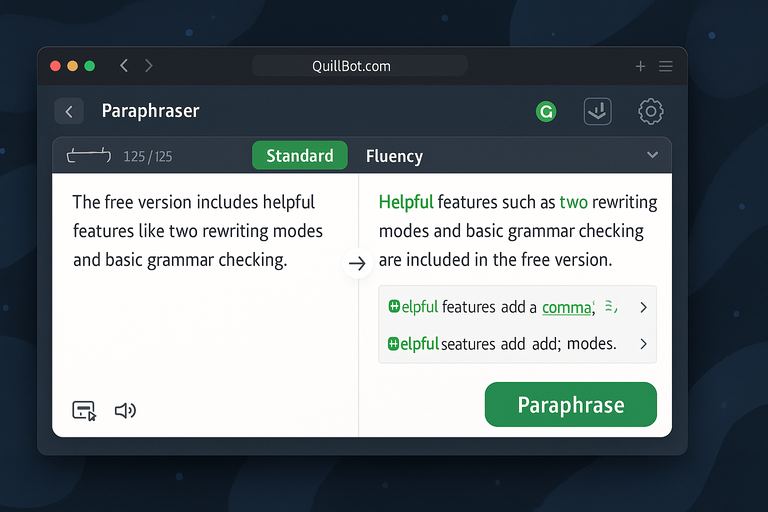
The free version might feel limited at first, but once you understand how each feature works, it becomes surprisingly powerful. Here’s how to get the most out of what’s included.
Exploring The Standard And Fluency Modes For Better Output
You get two rewriting modes for free: Standard and Fluency. Standard tries to balance rewriting with meaning, while Fluency focuses on readability and natural flow.
I suggest starting in Standard mode when your draft needs structural improvement. It’s great for reshaping clunky sentences. Fluency mode works better for polishing content you already like. Think of it as smoothing out rough edges.
To access them:
- Go to QuillBot.com > Paraphraser.
- Select Standard or Fluency above the text box.
In practice, I’ll run text through Standard first, skim the results, then switch to Fluency if the tone needs softening. Using both gives you more control, even without paid modes.
How Character Limits Shape Your Workflow And Text Quality
The free tool only allows around 125 words per paraphrase. Instead of seeing this as a limitation, I treat it as a forced quality check.
Shorter batches encourage more intentional editing. You can break content into sections, paraphrase each chunk, and review changes with better focus. It’s like editing paragraph by paragraph rather than dumping an entire article at once.
I’ve noticed that feeding smaller inputs also reduces meaning distortion. When too much context is blended together, automated tools sometimes misread your intent. The character limit helps minimize that.
A simple workflow I use:
- Break your paragraph into 2–3 sentences.
- Paste one chunk at a time.
- Review QuillBot’s output immediately before moving on.
This leads to cleaner, more consistent text across the whole piece.
Using The Synonym Slider To Control Rewrite Strength
The synonym slider is one of the most misunderstood features. It looks simple, but it dramatically changes your results.
Sliding it left produces minimal changes—great when you want polish, not transformation. Moving it right creates bolder rewrites, but this is where meaning can shift.
Here’s a quick way I control it:
- Slider low: Professional emails, product descriptions, instructions.
- Slider mid: Blog posts, social captions, conversational writing.
- Slider high: Creative rewrites, idea variations, experimentation.
If I feel stuck with sentence phrasing, nudging the slider halfway usually gives me a fresh version that sparks new ideas. Just remember that extreme settings often require human cleanup.
What Happens When You Mix Paraphrasing With Grammar Suggestions
The free version also integrates basic grammar checks. When you paraphrase, QuillBot quietly fixes small issues like punctuation or tense inconsistencies.
This becomes useful when your draft is rough. I’ve seen it correct fragmented sentences or awkward transitions simply because the grammar check kicks in during the rewrite.
But there’s a catch: the tool sometimes overcorrects if your original text is unclear. To avoid this, I recommend reviewing your sentence before paraphrasing. A quick manual fix dramatically reduces the chance of QuillBot misinterpreting your tone or intent.
You can think of this feature as a hybrid pass—part paraphraser, part proofreader. When used intentionally, it saves time and cuts down on small errors you might otherwise miss.
Best Use Cases For The QuillBot Free Paraphrasing Tool
The QuillBot free paraphrasing tool becomes most valuable when you use it with a clear purpose. I’ve learned that it’s not meant to replace your writing. It’s meant to elevate it in very specific situations.
Transforming Awkward Drafts Into Polished Sentences
When you’re staring at a sentence that feels clunky, QuillBot can polish it in seconds. I’ve done this countless times with early drafts that were technically correct but lacked rhythm or clarity.
Why it works:
- Structural simplification: QuillBot shortens long, heavy sentences that drain readers.
- Word choice refinement: It swaps out stiff phrases in favor of natural language.
- Flow improvement: It often reorders ideas so the sentence reads smoothly.
A quick example: If you paste something like “The explanation which was provided lacked clarity to the audience”, Standard Mode might return, “The audience found the explanation unclear.”
That shift from passive to active voice makes a difference. I sometimes treat QuillBot as a second brain during editing—one that spots awkwardness faster than I can.
Repurposing Content Without Losing Original Intent
I often use QuillBot when I’m refreshing old blog posts, rewriting email sequences, or adapting social content into a different format. It helps me maintain the core message while making the text feel new.
Where this becomes powerful:
- Updating older content for SEO without rewriting everything.
- Creating multiple versions of similar outreach emails.
- Turning long-form content into shorter summaries.
A workflow that works well for me is:
- Pull a paragraph you want to repurpose.
- Run it through Fluency Mode.
- Compare the new phrasing with the original point.
This keeps intent intact, which is critical when repurposing content for platforms like LinkedIn, newsletters, or ecommerce product pages.
Improving Academic, Blog, And Email Tone With Minimal Editing
Tone is something many writers struggle with. I’ve used QuillBot to soften academic language, make emails friendlier, and adjust blog content so it feels more conversational.
How it helps across formats:
- Academic writing becomes less rigid.
- Emails shift from robotic to human.
- Blog content feels more approachable.
For example, QuillBot can turn “It has been observed that the results contradict the hypothesis” into “The results may not support the hypothesis.” Softer, clearer, more human.
When you’re juggling different writing styles, this flexibility becomes one of the most practical benefits of the tool.
Tightening Long Paragraphs Into Clearer, Concise Variations
Long paragraphs lose readers faster than anything. I’ve used QuillBot to cut down unnecessary sentences and give my writing a cleaner, tighter feel.
Why this helps:
- Readers skim, and shorter paragraphs keep them engaged.
- Clarity increases when each sentence has only one purpose.
- Your writing becomes easier to digest on mobile screens.
One strategy I recommend is breaking a heavy paragraph into three sections, sending each through Standard Mode, then stitching them together. The result usually feels more concise without sacrificing meaning.
This is especially helpful in blog posts, academic sections, or product descriptions where long paragraphs can overwhelm readers.
Common Mistakes Writers Make When Using QuillBot Free
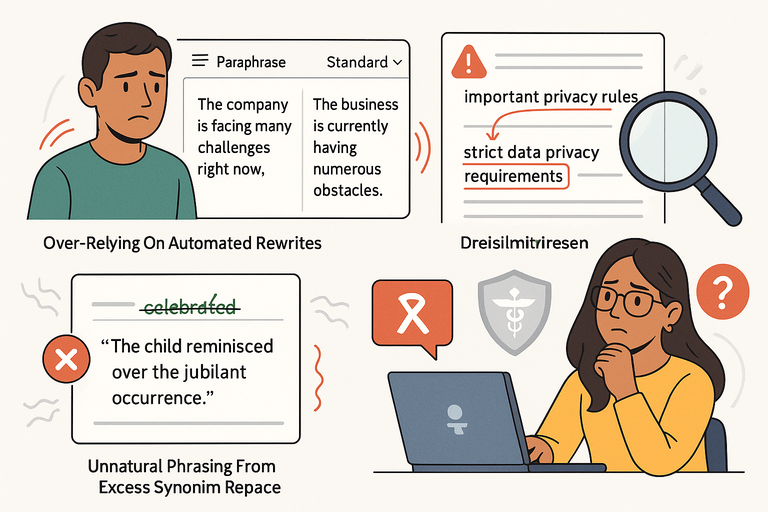
The free version is powerful, but it’s not perfect. I’ve seen a lot of people run into problems simply because they expect it to do all the thinking for them. Here are the pitfalls worth avoiding.
Over-Relying On Automated Rewrites Without Human Editing
QuillBot is an assistant, not an author. When someone accepts every rewrite blindly, the content often loses personality or pacing.
Problems this causes:
- Robotic or generic tone
- Awkward transitions between rewritten sentences
- Repetition across multiple paragraphs
I suggest treating every paraphrase as a draft—not a final version. Read it out loud. If it doesn’t sound like something you’d naturally say, revise it.
Ignoring Subtle Meaning Changes In Over-Simplified Outputs
Sometimes QuillBot oversimplifies, especially when the input is vague or the synonym slider is too high. I’ve seen it soften important details or unintentionally shift the message.
A simple example: A sentence about “strict data privacy requirements” might become “important privacy rules.” Accurate, but weaker.
To avoid this, I advise reviewing every sentence for factual accuracy. One small meaning change can impact your credibility, especially in business or academic work.
Creating Unnatural Phrasing From Excess Synonym Replacement
Pushing the synonym slider too far right is where rewrites get weird. You’ll see phrases that sound technically correct but unnatural to humans.
This usually happens when writers try to make content “uniquely rewritten.” The problem is that extreme synonym swapping can distort tone or break sentence flow entirely.
I suggest keeping the slider at the center or lower for most work. It produces cleaner, more natural results that require far less editing.
Using It On Sensitive Or Specialized Topics Without Verification
If you write about technical, medical, legal, or financial topics, automated rewrites can introduce inaccuracies. The tool doesn’t always understand nuance or industry terminology.
Risks include:
- Using the wrong jargon
- Misrepresenting facts
- Removing critical qualifiers
Whenever I paraphrase something specialized, I always verify it afterward. One missing detail can turn trustworthy content into misinformation.
How To Use The QuillBot Free Paraphrasing Tool More Effectively
You’ll get exponentially better results when you use QuillBot with intention.
These techniques come directly from how I’ve used it to speed up my writing without losing quality.
Reviewing Each Rewrite With Intent, Not Blind Acceptance
Think of QuillBot as giving you suggestions—not instructions. Reading each rewrite with a specific goal in mind makes the tool far more effective.
What I look for:
- Does the sentence still express my exact meaning?
- Is the tone aligned with the rest of the paragraph?
- Will readers understand it faster?
If the answer is no, I revise manually. Reviewing with intent keeps your voice intact and prevents sloppy rewrites.
Combining Paraphrasing With Your Own Style And Voice
QuillBot smooths sentences, but your voice is what makes the writing feel alive. I like to take QuillBot’s rewrite as a base, then layer my natural phrasing on top.
Try this workflow:
- Paste your sentence.
- Choose the rewrite you prefer.
- Rewrite one part of it in your own voice.
This hybrid method makes your content polished but personal. It’s the difference between “AI-generated” and “AI-assisted.”
Using Multiple Rewrite Passes To Reach The Best Version
Sometimes the first rewrite isn’t the best. Running a sentence through different modes (Standard, then Fluency) often produces stronger results.
You can also:
- Rewrite the same sentence with different synonym slider settings.
- Paraphrase only parts of a long sentence.
- Run the output again after minor manual edits.
I use this especially during editing or when I’m shaping the tone of a longer article.
Running Outputs Through A Clarity Or Readability Check
After paraphrasing, I often run the text through a readability tool. You can use apps like Hemingway Editor or the built-in grammar suggestions inside QuillBot itself.
I look for:
- Sentence length
- Passive voice
- Complex phrasing
- Hard-to-read sections
This final pass helps ensure that your content lands smoothly with readers and maintains consistency from paragraph to paragraph.
When You Should Upgrade Beyond The Free Version
There comes a point where the QuillBot free paraphrasing tool isn’t enough for the kind of writing you want to produce.
I’ve hit this wall myself, especially with longer projects or more demanding tones.
Here’s when upgrading actually makes a meaningful difference.
Working With Longer Documents That Exceed Character Limits
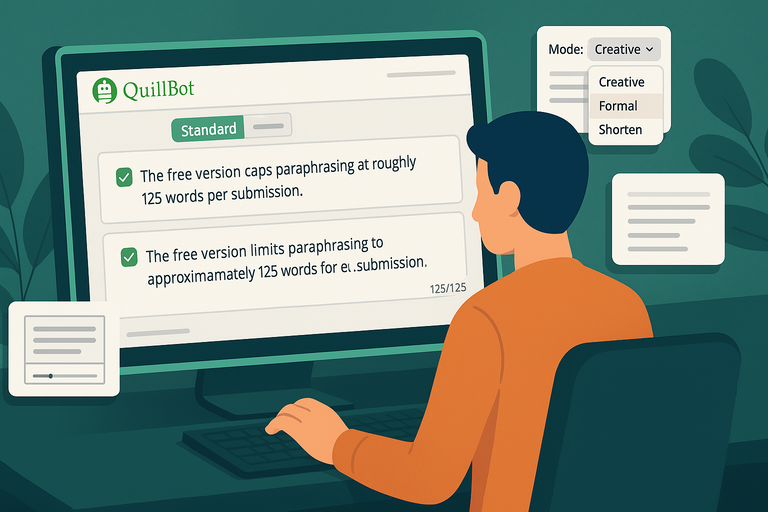
The free version caps paraphrasing at roughly 125 words per submission. If you write long blog posts, academic papers, or business reports, this limit slows you down.
Why upgrading matters:
- Time savings: You can rewrite full pages instead of tiny chunks.
- Consistency: When you paraphrase entire sections at once, tone shifts become less noticeable.
- Better context understanding: Larger inputs help QuillBot interpret your intent more accurately.
A good example is rewriting a 1,000-word article. In the free version, you’d need around 8–10 passes. The paid version handles it in one go, which reduces micro-inconsistencies that come from breaking content into pieces.
If you deal with long-form writing weekly, the upgrade usually pays for itself in workflow efficiency alone.
Choosing Advanced Modes Like Creative, Formal, Or Shorten
The paid version unlocks modes that do far more than polish text. They reshape tone and structure so you can adapt your writing to different audiences.
Why advanced modes matter:
- Creative Mode: Helps generate fresh, idea-rich variations without losing meaning.
- Formal Mode: Sharpens professional or academic writing to match strict tone standards.
- Shorten Mode: Condenses paragraphs while preserving core ideas, great for summaries.
I use Formal Mode when rewriting client emails that need to sound polished and trustworthy. Creative Mode helps when I’m brainstorming multiple versions of the same hook or headline.
When you switch modes, the path is simple: QuillBot Paraphraser > Mode Selector > Choose Creative/Formal/Shorten.
If your work requires frequent tone shifts, these modes save hours and improve quality.
Avoiding Inconsistencies In Tone Across Large Content Projects
When you paraphrase long content in chunks using the free version, you’ll sometimes notice tone shifts from section to section.
This happens because each chunk lacks the context of surrounding paragraphs.
Upgrading allows QuillBot to see the entire document, which:
- Smooths transitions
- Reduces style mismatches
- Ensures uniform tone across long articles or reports
This especially matters in content marketing, where brand voice consistency is critical. I’ve rewritten entire blog posts in one pass using the paid version, and the difference in tone stability is noticeable.
Leveraging Faster Processing For Frequent Daily Use
If you use QuillBot a few times per month, free is fine. If you use it every day, the wait time becomes annoying. The paid version speeds up rewriting considerably.
Faster processing helps when:
- You’re editing under tight deadlines
- You’re paraphrasing dozens of sentences daily
- You need quick comparison between multiple variations
I’ve had days when I’m editing batches of content, and the premium speed alone made the experience smoother. If your workflow relies heavily on paraphrasing, the upgrade genuinely reduces friction.
Alternatives To The QuillBot Free Paraphrasing Tool Worth Trying
I rely on QuillBot often, but there are moments when other tools serve different needs. Using alternatives gives you more control over tone, structure, and content depth.
Using Grammarly’s Rewriting Options For Structural Edits
Grammarly’s rewrite feature focuses more on structure and correctness than creativity. When you highlight a sentence, you’ll often see suggestions that simplify or reorganize it.
What makes Grammarly useful:
- Strong grammar and clarity corrections
- Emphasis on clean sentence structure
- Reliable for professional and business writing
I usually open Grammarly when I want something more conservative than QuillBot—something that improves readability without drastically altering the voice.
In Grammarly’s UI: Highlight Sentence > See Rewrite Suggestion.
It becomes especially helpful when rewriting reports, emails, or instructional content.
Trying Wordtune For Tone-Based Sentence Transformations
Wordtune shines when you want precise control over tone. It offers options like Casual, Formal, Shorten, and Expand, directly tied to how you want the message to feel.
Why I like Wordtune:
- Tone sliders are more intuitive
- Rewrites feel natural and human
- Great for customer support replies and emails
For example, Wordtune can turn a stiff message into a friendly one without losing the intent. It’s similar to QuillBot but more focused on emotional tone.
If you communicate with clients regularly, Wordtune’s tone control can save you time and make messages feel warmer.
Exploring ChatGPT For Multi-Paragraph Rewrites And Idea Expansion
ChatGPT isn’t just a paraphraser—it’s a full rewrite engine that understands context across long documents. When you paste multiple paragraphs, it rewrites them while keeping logical flow intact.
Where ChatGPT excels:
- Multi-paragraph paraphrasing
- Summarizing long sections
- Expanding ideas into richer content
I often use ChatGPT when I need conceptual rewrites or when I want alternative angles for a particular section. It goes beyond sentence structure and taps into meaning, which creates deeper, more coherent results.
Combining Multiple Tools To Balance Accuracy And Creativity
One trick I use often is combining tools. Each tool brings a different strength, and the mix gives you cleaner, more polished outcomes.
A workflow I like:
- Create fresh variations with ChatGPT.
- Clean structural flow in Grammarly.
- Adjust tone in Wordtune.
- Use QuillBot for final polishing.
This gives you accuracy, flow, tone control, and creativity in one process. When you’re producing content at scale, multi-tool workflows become incredibly reliable.
Expert Tips To Get Better Results From Any Paraphrasing Tool
Paraphrasing tools work best when you guide them with intention. After using these tools daily for years, I’ve found a handful of practices that consistently improve results.
Keeping Your Original Intent As The Anchor For All Rewrites
The biggest risk with paraphrasing tools is losing the point of the sentence. Before you rewrite anything, I suggest asking yourself why that sentence exists.
Questions I ask myself:
- What am I trying to communicate?
- What emotion or tone should this carry?
- What must not change in this rewrite?
Anchoring your intent keeps rewrites aligned with the message. Without that anchor, even small shifts can build into confusing paragraphs.
Editing For Human Rhythm After Automated Changes
Automated rewrites sometimes lose the natural rhythm of human speech. I always read the rewritten sentence aloud.
Why this works:
- You catch awkward pacing
- You hear unnatural transitions
- You notice words that don’t match your voice
A good sentence feels smooth when spoken. If you stumble while reading it aloud, your readers probably will too.
This small check takes seconds but dramatically improves quality.
Tracking Personal Writing Patterns To Improve Future Outputs
I’ve found that I repeat certain phrasing mistakes—too many long sentences, extra filler words, or overly complex expressions. Tools like QuillBot reveal those patterns.
You can track your patterns by:
- Saving before-and-after paraphrased versions
- Highlighting repeated changes
- Noticing which phrases get rewritten often
This turns paraphrasing tools into writing coaches that refine your habits over time.
Maintaining Ethical And Transparent Use Across All Content
Paraphrasing tools aren’t meant to disguise copied text or replace original thought. I always encourage using them as helpers, not shortcuts that misrepresent your work.
Good ethical practice includes:
- Using tools to enhance clarity, not to mask plagiarism
- Keeping your own ideas as the foundation
- Being transparent when paraphrasing sensitive or academic content
Ethical use protects your credibility. When readers trust your voice, every sentence carries more weight.

I’m Juxhin, the voice behind The Justifiable.
I’ve spent 6+ years building blogs, managing affiliate campaigns, and testing the messy world of online business. Here, I cut the fluff and share the strategies that actually move the needle — so you can build income that’s sustainable, not speculative.