
Table of Contents
Some links on The Justifiable are affiliate links, meaning we may earn a small commission at no extra cost to you. Read full disclaimer.
Bluehost WordPress performance optimization strategy works best when you stop chasing random “speed hacks” and start fixing the handful of issues that actually slow most sites down.
If you’re running WordPress on Bluehost, you usually do not need twenty plugins or a full rebuild. You need a cleaner stack, smarter caching, lighter pages, and a simple process for testing changes.
In my experience, that combination gets better results than obsessing over one PageSpeed score.
Let me walk you through the 9 speed wins that matter most, from baseline setup to advanced optimization.
Start With The Right Performance Baseline
A real performance strategy starts with measurement.
Before you change anything, you need to know whether your problem is server response, page weight, plugins, images, or theme bloat.
Audit The Metrics That Actually Matter
Most people jump straight into “install a cache plugin” mode. I get it. It feels productive. But the smarter move is to establish a baseline first, because speed problems on Bluehost WordPress sites are rarely caused by one thing alone.
Focus on a few core metrics:
- Largest Contentful Paint (LCP): How quickly the main content becomes visible.
- Interaction To Next Paint (INP): How responsive the page feels when someone taps or clicks.
- Time To First Byte (TTFB): How fast the server starts responding.
- Total Page Weight: How heavy the page is once all files load.
- Requests: How many files the browser has to fetch.
I suggest testing your homepage, one blog post, one landing page, and one high-value page like a contact or product page. That gives you a realistic snapshot instead of a misleading single-page score.
A simple example: If your homepage is 4.8 MB with 130 requests, the problem probably is not just hosting. It is more likely oversized images, extra scripts, and a bulky theme. On the other hand, if page weight looks reasonable but TTFB is weak, then server-side optimization and caching deserve attention first.
Bluehost already includes managed caching features and performance controls in its portal, so you should check those before piling on third-party tools.
Bluehost’s documentation also notes built-in caching and Cloudflare-related performance controls, which means some site owners accidentally create overlap when they add multiple caching layers on top.
Build A Before-And-After Testing Routine
This is the part most site owners skip, and it is why optimization turns messy fast.
Use one repeatable process every time you make a change. Test the same URLs. Use the same network conditions when possible. Record results in a simple sheet with columns for page type, load time, LCP, TTFB, page size, and notes.
I recommend this order:
- Run your first benchmark and save screenshots.
- Change one major variable at a time.
- Retest after each change.
- Roll back anything that improves scores but breaks functionality.
- Keep the wins that improve both speed and real usability.
Imagine you remove three plugins and your load time improves by 0.8 seconds, but your lead form stops working. That is not a real win. Speed without function is just a prettier problem.
In my experience, a strong Bluehost WordPress performance optimization strategy feels less like “tweaking settings” and more like running controlled experiments. When you treat your site like a system, you stop guessing. That is when optimization starts paying off in rankings, conversions, and lower bounce rates.
Fix Hosting-Level Bottlenecks Before Plugin-Level Problems
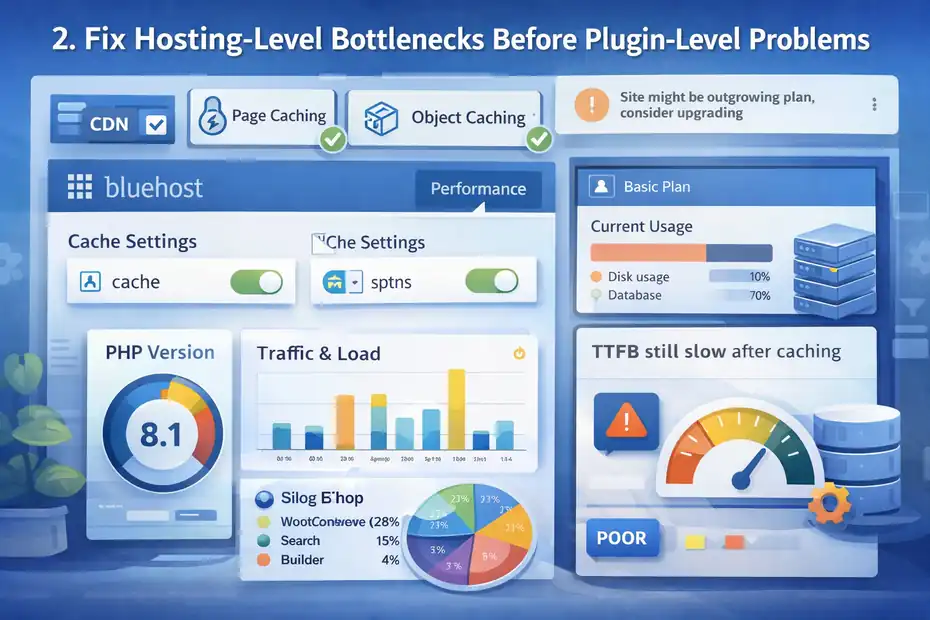
This is where many WordPress speed guides get backward. They start with plugins, but your hosting environment decides how efficiently WordPress can even run in the first place.
Use Bluehost’s Native Performance Features First
Bluehost provides built-in caching and performance controls for WordPress, including portal-based cache management and, on relevant plans, page caching, object caching, and CDN-related tools. Their help docs make it clear that caching is already handled at the platform level in many setups.
That matters because stacking a full cache plugin on top of existing host-level caching can lead to conflicts like:
- Logged-in users seeing stale content
- Styling updates not appearing
- Broken cart or checkout behavior
- Confusing test results after purges
My advice is simple: Start with what Bluehost already provides. Go into your portal, review the Performance tab, verify whether caching and CDN options are active, and clear cache after major site changes. Do that before installing extra optimization plugins.
A lot of WordPress site owners assume “more optimization tools = faster site.” That is not always true. Sometimes more tools just means more duplicated jobs. If Bluehost is already handling server or edge caching, you may only need a lightweight front-end optimization layer, not another full caching engine.
A realistic scenario: A brochure site on Bluehost with 20 pages, modest traffic, and no advanced membership logic often performs better with native hosting cache plus image optimization than with three separate speed plugins fighting each other.
Check PHP, Database Load, And Site Plan Fit
Not every performance issue is a “site issue.” Sometimes the account has simply outgrown the hosting tier or is running a less efficient environment.
WordPress recommends modern PHP environments because outdated versions waste resources and hurt response times. The WordPress developer documentation also points out that persistent object caching reduces repeated database trips, which can improve TTFB and help during traffic spikes.
Here is what I would review first:
- PHP version: A modern version usually delivers better execution speed.
- Traffic pattern: Spikes can expose limits faster than steady traffic.
- Database-heavy features: Search, filters, page builders, and WooCommerce add load.
- Hosting tier fit: A basic site and a busy store should not be treated the same.
I believe this is one of the biggest hidden performance wins. If your site is doing more than your current plan comfortably supports, you can optimize for weeks and still feel stuck. That does not mean Bluehost is the issue. It may simply mean your site now needs more room.
A good rule: If TTFB stays poor after caching, plugin cleanup, and image optimization, review plan fit and dynamic load next. It is often the answer people do not want, but it is better than endlessly squeezing a crowded environment.
Simplify Your Theme And Page Builder Stack
After hosting-level basics, the biggest speed gains usually come from reducing what WordPress has to render on every page.
Cut Layout Bloat At The Theme Level
Your theme is not just a design choice. It is a performance decision.
A visually impressive theme can quietly ship extra CSS, JavaScript, icon libraries, sliders, animation packages, and template logic you never actually use. The result is a homepage that looks polished but loads like a moving truck.
I suggest reviewing your theme with one brutal question: does this feature help the visitor, or just decorate the page?
Common theme-level speed drains include:
- Full-screen sliders above the fold
- Multiple font families and font weights
- Animation on scroll everywhere
- Fancy counters, carousels, and tabs
- Massive demo content leftovers
Here is a mini scenario. Say you run a local service business. Your ideal customer wants three things fast: what you do, where you serve, and how to contact you. They do not need six homepage animations and a parallax hero. When you strip those out, the site often feels faster even before the test tools confirm it.
In my experience, lean themes outperform “everything included” themes over time because they give you less to fight later. That is a big part of a solid bluehost wordpress performance optimization strategy: do not optimize around bloat if you can remove the bloat itself.
Reduce Page Builder Dependency Where It Hurts Most
Page builders are useful. I am not anti-builder. But I am very pro-using them carefully.
The real issue is not that page builders exist. It is that many sites use them for every page, every section, and every tiny visual change. That creates layers of containers, columns, inline styles, and scripts that add up fast.
I recommend checking your highest-traffic pages first. Ask:
- Does this page need builder-heavy layout effects?
- Could the same result be achieved with simpler blocks?
- Are there hidden sections or templates loading extra assets?
You do not have to rebuild the entire site. That is a common mistake. Start with the pages that matter most for traffic and conversions. Rebuild those with cleaner sections, fewer widgets, and less decorative fluff.
A realistic improvement path looks like this:
- Simplify the homepage hero.
- Remove slider modules.
- Replace accordion-heavy layouts with cleaner sections.
- Reduce third-party embeds.
- Retest performance after each change.
That approach is more realistic than “switch themes tomorrow.” In most cases, targeted builder cleanup gets meaningful gains without turning your website into a redesign project.
Get Caching Right Without Creating Conflicts
Caching is one of the fastest ways to improve WordPress performance, but it only works well when the layers are clear and intentional.
WordPress’s own developer handbook describes caching as one of the quickest ways to improve performance, and it specifically highlights persistent object caching for reducing database load.
Separate Page Cache, Object Cache, And Browser Cache
A lot of site owners talk about “cache” like it is one thing. It is not. That confusion causes bad setups.
Here is the simple version:
- Page cache: Stores ready-made versions of pages so WordPress does not rebuild them on every visit.
- Object cache: Stores repeated query results and objects to reduce database work.
- Browser cache: Helps returning visitors reuse previously downloaded files.
- CDN cache: Serves static files from locations closer to the visitor.
Bluehost’s current documentation references automatic caching, page caching, object caching using Redis, and portal controls to manage or clear cache.
That means your job is not usually to “add all caches.” Your job is to understand which layer is already active, then fill in the missing gaps carefully.
I have seen sites where a host-level cache, plugin-level cache, and CDN cache were all active without a plan. The result was stale pages, broken updates, and confusing performance swings. A cleaner setup almost always wins.
The practical approach is to map the layers first, then simplify. If Bluehost is handling page and object caching, you may only need browser-level tuning and front-end cleanup rather than another heavy cache plugin.
Exclude Dynamic Areas And Purge Intelligently
Caching should speed up stable content, not interfere with dynamic content.
That is especially important if your WordPress site includes:
- WooCommerce carts and checkout
- Member dashboards
- Logged-in experiences
- Search results
- Personalized pricing or content
These areas often need exclusions because they change by user or session. Cache them too aggressively and you risk real business problems, not just technical annoyances.
I recommend building a simple purge routine:
- Clear cache after design or CSS changes.
- Purge specific pages after major content updates.
- Recheck dynamic pages after every cache-related change.
- Test as both a logged-out and logged-in user when relevant.
This might sound obvious, but many site owners optimize only the public homepage and forget the pages that actually make money.
A good example is an online store that loads quickly on category pages but breaks on cart updates because caching rules are too broad. That is not optimization. That is accidental sabotage.
I believe the best caching strategy is boring on purpose: fewer layers, clear exclusions, reliable purges, and predictable outcomes.
Shrink Page Weight With Smarter Media Handling
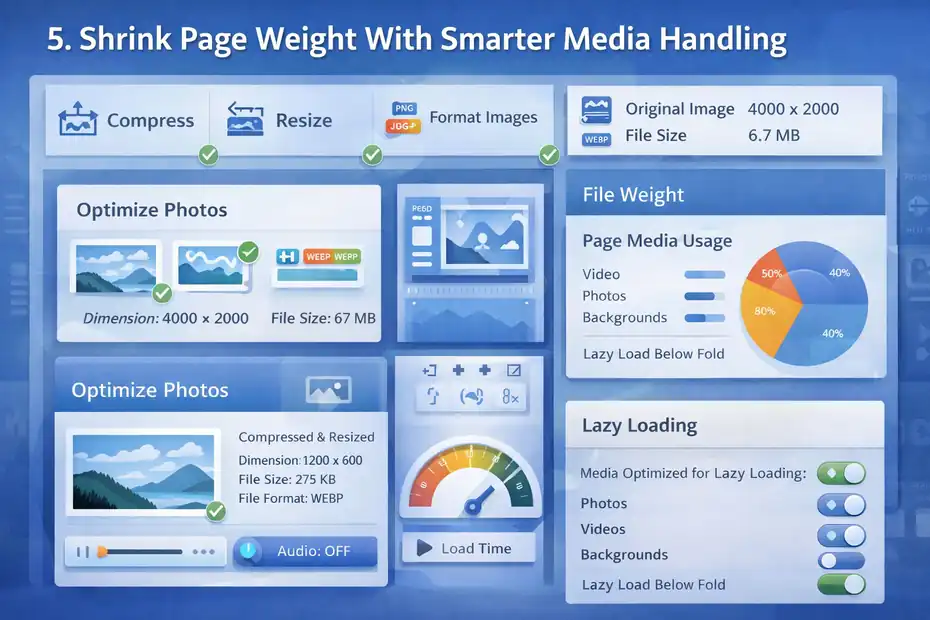
If your Bluehost site feels slow, there is a very good chance images are doing more damage than your hosting account.
Media is often the easiest major win because the gains are immediate and visible.
Compress, Resize, And Format Images For Real Screen Use
The most common image mistake is uploading files at their original size. A 4000-pixel photo from a phone does not belong in a blog thumbnail or a 1200-pixel content area.
I suggest creating a simple media rule for yourself or your team:
- Resize before upload whenever possible
- Compress every image
- Use modern formats when supported
- Avoid decorative images with no real purpose
A practical example: if your featured images display at 1200 x 675, there is no reason to upload them at 3200 pixels wide. That just forces the browser to download extra bytes for no user benefit.
This one change alone can reduce page weight dramatically. I have seen pages drop from over 5 MB to under 2 MB mostly through better image handling. That kind of gain often improves both load speed and user experience more than flashy technical tweaks.
The key is consistency. One optimized hero image helps. A full media workflow helps much more.
Control Video, Background Media, And Lazy Loading
Video backgrounds look impressive in demos and often disappoint in production.
If your above-the-fold section loads a background video, multiple large images, and layered effects, the page may look “premium” while quietly delaying the actual content people came to see.
I recommend treating media this way:
- Use static hero images unless video is genuinely central to the message
- Embed videos only where they support conversion or education
- Lazy-load below-the-fold media
- Replace auto-playing elements where possible
Imagine you run a coaching site. A simple headline, portrait, and clear booking button will usually outperform a cinematic homepage intro that delays the content and distracts the visitor. Faster pages often feel more trustworthy because the path is clearer.
This is where performance and conversion overlap. The fastest site is not the one with the least content. It is the one where every asset earns its place.
That is why media optimization belongs near the center of any bluehost wordpress performance optimization strategy. It is not just a technical fix. It is a clarity fix too.
Eliminate Plugin Drag And Script Waste
Plugins are one of WordPress’s strengths, but they are also where performance quietly dies. The problem is rarely “too many plugins” in a simple numbers sense.
The real problem is too many heavy, overlapping, or badly scoped plugins.
Audit Every Plugin By Function, Not Just By Count
A site with 30 lightweight, well-maintained plugins can outperform a site with 10 bloated ones. So instead of counting plugins, group them by job.
I like to sort plugins into categories:
- Core functionality
- Design and builder add-ons
- Marketing and tracking
- Forms and lead capture
- Performance and optimization
- Security and backups
- E-commerce extensions
Then ask one hard question for each: Does this plugin do something essential that cannot be handled better elsewhere?
This is where overlap becomes obvious. Maybe you have one plugin for popups, another for countdown timers, another for forms, and another for analytics injections. Suddenly one landing page is loading five extra scripts just to collect a lead.
I recommend removing or replacing plugins that duplicate features, load assets sitewide unnecessarily, or have not been updated responsibly.
A realistic case: A content site cut 900 milliseconds from average load time by removing unused builder add-ons, replacing a bulky social sharing plugin, and disabling a sitewide script loader tied to an old popup tool. That is not glamorous work, but it is powerful.
Load Scripts Only Where They Are Needed
This is one of the most overlooked speed wins in WordPress.
Many plugins load their CSS and JavaScript on every page, even when the feature is only used on one page. A contact form plugin should not necessarily load on every blog post. A booking widget should not burden your About page. A WooCommerce asset bundle should not slow down a standard article unless the page needs it.
This is where thoughtful asset control matters. You can often reduce front-end waste by:
- Limiting plugin features to the pages that use them
- Turning off unnecessary modules
- Removing old pixel and tracking scripts
- Auditing third-party embeds and chat widgets
I believe third-party scripts deserve special suspicion. Live chat, heatmaps, ad pixels, social feeds, and “all-in-one marketing” loaders can quietly become your biggest performance cost.
When I review a slow site, I often find that the issue is not WordPress itself. It is the pile of marketing extras attached to it.
Be especially careful with anything that loads from outside your domain. Those scripts add dependency risk, and you cannot fully control how fast they respond.
Improve Database Efficiency And Backend Cleanliness
Once the front end is lighter, the next performance win is reducing unnecessary work in the database and admin environment.
This matters more as your site grows and publishes more content, revisions, products, and user data.
Clean Up Revisions, Transients, And Expired Data
WordPress stores a lot of useful data, but it also accumulates digital clutter over time.
That clutter often includes:
- Old post revisions
- Expired transients
- Spam comments
- Trash items
- Orphaned metadata
- Leftover tables from removed plugins
One or two of these will not ruin performance. Years of buildup can.
This matters because WordPress still has to interact with that environment. Admin screens can feel sluggish, backups get heavier, and queries become less efficient. The front-end effect may be subtle at first, but it grows over time, especially on active or content-heavy sites.
I suggest creating a lightweight maintenance rhythm. Monthly is enough for many sites. More active stores or membership sites may need a tighter review cycle.
A mini scenario: A site that has been live for four years, changed themes twice, and tested many plugins usually carries leftovers. Cleaning those up may not magically cut two seconds from load time, but it can improve backend responsiveness, reduce odd slowdowns, and make future optimization easier.
Think of it like cleaning a workshop before a serious project. The cleanup itself is not the masterpiece, but everything works better afterward.
Reduce Query Strain On Dynamic Pages
Some pages are naturally more demanding than others.
Search results, archive pages, filtered category pages, related-post widgets, popular-post widgets, and ecommerce pages often trigger more database work than a standard static page. That is where you should pay close attention to query strain.
WordPress’s developer guidance points out that persistent object caching helps reduce repeated trips to the database, which is especially useful when the same data gets requested often.
To reduce pressure on dynamic pages, I recommend:
- Limiting how many posts or products load at once
- Simplifying sidebar widgets
- Reducing unnecessary related-content modules
- Being careful with advanced filters and faceted navigation
- Testing search and archive templates separately from the homepage
This is especially important on Bluehost shared or mid-tier environments, where efficient use of resources matters more.
A common mistake is optimizing only the homepage while category pages, tag archives, or store collections remain slow and query-heavy. Visitors do not care which page was optimized. They care whether the page they landed on feels fast.
If your site depends on dynamic templates, a strong strategy balances aesthetics with query discipline. That is how you keep growth from turning into slowdown.
Optimize For Core Web Vitals And Real User Experience
Page speed is not just about “loading faster.” It is about making the page feel ready quickly, stay stable visually, and respond when someone interacts.
That is why Core Web Vitals matter: they align technical performance with human experience.
Improve What Users Feel Above The Fold
The first screen matters most.
If your heading, hero image, navigation, and first call to action appear quickly and stay stable, the page feels fast even before the entire page finishes loading. That is where I tell people to focus first.
The biggest above-the-fold improvements usually come from:
- Smaller hero media
- Cleaner header layouts
- Fewer blocking scripts
- Faster font delivery
- Removing sliders and delayed intro effects
I suggest prioritizing readability and action over theatrics. Visitors want orientation. They want to know they are in the right place. Every extra animation or asset in that first screen competes with that goal.
A practical example: Replacing a rotating slider with one static hero, one strong headline, and one button can improve both LCP and conversions. That is not theoretical. It is one of the most common real-world wins I see.
Performance work pays best when it also improves clarity. That is why “speed optimization” and “conversion optimization” should not live in separate boxes.
Prevent Layout Shifts And Interaction Delays
Few things make a site feel cheap faster than layout shifts. You go to tap a button, the page jumps, and suddenly you hit the wrong thing. That is exactly the kind of frustration modern performance standards try to reduce.
Common causes include:
- Images without reserved dimensions
- Late-loading banners or popups
- Web fonts swapping awkwardly
- Dynamic widgets inserted above content
- Heavy JavaScript delaying page interaction
I recommend reviewing the templates where layout instability happens most. Blog posts with ad placements, homepage banners, and mobile navigation are frequent trouble spots.
On the interaction side, too much JavaScript often causes delay. A page may look loaded, but it does not respond smoothly because scripts are still executing in the background.
This is where restraint helps. Many of us add features thinking they are “small.” But ten small features can create one big delay.
If your site feels slow even after load time improves, that usually points to interaction friction rather than raw server speed. Fixing that is a major part of making WordPress feel premium.
Scale Performance With An Ongoing Optimization System
The last speed win is the one that keeps the others from fading. Performance is not a one-time project.
It is a maintenance discipline. Sites get slower gradually, usually because content, scripts, plugins, and design decisions accumulate over time.
Create A Repeatable Monthly Speed Review
You do not need an enterprise workflow. You need a simple habit.
Here is the system I recommend:
- Test your top pages once a month.
- Review newly added plugins and scripts.
- Compress new media before it spreads across the site.
- Clear and verify cache after major site changes.
- Check dynamic pages like forms, cart, or member areas.
- Record changes so you know what caused wins or regressions.
This process matters because performance slips quietly. A new tracking script, a plugin update, three oversized blog images, and a homepage section redesign can slowly undo months of good work.
In my experience, the best-performing WordPress sites are not always the most technically advanced. They are the most disciplined. Someone is paying attention. Someone is saying no to unnecessary features. Someone is checking whether new additions actually help.
That mindset is what turns a speed tweak into a strategy.
Know When To Upgrade, Rebuild, Or Simplify
Sometimes optimization reaches a point of diminishing returns. That is normal.
If you have already cleaned media, simplified the theme, reduced plugins, fixed caching, and improved dynamic behavior, but the site still struggles during growth, then the next step may be structural rather than tactical.
That could mean:
- Upgrading hosting resources
- Rebuilding key templates with cleaner architecture
- Splitting complex functions across better systems
- Removing features that do not justify their cost
Bluehost’s own recent WordPress performance content emphasizes built-in caching, CDN support, and scalability-focused hosting options for sites that need more breathing room.
I believe this is an important truth to accept: not every slow site needs more optimization. Some slow sites need fewer features. Some need a better plan. Some need a hosting tier that matches current demand.
That is not failure. That is maturity.
A good bluehost wordpress performance optimization strategy is not about endlessly squeezing milliseconds from a messy stack. It is about building a WordPress setup that stays fast as your site grows, converts, and evolves.
Final Thoughts
If you take one thing from this guide, let it be this: speed improves fastest when you work in the right order. Start with measurement.
Fix hosting-level issues. Simplify the theme and builder stack. Clean up caching. Shrink media.
Remove plugin drag. Tidy the database. Improve Core Web Vitals. Then protect those gains with a repeatable review process.
That is how I would approach it if this were my own site on Bluehost. Not with panic. Not with twenty random plugins. Just a calm, practical system focused on the changes that move the needle.
FAQ
What is a bluehost wordpress performance optimization strategy?
A bluehost wordpress performance optimization strategy is a structured approach to improving site speed by fixing hosting settings, caching, themes, plugins, and media. It focuses on reducing load time, improving user experience, and boosting SEO rankings through practical, step-by-step improvements rather than random speed tweaks.
Why is my wordpress site slow on Bluehost?
Your WordPress site on Bluehost may be slow due to large images, too many plugins, heavy themes, or caching conflicts. In many cases, the issue is not hosting alone but how the site is built and optimized. Fixing page weight and scripts usually delivers faster results.
Does Bluehost have built-in caching for WordPress?
Yes, Bluehost includes built-in caching features such as page caching and server-level optimizations. These tools help reduce load times without needing extra plugins. However, adding multiple caching plugins can create conflicts, so it’s best to understand existing settings before adding new tools.
How can I speed up my WordPress site on Bluehost quickly?
You can speed up your site quickly by compressing images, removing unnecessary plugins, simplifying your theme, and using Bluehost’s built-in caching. These changes often reduce load time significantly without requiring advanced technical knowledge or major site redesign.
Do plugins slow down WordPress performance on Bluehost?
Plugins can slow down WordPress performance if they are heavy, outdated, or load unnecessary scripts across all pages. The issue is usually plugin quality and usage, not quantity alone. Removing redundant plugins and limiting script loading can improve speed noticeably.

I’m Juxhin, the voice behind The Justifiable.
I’ve spent 6+ years building blogs, managing affiliate campaigns, and testing the messy world of online business. Here, I cut the fluff and share the strategies that actually move the needle — so you can build income that’s sustainable, not speculative.
Related posts:
 InMotion WordPress Hosting: Fast, Secure, Reliable
 Bluehost Hosting: Features, Pricing, & Perks
 Cloudways WordPress Pros & Cons: What You Need to Know
 How WP Engine Data Centers Improve Your Site Load Time
 WPengine Startup Plan Review for New WordPress Sites
 WP Engine Vs Kinsta Comparison: Which Wins Speed?