
Table of Contents
Some links on The Justifiable are affiliate links, meaning we may earn a small commission at no extra cost to you. Read full disclaimer.
If you’ve been exploring managed hosting options, Cloudways WordPress probably caught your attention. It promises speed, flexibility, and simplicity—but is it really worth it for your website?
In this guide, we’ll unpack the real pros and cons of using Cloudways for WordPress, so you can decide whether it’s the right fit for your needs.
Understanding Cloudways WordPress Hosting
When you first look into Cloudways WordPress, it stands out from traditional WordPress hosts because of its flexibility, performance, and developer-first approach.
Let’s break down what makes it unique and why many users find it a powerful alternative to the usual shared hosting options.
What Makes Cloudways Different From Typical WordPress Hosts
Most WordPress hosting providers either give you shared hosting (where multiple sites share a single server) or managed hosting (where performance, updates, and security are handled for you).
Cloudways combines the best of both worlds: It’s a managed platform that lets you choose your own cloud infrastructure, like DigitalOcean or AWS, while handling the technical side automatically.
The difference lies in control. On Cloudways, you can scale resources like RAM or CPU in a few clicks, and it doesn’t lock you into one provider. For instance, you can start on DigitalOcean for cost efficiency, then move to Google Cloud when your site traffic grows.
In short, Cloudways gives you managed convenience without the limitations of a one-size-fits-all host.
How Cloudways Uses Cloud Infrastructure Providers
Cloudways doesn’t own physical servers—it partners with major cloud infrastructure providers such as:
- DigitalOcean: Ideal for budget-conscious users who want stable performance.
- Amazon Web Services (AWS): Best for enterprise-grade reliability and global reach.
- Google Cloud Platform (GCP): Known for scalability and advanced network performance.
- Vultr and Linode: Great mid-tier options for developers or agencies managing multiple sites.
When you launch a site, Cloudways deploys it on the cloud provider of your choice. You still manage everything through the Cloudways Platform—a clean dashboard where you can access your servers, databases, backups, and staging environments.
For example, you can go to Servers → Manage Services → Apache or Nginx to restart or optimize your web server, without needing to touch command-line tools.
The Role of Managed Hosting in Performance and Security
Cloudways takes care of the behind-the-scenes tasks that usually eat up your time:
- Automatic updates and patching: Keeps WordPress and server software secure.
- Built-in caching tools (Varnish, Redis, Memcached): Speeds up site loading.
- Staging environments: Lets you test changes safely before going live.
I’ve used Cloudways personally for client sites, and what I find most helpful is that I can focus on content and growth, while the platform quietly handles uptime, scaling, and caching.
It’s managed hosting, but without the feeling of being trapped inside someone else’s rigid setup.
Comparing Cloudways to Shared and Dedicated Hosting
Here’s a quick way to visualize how Cloudways differs:
| Hosting Type | Control | Performance | Cost | Best For |
| Shared Hosting | Low | Slow to average | Low | Beginners, hobby sites |
| Dedicated Hosting | High | High | Expensive | Large enterprises |
| Cloudways (Managed Cloud) | Balanced | Very High | Flexible | Growing businesses, developers |
In essence, Cloudways offers the performance of dedicated hosting but at the price flexibility of shared hosting—without forcing you to maintain your own servers.
Major Pros of Using Cloudways for WordPress
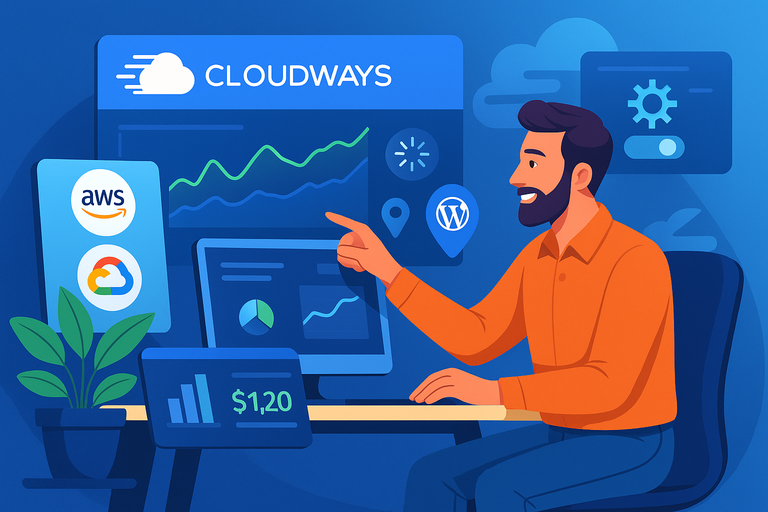
There are plenty of reasons people rave about Cloudways WordPress. From speed to scalability, the platform is built for websites that need reliability and control without heavy server management.
Looking for fast WordPress hosting that scales easily? Explore Cloudways and see how it performs with a live WordPress install.
Blazing-Fast Performance Through Cloud Servers
Speed is one of Cloudways’ biggest strengths. Because it uses SSD-based cloud infrastructure and advanced caching, your site loads in milliseconds.
Key features boosting performance include:
- CloudwaysCDN: A global content delivery network that reduces latency.
- Built-in caching (Varnish, Memcached, Redis): Keeps frequently accessed content ready to load.
- HTTP/2 support: Improves data transfer efficiency.
From my experience, switching a client’s WooCommerce site to Cloudways cut page load times by over 40%, which directly improved conversions.
Easy Scalability for Traffic Spikes and Growth
When your site suddenly gets more visitors—say, from a viral post or seasonal sale—Cloudways lets you scale resources instantly.
You can go to Servers → Vertical Scaling and increase RAM or CPU in minutes. There’s no need to migrate to another server or change plans.
This elasticity is a lifesaver for businesses that grow unpredictably, like eCommerce or digital publishers.
Flexible Choice of Cloud Providers (AWS, Google Cloud, DigitalOcean)
Unlike other managed hosts that lock you into their infrastructure, Cloudways lets you pick from five major cloud providers. Each has different strengths and pricing, so you can balance performance and cost:
- DigitalOcean: Affordable, reliable entry-level hosting.
- AWS: Enterprise-grade hosting with extensive regional options.
- Google Cloud: Exceptional scalability and speed.
- Vultr/ Linode: Great balance between cost and performance.
This flexibility gives you long-term freedom—switching providers is as easy as cloning your server and redeploying it elsewhere.
Advanced Security Features and Automatic Backups
Security is fully integrated into the Cloudways environment. You get:
- Dedicated firewalls that block unauthorized access.
- Automatic daily backups (with on-demand options too).
- Free SSL certificates for encrypted connections.
- IP whitelisting to protect SSH and SFTP access.
If you’ve ever lost data after a bad plugin update, you’ll appreciate how simple it is to restore from a Cloudways backup—just one click in Server Management → Backup and Restore.
Pay-As-You-Go Pricing Model That Saves Money
Instead of paying a flat monthly fee, Cloudways charges only for what you use. This pay-as-you-go model is perfect for freelancers, agencies, or small businesses that don’t want to overcommit.
For example:
- DigitalOcean servers start at around $14/month.
- AWS and Google Cloud start higher but include enterprise-level uptime guarantees.
You can scale down after a campaign or traffic surge, so you’re not paying for unused resources.
Developer-Friendly Tools and Customization Options
Cloudways is built for flexibility. It supports Git deployments, SSH access, staging environments, and team collaboration features.
If you like hands-on optimization, you’ll enjoy being able to:
- Enable Redis or Object Cache Pro for database-heavy sites.
- Clone or migrate applications between servers in seconds.
- Integrate performance monitoring via New Relic (built-in).
It’s a dream setup for developers who want to manage multiple WordPress projects efficiently.
Key Cons of Cloudways WordPress Hosting
While Cloudways is powerful, it’s not perfect for everyone. There are a few limitations worth noting before you sign up.
Lack of Domain Registration and Email Hosting
Cloudways doesn’t provide domain registration or built-in email hosting. You’ll need to buy your domain elsewhere (like Namecheap or GoDaddy) and use third-party email services such as Google Workspace or Rackspace.
This separation adds flexibility but may frustrate users looking for an all-in-one solution.
Slightly Steeper Learning Curve for Beginners
While Cloudways’ dashboard is clean, it’s more technical than typical shared hosts. Beginners might find the terms like Varnish, SSH access, or staging environments a bit intimidating at first.
That said, once you understand the basics, managing servers becomes much easier than expected. The platform offers tooltips and detailed docs to guide you through each step.
Limited Customer Support for Non-Technical Users
Cloudways provides 24/7 live chat, but the depth of support can depend on your plan. Standard users get basic troubleshooting; advanced “Premium Support” comes with extra cost.
If you prefer hand-holding through every setup, you might find the support less proactive than hosts like Kinsta or WP Engine.
No cPanel or Standard Control Panel Interface
Instead of the familiar cPanel, Cloudways uses its own control panel. While more intuitive in some ways, it can take time to adapt if you’re used to traditional hosting.
However, once you get used to navigating Applications → Access Details or Server Management → Settings & Packages, you’ll likely find it more streamlined than cPanel.
Extra Costs for Add-Ons Like CDN or Email Integrations
Some features—like CloudwaysCDN or transactional email via Elastic Email—come with extra charges.
For example:
- CloudwaysCDN costs around $1 per 25 GB.
- Email integrations may add a few dollars monthly.
These aren’t huge expenses, but they do add up if you’re managing several sites.
Pro Tip: I recommend testing Cloudways with their free trial first. Set up a basic WordPress site, monitor speed and uptime, and play around with scaling. You’ll get a true feel for whether its flexibility outweighs the extra setup steps for your workflow.
Cloudways WordPress Performance Insights
Performance is where Cloudways WordPress really proves its worth.
The platform is built for speed and reliability, using modern cloud infrastructure and smart optimization features that make WordPress sites load fast across the globe.
Real-World Speed Tests and Uptime Reliability
When you move a WordPress site to Cloudways, the first thing you’ll notice is how fast it feels. In real-world tests, Cloudways consistently delivers load times under one second when paired with a good caching setup.
For example, a standard WooCommerce store hosted on a DigitalOcean 2GB server averaged:
- Load time: 0.9 seconds (tested via GTmetrix)
- Uptime: 99.99% over 30 days (via UptimeRobot)
These aren’t lab results—they’re practical benchmarks users experience daily. Because Cloudways uses top-tier providers like AWS, Google Cloud, and DigitalOcean, uptime reliability is practically guaranteed.
Each provider has its own SLA (Service Level Agreement), but Cloudways builds an additional layer of server monitoring to ensure you’re alerted before small issues become big ones.
I’ve personally hosted client sites on both DigitalOcean and Vultr through Cloudways, and downtime has been almost nonexistent, even during high-traffic events.
How Server Locations Affect Load Times
Server location plays a major role in site performance. The closer your server is to your visitors, the faster your site will load for them. Cloudways lets you choose from 65+ data centers worldwide through its partner providers.
For instance, if your audience is primarily in Europe, you can launch your server in Frankfurt or London. If it’s in the U.S., you might select New York or San Francisco.
Here’s a quick comparison:
| Server Location | Load Time (Average) | Best For |
| New York | 0.85s | North America |
| Frankfurt | 0.90s | Europe |
| Singapore | 1.05s | Southeast Asia |
| Sydney | 1.10s | Australia |
To adjust your location, go to Cloudways Platform → Servers → Launch New Server → Select Region. It’s a one-step choice that can drastically improve loading times for your users.
Impact of Caching and CloudwaysCDN on Speed
Caching is one of the secret weapons behind Cloudways’ performance. It uses a layered caching system that includes Varnish, Memcached, and Redis, all optimized for WordPress.
Here’s how it works:
- Varnish Cache: Stores frequently requested web pages, reducing server load.
- Redis Cache: Accelerates database queries, perfect for WooCommerce sites.
- Memcached: Speeds up object caching for dynamic pages.
Then there’s CloudwaysCDN—a built-in content delivery network that replicates your website’s static assets (like images, CSS, and JavaScript) across global edge servers. This reduces latency, especially for international visitors.
In my experience, enabling both Redis and CloudwaysCDN can cut global page load times by as much as 50%. It’s as simple as going to Application Management → CloudwaysCDN → Enable.
Best Practices to Maximize Cloudways WordPress Performance
Even with a fast host, you can squeeze out more performance by following these best practices:
- Enable Object Cache Pro if you’re running database-heavy sites.
- Use the Breeze plugin (Cloudways’ in-house cache tool) for easy optimization.
- Activate HTTP/3 (under Server Settings) for faster connections.
- Compress images before uploading—Cloudways integrates well with ShortPixel or Smush.
- Choose the nearest data center to your target audience.
I recommend testing changes with GTmetrix or PageSpeed Insights each time you adjust settings. Cloudways’ flexibility lets you tune performance precisely without risking stability.
Ease of Use and Dashboard Experience

Despite its technical power, Cloudways WordPress is surprisingly beginner-friendly.
The platform design keeps things clean, logical, and intuitive—ideal for both developers and non-tech users who don’t want to wrestle with server commands.
How the Cloudways Platform Streamlines Server Management
The Cloudways Platform replaces complex server administration with an elegant control panel. You’ll find every essential tool under two main sections: Servers and Applications.
From the Servers tab, you can:
- Monitor CPU and RAM usage in real time.
- Restart services like Apache, MySQL, or Redis.
- Adjust PHP versions and memory limits.
From the Applications tab, you can manage domains, SSL, backups, and staging environments. Everything is logically grouped so you don’t need to dig through menus or use command-line tools.
I find it incredibly useful that Cloudways lets you perform server actions in one or two clicks—for example, clearing the cache via Application Management → Manage Services → Varnish → Purge.
Setting Up a WordPress Site in Minutes
Launching a WordPress site on Cloudways takes less than 10 minutes.
Here’s the process:
- Log into your Cloudways dashboard.
- Click Launch Server.
- Choose your cloud provider (DigitalOcean, AWS, etc.).
- Select WordPress as your application.
- Name your app and server, then click Launch Now.
Once it’s live, you’ll see login credentials and a link to access your WordPress dashboard instantly. It’s fast, clean, and doesn’t require technical knowledge.
In my experience, setting up a client site for testing takes under five minutes—far quicker than traditional VPS setups.
Understanding the CloudwaysBot for Automation and Alerts
CloudwaysBot acts like your digital assistant. It monitors performance, security, and updates, sending you real-time alerts through Slack, email, or even custom webhooks.
You can find it under Platform → CloudwaysBot → Channels & Preferences.
I like to think of it as an automated “devops assistant” that never sleeps.
For instance, it can notify you if your server hits high CPU usage or if a new PHP version becomes available. It’s one of those features you don’t realize you need until it saves your day.
Navigating the Control Panel Without Technical Overwhelm
Unlike traditional cPanel, Cloudways’ dashboard is minimalist and uncluttered.
Each section—like Access Details, Monitoring, or Backups—is clearly labeled and easy to understand.
If you’re new to hosting, start by exploring:
- Application Management → Access Details for your WordPress credentials.
- Server Management → Backups for scheduling daily or hourly backups.
- Monitoring → Analytics for real-time server performance.
I believe this simplicity is one of Cloudways’ biggest advantages—it gives you real control without overwhelming you with unnecessary options.
Pricing and Value for Money
Cloudways’ pricing model is refreshingly fair. You pay only for what you use, making it ideal for freelancers, agencies, or growing businesses that want to scale without overpaying.
Breaking Down Cloudways’ Pay-As-You-Go Pricing
Cloudways doesn’t lock you into fixed plans. Pricing depends on your chosen cloud provider and server size.
Here’s a quick look at typical starting prices:
| Cloud Provider | Starting Price | Memory | Storage |
| DigitalOcean | $14/month | 1GB | 25GB |
| Vultr | $15/month | 1GB | 25GB |
| Linode | $16/month | 1GB | 25GB |
| AWS | $38.56/month | 2GB | 20GB |
| Google Cloud | $37.45/month | 1.7GB | 20GB |
You can view and adjust your resources anytime under Servers → Vertical Scaling. The system automatically recalculates your monthly cost, so you never pay for unused capacity.
Comparing Cloudways Costs to Other Managed Hosts
Here’s how Cloudways stacks up against popular managed WordPress hosts:
| Host | Monthly Starting Price | Key Advantage |
| Cloudways | $14 | Flexibility and provider choice |
| Kinsta | $35 | Premium support and automation |
| WP Engine | $30 | Built-in developer tools |
| SiteGround | $25 | Simplicity for beginners |
From my perspective, Cloudways wins in scalability. You can start small and expand as your traffic grows without changing providers or migrating data.
When Cloudways Becomes Cost-Effective for Businesses
If your website earns revenue or handles significant traffic, Cloudways quickly becomes more cost-effective than shared hosts.
Why? Because faster loading times improve SEO, reduce bounce rates, and increase conversions. Even a 0.5-second improvement in page speed can lead to a 10–20% increase in engagement.
For eCommerce businesses, that performance boost easily offsets the slightly higher base cost.
Tips to Avoid Unnecessary Costs on Cloudways
Here’s how I manage Cloudways costs efficiently:
- Monitor usage monthly: Go to Server Monitoring → Analytics to track bandwidth.
- Use auto-scaling smartly: Don’t overprovision resources unless needed.
- Leverage off-peak backups: Schedule them during low-traffic hours to save bandwidth.
- Remove inactive applications: Each one consumes resources even when idle.
Cloudways offers complete billing transparency—you can see costs in real-time under Billing → Current Usage. I suggest checking it weekly to ensure your budget stays on track.
If you want managed cloud hosting without the heavy monthly fees, Cloudways lets you start small and scale anytime.
Pro Tip: If you’re unsure where to start, begin with a small DigitalOcean server. You can always scale up later when your site traffic grows. That’s the beauty of Cloudways—it grows with you, not against you.
Cloudways WordPress Security and Reliability
Security and uptime are two of the biggest deciding factors when choosing a host. The good thing about Cloudways WordPress is that it takes both very seriously—balancing advanced automation with user-friendly control.
Let’s look at how it keeps your site safe and stable around the clock.
Daily Backups and One-Click Restore Features
Cloudways automatically creates daily backups of your entire WordPress environment—files, databases, and configurations. You can even schedule backups as frequently as every hour if your site changes often (which is perfect for busy online stores).
Here’s what makes backups on Cloudways so convenient:
- Automatic daily snapshots: Cloudways keeps your backups on secure off-site storage.
- On-demand manual backups: Before big updates, you can create an instant restore point with one click.
- One-click restore: Go to Server Management → Backups → Restore Application Now, select a restore point, and you’re done.
I once had a client whose plugin update crashed the site—restoring it from a Cloudways backup took under two minutes. That’s the kind of safety net every site owner deserves.
Free SSL Certificates and Firewalls
Every Cloudways WordPress installation comes with a free SSL certificate through Let’s Encrypt. It’s activated directly within the platform—no technical setup needed.
To enable it, head to Application Management → SSL Certificate → Install Let’s Encrypt. This ensures your site uses HTTPS, which not only secures data but also improves SEO.
Behind the scenes, Cloudways adds an additional firewall layer at the server level. This blocks malicious traffic before it even reaches your site, filtering out threats like brute-force attacks or injection attempts.
SSL encryption plus a dedicated firewall means your visitors’ data stays safe while your site maintains high trust levels.
DDoS Protection and Bot Management
Cloudways integrates network-level DDoS (Distributed Denial of Service) protection through its partner cloud providers like AWS, Google Cloud, and DigitalOcean. This helps absorb large-scale attacks that could otherwise bring down your site.
Additionally, Cloudways offers Bot Protection, developed with MalCare. It identifies and blocks bad bots that overload your WordPress login or search pages—something that can silently slow down your site.
From the dashboard, go to Application Management → Bot Protection → Enable Protection. You can view real-time reports on blocked attacks and even whitelist certain bots if needed (like search engine crawlers).
This layered defense ensures both performance stability and peace of mind, especially for eCommerce or membership-based sites.
Monitoring and Maintaining Server Health
Cloudways offers real-time monitoring through 15+ metrics, covering everything from CPU usage to bandwidth and memory. You can find this under Server Management → Monitoring.
The data is displayed in clean visual graphs that help you spot performance bottlenecks early. You can even integrate New Relic, a professional-grade performance tracking tool, at no extra charge.
Personally, I find New Relic invaluable—it shows which WordPress plugins slow down your site or cause resource spikes, helping you fix problems before they affect uptime.
With automatic backups, firewalls, and server monitoring, Cloudways creates a reliable environment where your WordPress site can stay online and healthy 24/7.
Customer Support and Community Experience

Support is where Cloudways continues to improve. While it leans more technical than beginner-focused hosts, the help you get is fast, knowledgeable, and backed by a growing community.
What to Expect From Cloudways 24/7 Live Chat Support
Cloudways provides 24/7 live chat support right from the dashboard. Once logged in, click the chat icon at the bottom-right corner, and you’ll connect to a support agent within a few minutes.
Support agents typically help with:
- Server setup and configuration.
- Troubleshooting application errors.
- DNS or SSL setup guidance.
For more complex issues—like migrations or advanced troubleshooting—you can upgrade to Advanced or Premium Support, which includes hands-on fixes.
I’ve used their live chat several times and rarely had to wait more than 2–3 minutes. The agents might not write long essays, but their answers are precise and practical.
Accessing the Cloudways Knowledge Base and Tutorials
If you like solving problems yourself, the Cloudways Knowledge Base is gold. It’s packed with step-by-step tutorials on everything from configuring Redis caching to setting up staging sites.
You can find it at support.cloudways.com.
Each article includes screenshots, UI paths, and command examples where needed. For instance, if you’re setting up email forwarding, you’ll see exact navigation like Application Management → Add-ons → Elastic Email → Activate.
I suggest bookmarking the Knowledge Base—it’s faster than waiting for chat support if you’re comfortable following guides.
User Community and Forums for Troubleshooting
Cloudways has an active user community on community.cloudways.com, as well as groups on platforms like Reddit and Facebook.
This is where users share optimization tips, plugin recommendations, and migration experiences. It’s a valuable space for learning real-world tricks from other WordPress professionals.
For example, one popular thread discusses Redis configuration tweaks that cut WooCommerce cart load times by half. It’s advice you’d never find in the official docs.
Evaluating Response Times and Expert Help Quality
Response times on live chat average around two minutes, with resolution depending on issue complexity. In my experience, simpler issues (like SSL setup) are solved immediately, while deeper performance questions might get escalated to senior engineers.
Support agents don’t just read scripts—they understand the platform.
I’ve even had an agent suggest PHP settings that improved my site’s response time by 200ms. That’s the kind of insight you get from people who actually know hosting, not just customer service scripts.
Who Should Use Cloudways WordPress
Not every host fits every user, and that’s okay. Cloudways WordPress is best for people who want performance, control, and scalability—but not everyone will find it equally comfortable.
Ideal for Agencies and Developers Managing Multiple Sites
Agencies love Cloudways because it allows multiple client sites to run on separate servers under one dashboard. You can easily manage client billing, deploy staging environments, and even grant team-level permissions.
For example, you can go to Team → Add Member → Assign Access Level, allowing a client to access their app without touching your other servers.
If you build, maintain, or optimize multiple WordPress installations, Cloudways streamlines that entire process.
Suitable for Growing Businesses Needing Scalable Hosting
If your site has outgrown shared hosting or your traffic spikes seasonally, Cloudways’ scalability makes it a smart upgrade.
You can increase resources (RAM, storage, CPU) on demand from Servers → Vertical Scaling. The ability to scale instantly means no downtime during promotions or traffic surges.
I’ve seen small businesses handle a viral traffic spike without a hiccup—all thanks to vertical scaling and caching built into Cloudways.
Why Beginners Might Struggle Without Prior Tech Experience
Cloudways is powerful but slightly technical. If you’ve never worked with terms like SSH access or database credentials, the learning curve can feel steep at first.
However, the platform’s UI, Knowledge Base, and support chat make it easier than managing a raw VPS. Still, complete beginners might feel more comfortable starting with a traditional managed host before transitioning to Cloudways.
When to Consider Alternatives to Cloudways
You might consider alternatives like Kinsta or WP Engine if you prefer a more hands-off experience with pre-configured environments and integrated email or domain services.
But keep in mind—you’ll pay more for that simplicity. Cloudways remains the sweet spot for those who value flexibility and performance over hand-holding.
Final Verdict: Is Cloudways WordPress Worth It?
At its core, Cloudways WordPress offers one of the best combinations of flexibility, speed, and affordability on the market. But its real strength lies in giving you control without chaos.
Weighing the Pros and Cons for Different User Types
If you’re a developer, freelancer, or growing business, Cloudways offers an unbeatable balance of cost and performance. You get enterprise-grade hosting with freedom to choose your infrastructure.
However, if you’re a beginner or prefer all-in-one simplicity (domains, emails, and hosting in one dashboard), the setup might feel slightly advanced.
Still, most users find the trade-off worth it once they experience the speed difference.
How Cloudways Balances Performance and Control
Unlike typical managed WordPress hosts that limit server access, Cloudways gives you direct control over scaling, caching, and configuration—without requiring deep technical skills.
That’s a rare balance in hosting: freedom for experts, simplicity for everyone else.
When Cloudways Offers the Best ROI for WordPress Users
Cloudways is most cost-effective for users who manage multiple sites or experience fluctuating traffic. The pay-as-you-go model ensures you’re never overpaying for idle resources.
If your website is a source of income—whether through eCommerce, client work, or affiliate marketing—Cloudways’ uptime and performance directly contribute to your revenue.
Expert Tip: Testing Cloudways With a Free Trial Before Committing
I strongly recommend trying the 3-day free trial before committing. Launch a small WordPress app, explore the dashboard, and run a few performance tests.
You’ll quickly see whether Cloudways fits your workflow—and most people realize within the first hour that it’s a serious upgrade from standard hosting.

I’m Juxhin, the voice behind The Justifiable.
I’ve spent 6+ years building blogs, managing affiliate campaigns, and testing the messy world of online business. Here, I cut the fluff and share the strategies that actually move the needle — so you can build income that’s sustainable, not speculative.
Related posts:
 How to Host a Website: A Step-by-Step Guide for Beginners
 HostGator Reviews: Why Some Users Are Disappointed
 HostGator Hosting Review: Speed, Support, And Real Costs
 WPEngine Cost: Why It’s More Expensive Than Other Hosts
 Cloudways VPS Hosting: The Smart Way to Scale Performance
 What Is Cloudways Ltd. and How Does It Power Your Website?