
Table of Contents
Some links on The Justifiable are affiliate links, meaning we may earn a small commission at no extra cost to you. Read full disclaimer.
A mailbird desktop email app review really comes down to one question: will it make your daily email life easier, or just give you one more app to manage?
After looking at Mailbird’s current features, pricing, support docs, and user feedback, I think it can absolutely replace your current inbox for the right kind of user, especially if you juggle multiple accounts and want a cleaner desktop workflow.
But it is not a universal win, and that distinction matters if you do not want buyer’s remorse.
What Mailbird Is And Who It Is Really For
Mailbird is a desktop email client built around one core promise: bring multiple email accounts into one cleaner workspace so you spend less time hopping between browser tabs and inboxes.
That sounds simple, but in practice it matters a lot if you manage work, personal, freelance, and shared team addresses at the same time.
What Mailbird Actually Does
Mailbird is not an email provider like Gmail or Outlook.com. It is the software layer that sits on top of those accounts and helps you manage them from one desktop interface.
Right now, Mailbird positions itself as a desktop client for Windows and Mac, with support for Gmail, Outlook, Exchange, IMAP, and other common account types.
Its big selling points are unified inbox, app integrations, customization, templates, tracking, and multi-account management.
That distinction matters because many people compare Mailbird to Gmail directly when they are actually different categories. Gmail is where your mailbox lives. Mailbird is the app you use to read and manage that mailbox.
In other words, Mailbird can replace your current inbox interface, but not your actual email host unless you are also switching providers.
From what I’ve seen, Mailbird fits best if your main frustration is workflow friction. Imagine you check a personal Gmail, a Microsoft 365 work account, and a side-business inbox every day.
In a browser-first setup, you are constantly switching windows, re-orienting yourself, and losing momentum. Mailbird tries to remove that mental tax by combining everything into one environment.
Who Will Benefit Most
I believe Mailbird makes the most sense for four groups. First, solo professionals who manage multiple addresses. Second, freelancers who need separation between clients but still want one command center. Third, small business users who prefer desktop apps over browser-heavy workflows.
Fourth, people who are tired of Outlook feeling bloated but still want more structure than a plain web inbox. Those use cases line up closely with Mailbird’s own positioning and with recurring user feedback highlighting its clean interface and fast navigation.
Where it is less convincing is for users who want deep enterprise controls, heavily collaborative mailbox workflows, or advanced privacy and open-source flexibility. That is where alternatives like Outlook or Thunderbird may still make more sense depending on your priorities.
TechRadar still lists Thunderbird as a leading option for users who want a strong free and open-source email client, which tells you this space is still very workflow-dependent.
So the short answer is yes, Mailbird can replace your current inbox, but mainly if your problem is organization and speed, not enterprise-grade complexity.
How Mailbird Works In Day-To-Day Use

The real value of any email app is not the feature list. It is whether the app helps you process email faster with less friction. That is the lens I’d use for Mailbird too.
Unified Inbox Is The Core Experience
Mailbird’s Unified Inbox is the feature that carries the entire product. According to Mailbird’s support documentation, it pulls messages from inbox, drafts, sent, archive, and other folders from connected accounts into one unified view.
You can also control which accounts appear there, which is important because not everyone wants every mailbox mixed together all the time.
In practice, this solves a very specific pain point: context switching. Let’s say you receive 20 emails across three accounts before noon. In a browser setup, you probably open each mailbox separately, check what is urgent, and mentally reconstruct your priorities.
In a unified view, you simply scan one chronological stream and deal with the work. That does not sound revolutionary, but for many people it removes dozens of tiny interruptions every day.
I suggest paying attention to one thing here: unified inbox is helpful only if account labels and filters stay clear enough that you do not lose context. Mailbird says it keeps clear indicators showing which account received each message, and that is critical because a unified inbox without account clarity becomes messy fast.
The Interface Tries To Reduce Visual Noise
A lot of Mailbird’s appeal comes from how it presents information. G2’s review summary repeatedly highlights its clean interface and fast performance, and Microsoft’s app listing also emphasizes a simple, intuitive experience for Windows users.
That matches the product’s general pitch: less clutter, faster movement, fewer distractions.
That matters more than many reviews admit. Email is one of those tools you use in dozens of tiny sessions, not one long session. A slightly cleaner layout, faster account switching, and easier sidebar access can save more frustration than some flashy automation feature you only use once a month.
For many of us, the best email client is not the one with the longest feature matrix. It is the one that gets out of the way.
Mailbird also leans into workspace-style usage by integrating things like calendar and other apps in the sidebar. I would not treat that as the main reason to buy it, but it can be useful if you want email and adjacent tools visible in one place instead of spread across multiple tabs.
Setting Up Mailbird Step By Step
One reason Mailbird is attractive to mainstream users is that setup is supposed to be straightforward.
You do not need to be technical, although some edge cases still exist when auto-detection fails.
Step 1: Add Your Email Accounts
Mailbird supports common account types including IMAP and Exchange, and its support docs say it automatically tries to detect server settings when you connect an IMAP address. If that detection fails, you can enter server settings manually.
That is standard behavior for a desktop client, but it is still worth mentioning because smaller providers sometimes require manual setup.
For a typical user, the path looks like this: install the app, add your first email account, authorize login, then repeat for your second or third account. Mailbird’s support center also documents multiple-account management and custom identities, which is useful if you send from different aliases or roles.
A realistic example would be a consultant who has a company Microsoft account, a personal Gmail, and a branded domain inbox hosted elsewhere. Mailbird is designed to consolidate that setup without forcing you into one provider ecosystem.
That is a strong value proposition because many people are not fully inside Google or Microsoft anymore.
Step 2: Configure The Unified Workspace
Once your accounts are connected, the next step is deciding how much consolidation you actually want. Some people should turn on Unified Inbox immediately. Others should keep a partially unified setup where only certain accounts appear in the master stream.
Mailbird’s support docs confirm you can customize which accounts are included in Unified Inbox, and I think that flexibility is one of the smarter parts of the product.
Here is why this matters. If your work inbox gets 80 emails a day and your personal inbox gets 10, a full merge might bury important personal messages or create too much visual noise.
A selective unified setup often works better. You still reduce app switching, but you do not create one giant, stressful message river. That kind of configuration is where desktop clients quietly outperform browser-only habits.
You can also start shaping the broader workspace by adding sidebar tools and connected apps. Mailbird’s custom apps feature lets you add web apps inside the interface, which can be helpful if you want a lightweight “email plus productivity” dashboard.
I would keep this minimal at first. Too many side apps can recreate the clutter you were trying to escape.
Step 3: Import, Organize, And Test Your Workflow
If you are moving from another client, import becomes part of setup. Mailbird’s support docs say it can import messages for existing POP3 accounts and supports file types such as .pst, .eml, and .msf. That is useful if you have older local email archives and do not want to start from scratch.
After import, I recommend a practical workflow test rather than just admiring the interface. Spend one normal workday inside Mailbird and watch three things: how quickly you find messages, how smoothly you move between accounts, and whether the unified layout reduces or increases stress.
That matters more than any marketing page.
A good rule is this: if by day three you are spending less time hunting through inboxes and less time bouncing to browser tabs, Mailbird is doing its job.
If you feel disoriented, you may need to adjust account grouping, disable some integrations, or decide that your old workflow actually suited you better. Testing email software should be boring and practical, not emotional.
The Features That Matter Most In A Real Review
Feature lists are where many software reviews become fluff.
So let me cut through that and focus on the Mailbird features that most directly affect whether it can replace your current inbox.
Multi-Account Management
This is probably Mailbird’s strongest argument. The product is built around connecting multiple accounts and managing them from one place. Paid licenses support unlimited accounts, while the free tier is limited.
If you only use one email address, that limitation may not bother you. If you manage several, it changes the value calculation immediately.
The benefit is not just convenience. It is cognitive simplicity. Instead of remembering where each conversation lives, you centralize triage and reduce the repeated “where was that email again?” problem. That is a bigger productivity win than people expect.
Templates, Tracking, And Productivity Features
Mailbird’s Premium tier includes email templates and unlimited email tracking according to its support documentation. Templates help with repeated replies, and tracking gives visibility into whether sent emails were opened.
Both are useful in sales, recruiting, client work, and support-style communication where repeated outreach matters.
I would treat templates as genuinely useful and tracking as situational. Templates save time almost immediately if you write similar replies every week. Tracking is more nuanced.
It can help in follow-up workflows, but it is not equally important for every user, and some people simply do not like building their habits around open notifications.
Snooze, Spellcheck, And Small Daily Helpers
Mailbird also offers snooze and spellcheck, which sound minor until you use them often. Snooze lets you temporarily remove a message and bring it back later, which is a simple but powerful way to keep your inbox from turning into a reminder board.
Spellcheck supports almost 40 languages according to Mailbird’s support page, which is a meaningful detail for multilingual users.
These are not headline features, but they help email feel more manageable. In my experience, the best email tools usually win through dozens of small friction reductions rather than one magical breakthrough.
Pricing, Plans, And What You Actually Get
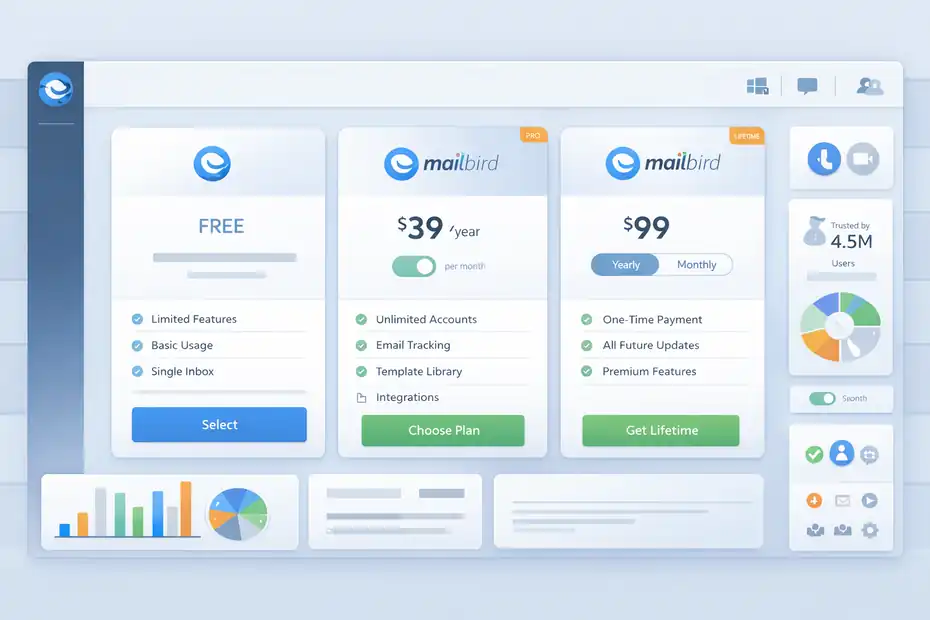
Pricing is where a lot of email app reviews go fuzzy, so let’s make it concrete. Mailbird currently offers a free plan plus paid options, including a one-time payment plan on its pricing page.
The pricing page currently shows a lifetime option with all future versions and updates included, and it says the software works on both Windows and Mac.
Mailbird’s support docs also confirm the free version exists and that paid licenses unlock broader functionality. Pricing and packaging can change, so always verify before buying.
| Plan Area | What Current Sources Indicate | Best For |
|---|---|---|
| Free | Free version available; limited compared with paid licenses and commonly framed around lighter usage or fewer accounts | One personal inbox, basic testing |
| Paid Standard/Premium Direction | Paid tiers unlock broader account support, integrations, and premium features | Professionals with multiple inboxes |
| Premium Features Mentioned | Exchange support, unlimited accounts, email tracking, templates, custom apps, integrations | Heavy email users, client-facing roles |
| Purchase Style | Pricing page currently shows a pay-once option with future updates included | Users who dislike subscriptions |
Is Mailbird Good Value?
I think Mailbird’s value depends almost entirely on account complexity. If you only check one inbox and you are comfortable in Gmail or Outlook on the web, paying for Mailbird is harder to justify. The interface may be nicer, but the practical gain might be small.
If you manage three to six inboxes daily, the math changes. Even a modest productivity gain matters. Mailbird’s own current site says it is trusted by 4.5 million users, and while that is a marketing metric, it does signal that this is not a tiny experimental app.
Combined with strong recurring feedback around usability and speed, the value case becomes more credible for people with heavier email loads.
The one thing I would watch carefully is plan fit. Some of Mailbird’s more compelling features sit behind premium licensing. So before buying, map your needs against the paid features you would actually use. A “cheap” lifetime license is only a bargain if it solves a real daily problem.
Where Mailbird Beats Your Current Inbox
This is the section most readers really care about. Can Mailbird do something meaningfully better than your current setup, or is it just prettier?
In several areas, I think it does offer genuine workflow advantages.
It Can Be Better Than Browser Email For Focus
Browser email has one big weakness: it lives next to everything else. Slack, docs, search tabs, project boards, social media, and random distractions all sit one click away.
A desktop email client creates separation. Mailbird leans into that with a focused interface and productivity sidebar so your email sessions feel more contained.
That does not automatically make you more productive, but it often reduces the “I opened my inbox and got lost in ten tabs” problem. For many knowledge workers, that is reason enough to switch.
It Is Stronger For Multi-Inbox Users
This is Mailbird’s clearest advantage over a single-provider workflow. If your day involves Gmail for personal use, Exchange for work, and another IMAP account for a side project, Mailbird can unify that setup in one place. That is harder to replicate elegantly if you stay entirely inside one provider’s native interface.
A simple scenario: Imagine a recruiter tracking candidate replies in one account, internal approvals in another, and personal scheduling in a third. A unified desktop client can reduce the administrative drag substantially. That is the kind of user Mailbird seems built for.
It Feels More Purpose-Built Than Default Mail Apps
Default email apps are often “good enough,” but rarely delightful. Mailbird’s appeal comes from trying to make email management feel lighter and faster.
User feedback on G2 repeatedly centers on speed, clarity, and ease of use, which are exactly the qualities that make an inbox replacement successful.
Where Mailbird Falls Short
A fair mailbird desktop email app review has to talk about the limits too, because no email client is perfect. This is where your own workflow matters more than hype.
The Free Version Is Not The Full Story
Yes, Mailbird has a free version, but its free tier is not the full product experience. Mailbird’s own support content makes clear that premium licensing unlocks major capabilities like unlimited accounts, Exchange support, email tracking, templates, and custom apps.
So if you test only the free version, you may be evaluating a smaller slice of the product than the marketing pages imply.
That is not deceptive by itself, but it does mean your review experience will vary a lot depending on plan level.
Power Users May Want More Control
If your priority is open-source flexibility, deep extensions, or a privacy-first tool philosophy, Thunderbird still has a strong position. TechRadar’s recent roundup continues to highlight Thunderbird as a top client, especially for users who value those strengths.
In other words, Mailbird wins on polish and workflow simplicity, but not necessarily on maximum control.
I think that tradeoff is perfectly reasonable, but it is still a tradeoff. Clean, mainstream-friendly software often gives up some depth in exchange for simplicity.
Some Teams Should Stay With Native Ecosystem Tools
If your organization lives deeply inside Microsoft’s ecosystem, for example, your “best” inbox may still be Outlook because of how it ties into meetings, enterprise policies, and broader admin controls.
Mailbird can connect Exchange accounts on supported paid plans, but connection is not the same thing as replacing every ecosystem-level workflow.
That is why I would not pitch Mailbird as a blanket Outlook killer for every office. It is better described as a productivity-focused inbox alternative for individuals and smaller teams.
Common Mistakes People Make When Switching To Mailbird
Most email client disappointment comes from setup mistakes, not from the software itself. A smarter switch makes a huge difference.
Mistake 1: Turning On Too Much At Once
Mailbird offers unified inbox, custom apps, multiple accounts, and sidebar integrations. The temptation is to activate everything on day one. I would not do that. Start with your primary accounts and a minimal layout first.
Then add templates, snooze habits, or sidebar apps after you know the base workflow feels right.
Too many users try to “optimize” before they understand their natural email rhythm. That usually creates clutter, not efficiency.
Mistake 2: Treating Unified Inbox Like A Magic Fix
Unified inbox is helpful, but it is not a substitute for decisions. You still need to define what belongs together, what should stay separate, and which accounts deserve priority.
Mailbird gives you the option to customize which accounts appear in Unified Inbox, and many people should use that option instead of throwing everything into one bucket.
Mistake 3: Buying Based On Features You Will Never Use
Email tracking sounds impressive. Custom apps sound modern. Templates sound productive. But the best buying decision comes from actual habits. If you never send repetitive outreach, templates may not matter much.
If you live in one inbox, unlimited account support may not justify a paid plan. I recommend matching the plan to the workflow, not to the feature page.
How To Decide Whether Mailbird Can Replace Your Current Inbox
By this point, the answer is probably clearer, but let me make it practical. You do not need a philosophical decision. You need a workflow decision.
Mailbird Is Probably Worth It If…
Mailbird is a strong fit if you manage multiple email accounts every day, prefer a desktop workspace over constant browser tabs, want a cleaner interface, and care about small productivity gains that add up over time. Those are the patterns most strongly reflected in Mailbird’s product positioning and user praise on G2.
A good example is a consultant, recruiter, founder, or agency operator who lives in email. For that kind of user, shaving even 15 to 20 minutes of friction from the day has real value.
Mailbird Is Probably Not Worth It If…
You may not need Mailbird if one free web inbox already works well for you, your company depends heavily on native Outlook workflows, or you care more about open-source extensibility than polished usability. Those are all perfectly valid reasons to skip it.
And honestly, that is the right way to think about inbox software. The goal is not to install the “best” app in the abstract. The goal is to make your own communication workflow calmer, faster, and less annoying.
Final Verdict: Can Mailbird Replace Your Current Inbox?
Yes, Mailbird can replace your current inbox for a large share of individual users and small business professionals, especially those managing multiple accounts who want a cleaner desktop workflow.
Its strongest advantages are unified inbox, interface simplicity, multi-account support, and a set of practical productivity features that seem built around real email pain points rather than empty novelty.
Current official sources show active support for Windows and Mac, a free tier, paid upgrades, Exchange support on premium licensing, templates, tracking, and custom app integrations.
That said, I would not call it the automatic best choice for everyone. If your current setup is already simple, free, and frictionless, the upgrade may feel unnecessary.
If you need open-source flexibility or deep enterprise ecosystem alignment, other clients may still fit better. But if your inbox problem is chaos, tab fatigue, and too many accounts spread across too many places, Mailbird looks like a very credible replacement.
My honest take is this: Mailbird is most convincing when you treat it as a workflow tool, not just an email app. If your day is email-heavy and fragmented, it has a real chance of making your routine noticeably better. If your needs are light, it may simply be nice rather than necessary. And that is probably the most useful answer any review can give.
FAQ
What is Mailbird desktop email app and how does it work?
Mailbird is a desktop email client that connects multiple email accounts into one unified interface. It does not host emails but lets you manage Gmail, Outlook, and other accounts in one place, helping reduce tab switching and improve workflow efficiency for daily email use.
Is Mailbird better than Gmail or Outlook?
Mailbird is not a replacement for Gmail or Outlook as email providers, but it can be a better interface for managing them. It offers a unified inbox, cleaner layout, and multi-account control, which can improve productivity if you handle several email accounts daily.
Is Mailbird free or paid?
Mailbird offers a free version with limited features and paid plans that unlock full functionality like unlimited accounts, email tracking, templates, and integrations. The paid version is better suited for professionals who rely heavily on email for work or communication.
Can Mailbird replace my current inbox?
Mailbird can replace your current inbox interface if you want a centralized, desktop-based email experience. It works best for users managing multiple accounts who want a cleaner and faster workflow, but may not suit those needing advanced enterprise or ecosystem-specific features.
Is Mailbird safe and reliable to use?
Mailbird is generally considered safe as it connects to existing email providers using standard protocols like IMAP and Exchange. It does not store your emails independently, and reliability depends largely on your email provider and how your accounts are configured.

I’m Juxhin, the voice behind The Justifiable.
I’ve spent 6+ years building blogs, managing affiliate campaigns, and testing the messy world of online business. Here, I cut the fluff and share the strategies that actually move the needle — so you can build income that’s sustainable, not speculative.
Related posts:
 Mailbird Pricing Explained: What You Really Pay For And Why
 Mailbird Worth It For Productivity Workflows: Real Efficiency Gains Tested
 Mailbird Pros And Cons For Business Users: Does It Scale With Your Team?
 Aweber CRM Explained: How It Works with Email
 Omnisend for WooCommerce: Boost Store Sales Instantly
 HubSpot Pricing For Small Business: Hidden Costs