Table of Contents
Some links on The Justifiable are affiliate links, meaning we may earn a small commission at no extra cost to you. Read full disclaimer.
ManyChat Facebook ads are transforming how marketers capture and convert leads—without constant manual follow-up.
If you’ve ever wondered how to connect your Facebook ad campaigns directly to automated Messenger chats that qualify and nurture leads instantly, this guide will walk you through every step. How do you build a system that brings in leads while you sleep?
Let’s break it down so you can automate smart, convert faster, and scale effortlessly.
Understanding How ManyChat Works With Facebook Ads
Before we dive into setup and funnels, it’s important to understand how ManyChat and Facebook Ads actually connect.
ManyChat is a chatbot platform that automates Messenger conversations—meaning it can respond, qualify, and collect leads instantly after someone clicks your ad.
This turns Facebook Ads into a two-way conversation instead of a one-way form submission.
How ManyChat Integrates With Facebook Messenger
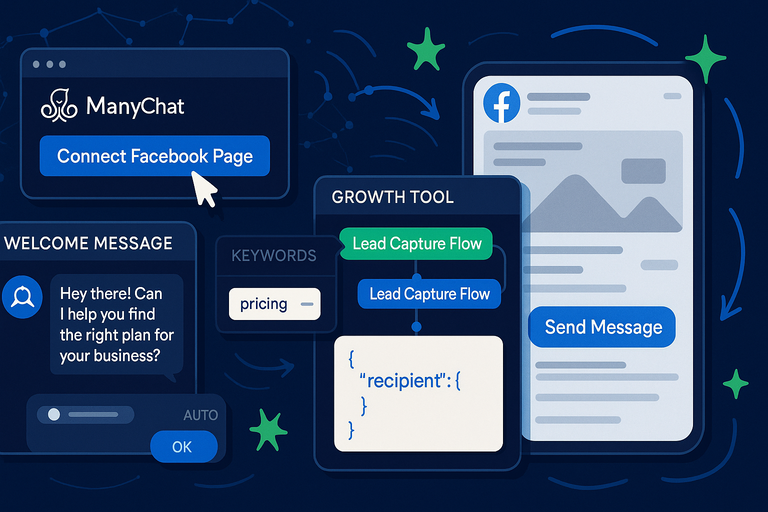
When someone clicks a Facebook Ad with a “Send Message” button, it opens a Messenger chat instead of a landing page. From there, ManyChat takes over.
Here’s how it works:
- You connect your Facebook Page to ManyChat.
- You create an automation flow inside ManyChat (e.g., a short chat that greets users, asks questions, and saves responses).
- In your Facebook Ad, choose the “Click to Messenger” objective and link it to that flow.
Example: From the ManyChat dashboard, go to Settings → Channels → Facebook → Connect Page. Then, under Automation → Flows → New Flow, design your conversation. Finally, in Facebook Ads Manager, select Traffic → Messenger and paste your ManyChat flow JSON code.
The beauty of this integration is speed: as soon as someone interacts with your ad, the conversation begins—no forms, no friction, no delay.
Why Chat Automation Beats Traditional Lead Forms
Traditional forms are static; users fill them out and wait. Messenger automation, on the other hand, feels personal and immediate. People are far more likely to respond to a friendly message than a cold web form.
Key benefits:
- Higher conversion rates: Conversations feel interactive and reduce drop-off.
- Instant qualification: Ask simple questions (budget, timeline, interest) before your team ever gets involved.
- Better user experience: ManyChat remembers user responses and personalizes follow-ups.
I’ve seen brands double their lead-to-sale rate just by switching from a “Learn More” form ad to a conversational “Let’s Chat” Messenger flow.
The Role of Facebook’s Click-to-Messenger Objective
Facebook’s Click-to-Messenger (CTM) ads are designed specifically for chat-based engagement. Instead of sending users to a website, they start a Messenger conversation right from the ad.
When setting up your campaign in Ads Manager:
- Choose Messages as your campaign objective.
- Under Ad Type, select Click to Messenger.
- Choose your connected Page and link your ManyChat flow.
This creates a seamless bridge between the ad and ManyChat, letting your bot instantly greet and guide users.
Pro tip: Use Quick Reply buttons (e.g., “Yes, I’m interested” or “Tell me more”) to encourage engagement and keep users clicking.
Key Metrics to Track When Running Messenger Campaigns
Once your campaign is live, data is everything. ManyChat provides insights directly within your dashboard, and Facebook Ads Manager tracks ad performance.
Key metrics to monitor:
- CTR (Click-Through Rate): Measures how well your ad attracts clicks to Messenger.
- Response Rate: Shows how many users reply to the bot’s initial message.
- Lead Completion Rate: Tracks how many users finish the automated flow.
- Cost per Qualified Lead (CQL): The real measure of ROI.
Example: If your CTR is high but response rate is low, your ad creative is strong, but your first chat message might need tweaking.
Setting Up Your ManyChat Account for Facebook Ads
Now that you understand how the integration works, let’s get hands-on. Setting up ManyChat for Facebook Ads is simple, but the key is doing it right from the start.
Connecting ManyChat to Your Facebook Business Page
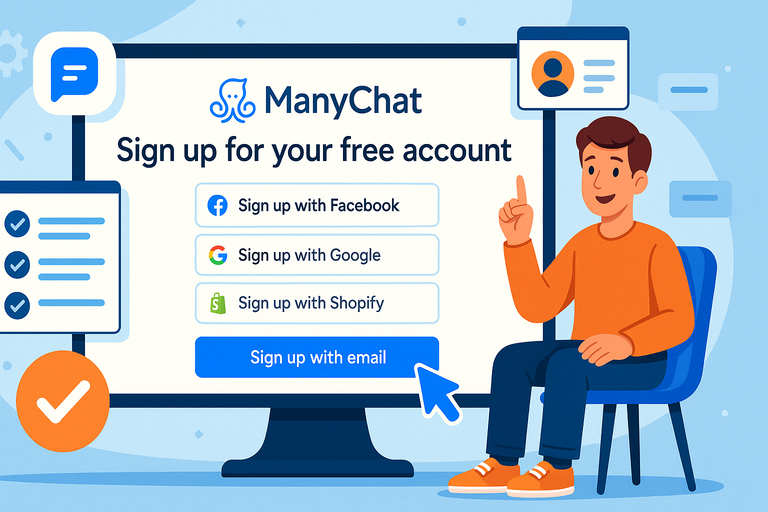
Go to manychat.com, sign in with your Facebook account, and click Connect Facebook Page. Choose the page you’ll run ads from.
From there:
- Enable Messenger under Settings → Channels → Facebook.
- Grant permission for ad management and automation.
I always advise testing your connection with a dummy message first to confirm the bot is active.
Creating Custom Welcome Messages and Keywords
Your Welcome Message is the first impression users get. Keep it short, friendly, and action-oriented.
Example: “Hey there! Thanks for checking us out. Can I help you find the right plan for your business?”
To customize: Go to Automation → Welcome Message and edit your default greeting. You can also set up Keywords (e.g., “pricing,” “help”) that trigger automated responses—just like smart shortcuts in a conversation.
Setting Up Your First Growth Tool for Ad Integration
Growth Tools are ManyChat’s way of linking chat flows to external sources like ads or landing pages.
To set up your first one:
- Go to Automation → Growth Tools → New Growth Tool.
- Select Facebook Ads JSON.
- Create or attach an existing flow (e.g., “Lead Capture Flow”).
- Copy the JSON code provided.
- Paste it in your Facebook Ad → Messenger Setup → JSON section.
This allows Facebook Ads to trigger your exact ManyChat flow every time someone clicks “Send Message.”
Compliance and Messenger Policy Rules You Must Follow
Facebook is strict about how businesses message users. Break the rules, and your Page could get restricted.
The essentials:
- 24-Hour Rule: You can send promotional messages only within 24 hours of the user’s last interaction.
- Tagging: Use correct message tags (like “CONFIRMED_EVENT_UPDATE”) for follow-ups.
- Opt-In: Always confirm that users consent to receiving ongoing messages.
ManyChat helps automate compliance—just toggle on “Follow Facebook Messaging Rules” in your flow settings.
Building a High-Converting ManyChat Facebook Ads Funnel
Here’s where the magic happens. The right funnel doesn’t just capture leads—it builds trust, qualifies intent, and moves people toward conversion automatically.
Mapping the Customer Journey From Ad Click to Conversion
Think of your funnel as a story:
- Ad Click: User taps the “Send Message” CTA.
- Welcome Message: A friendly greeting sparks engagement.
- Qualification Flow: The bot asks questions to segment the lead.
- Offer Stage: You send tailored product info or booking links.
- Follow-Up Sequence: ManyChat re-engages users who didn’t convert.
Example: If you’re a real estate agent, your flow might ask: “Are you looking to buy or rent?” → “What’s your budget?” → “Would you like to schedule a showing?”
Each answer helps you personalize future responses.
How to Use Messenger Flows to Qualify and Segment Leads
In ManyChat, go to Automation → Flows → New Flow. Build a short sequence of messages using User Inputs and Conditions.
For instance:
- Question: “What’s your budget range?”
- User Input: Number response.
- Action: Tag user as Budget_High or Budget_Low.
This lets you segment leads automatically and send tailored follow-ups later.
Adding Lead Capture Questions and Tagging Responses
I recommend asking 3–4 simple questions max—enough to qualify without feeling invasive. Examples:
- “What’s your business type?”
- “How soon do you want to start?”
- “What’s the best email to send details?”
Then tag each response (e.g., “Interested_Immediate” or “Email_Collected”). These tags make it easy to filter contacts for remarketing or follow-up sequences.
Crafting Conversational Copy That Feels Personal, Not Robotic
The biggest mistake I see? Bots that sound like… bots. Write like you’d text a friend, not like you’re sending an invoice.
Tips for authentic tone:
- Use first names: “Hi Sarah, great to connect!”
- Add small pauses with Typing Indicators in ManyChat for realism.
- Mix emojis sparingly for warmth (e.g., “Awesome! 👍 Let’s get started”).
- Keep messages short—two lines max per bubble.
Your goal isn’t to sound human. It’s to sound helpful. The difference is subtle but powerful.
Designing Facebook Ads That Trigger Messenger Automation
Your Facebook ad is the entry point to your entire ManyChat experience. Think of it as the door that opens into an automated conversation.
The goal is to get someone to click “Send Message” — and feel like it was their idea.
Choosing the Right Campaign Objective and Ad Type
When creating a new ad in Meta Ads Manager, always choose Messages as your campaign objective. This ensures that instead of sending traffic to a website, users are prompted to start a chat in Messenger.
Here’s how to set it up:
- From your Meta Ads Manager, click Create → Messages.
- Under Ad Type, choose Click to Messenger.
- Select your connected Facebook Page.
- Scroll to Message Template, and link your ManyChat JSON code (you can generate this inside ManyChat under “Growth Tools”).
There’s also a Sponsored Message option, which sends messages directly to users who’ve interacted with you before. I usually recommend starting with Click-to-Messenger for cold audiences, then testing Sponsored Messages for retargeting warm leads.
Pro tip: Always verify your ad preview in both desktop and mobile view. Messenger behavior can differ slightly between devices, and you want your flow to trigger perfectly.
How to Write Ad Copy That Drives Messenger Engagement
Messenger ads aren’t just about clever writing — they’re about starting conversations. When your ad sounds like an invitation rather than an announcement, engagement skyrockets.
Here’s what I’ve seen work best:
- Lead with curiosity or empathy: “Need more leads but hate chasing them? Let’s fix that.”
- Add a conversational hook: “Tap below and I’ll walk you through how it works — right in Messenger.”
- Keep it short: Aim for 2–3 short sentences. No one reads paragraphs in ads.
- End with a simple next step: “Hit Send Message and I’ll show you the process.”
In practice, I suggest testing 2–3 ad variations with slightly different tones (e.g., friendly, professional, playful). You can check response rates inside ManyChat to see which one sparks the most engagement.
Using Images and Videos That Encourage Conversation
Your ad creative should feel approachable — not polished to the point of intimidation. People click on visuals that feel human.
Examples of what works well:
- Lifestyle photos that feel natural (e.g., someone texting, chatting, or working).
- Short vertical videos (6–15 seconds) where you speak directly to camera: “Hey, I’ll show you how to automate your leads in Messenger — just click below!”
- Screenshots or screen recordings of your bot in action, showing how the Messenger chat looks.
If you’re using video, always include captions — most people scroll with sound off.
Pro tip: Avoid heavy text in your images. Facebook penalizes text-heavy creatives, which can reduce your ad delivery and increase cost per click.
Setting Up the “Send Message” CTA Button Correctly
It sounds obvious, but I can’t tell you how many times I’ve seen this done wrong. The Call to Action (CTA) button must be “Send Message” — not “Learn More” or “Sign Up.” Otherwise, your ad won’t trigger ManyChat.
Inside Ads Manager:
- Scroll to Call to Action and select Send Message.
- Under Message Template, choose Start Conversations and click Edit.
- Select JSON → paste your ManyChat code → Preview in Messenger.
Before publishing, test it. Click the “Preview” button and send yourself the ad. If the ManyChat bot replies instantly, you’re good to go.
I suggest doing this test on both desktop and mobile — just to ensure everything syncs cleanly.
Creating Automated Lead Nurturing Sequences in ManyChat
Once your ad is live and people start messaging, the next challenge is keeping the conversation going — automatically.
ManyChat sequences allow you to nurture leads without constantly checking your phone.
Building Messenger Sequences That Educate and Convert
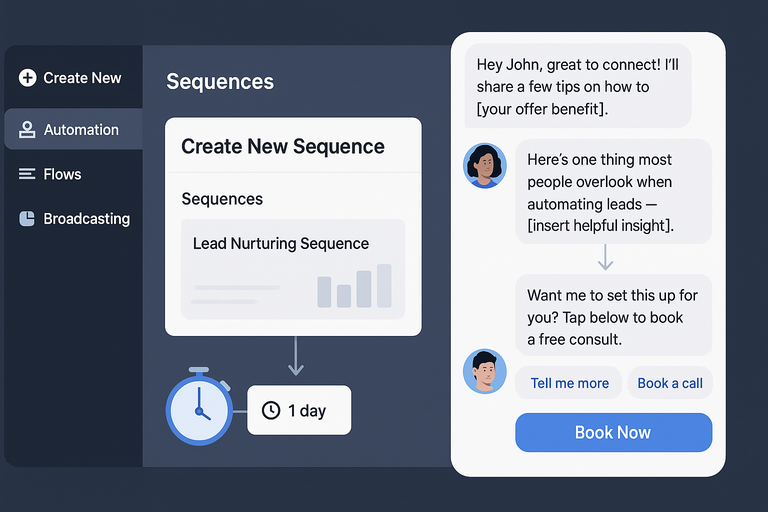
From your ManyChat dashboard, go to Automation → Sequences → Create New Sequence. A sequence is simply a series of messages spaced out over time.
Here’s a simple 3-step flow I recommend:
- Welcome message: “Hey [First Name], great to connect! I’ll share a few tips on how to [your offer benefit].”
- Value message (after 1 day): “Here’s one thing most people overlook when automating leads — [insert helpful insight].”
- Offer message (after 2 days): “Want me to set this up for you? Tap below to book a free consult.”
The best sequences feel conversational, not salesy. Add quick-reply buttons (“Tell me more,” “Book a call”) to guide users naturally toward conversion.
How to Personalize Automated Messages With Dynamic Fields
Dynamic fields let you insert personal data into messages — like a user’s first name, location, or even past responses.
Example: “Hi {{first_name}}, I saw you’re interested in real estate automation. Would you like me to send a quick setup guide?”
To add dynamic content:
- Inside ManyChat, open your message block.
- Click { } → choose a field (e.g., first name, custom field).
Personalization makes automation feel human. I often recommend collecting data in the first few messages (like “What’s your business type?”) so you can segment your audience later.
Using Delay Timers and Conditions to Simulate Real Conversations
Real conversations have rhythm — pauses, responses, reactions. ManyChat lets you replicate that with Delays and Conditions.
To add a delay: In your flow builder, click Add Element → Delay, and set it to 2–4 seconds. This shows the “typing…” indicator, making the chat feel natural.
To add conditions:
Use Condition Blocks like:
“If user has tag = Warm Lead, send message A.”
“If not, send message B.”
This allows you to tailor the conversation based on engagement level, improving conversions without adding human effort.
Integrating Email Follow-Ups or SMS for Multi-Channel Nurturing
Messenger is powerful, but it shouldn’t exist in a silo. ManyChat supports email and SMS integrations that help you stay connected beyond the chat.
Steps:
- Go to Settings → Channels → Email or SMS.
- Connect your email domain or phone number.
- Add new steps in your flow: Action → Send Email/SMS.
For example, after a user completes a Messenger sequence, you can send a follow-up email:
“Hey {{first_name}}, just checking if you saw my last message in Messenger. Here’s the link again.”
Multi-channel nurturing keeps your message visible — even if Messenger notifications are off.
Syncing ManyChat Leads With Your CRM and Email Tools
Once your system starts generating leads, syncing that data to your CRM ensures everything stays organized. This step closes the loop between automation and actual sales tracking.
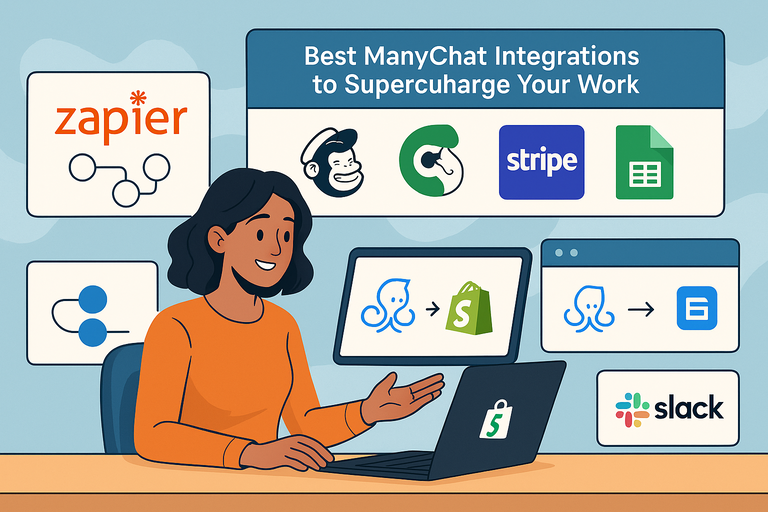
How to Connect ManyChat With Platforms Like HubSpot or Mailchimp
ManyChat integrates directly with tools like HubSpot, Mailchimp, and ActiveCampaign.
Example setup:
- Go to Settings → Integrations.
- Choose your CRM (e.g., HubSpot).
- Authenticate your account.
- Map fields like First Name, Email, and Lead Source.
Now, whenever someone submits their details in Messenger, that data automatically appears in your CRM — no manual entry needed.
Setting Up Zapier Automations for Seamless Data Transfer
If your CRM doesn’t integrate natively, Zapier is your bridge.
Quick setup:
- Go to Zapier → Create Zap.
- Choose ManyChat as the trigger app (“New Subscriber” or “Tag Added”).
- Set your CRM (like Google Sheets, Pipedrive, or Notion) as the action.
- Map data fields and test your Zap.
Once live, every new lead instantly flows into your database or tracking sheet. I recommend naming each Zap clearly (e.g., “Messenger_Lead_to_HubSpot”) for easy troubleshooting later.
Managing Lead Tags and Custom Fields for Targeted Follow-Ups
Inside ManyChat, use Tags and Custom Fields to track user behavior.
Example workflow:
- Tag: “Clicked Offer” → user showed buying intent.
- Tag: “No Response” → user ignored last message.
- Custom Field: “Budget Range” → helps segment offers.
You can view these under Audience → Filters. This lets you send broadcasts or retargeting ads only to warm, qualified leads — saving ad spend and boosting ROI.
Tracking Lead Source and Campaign ROI Automatically
To measure performance, connect Facebook Ads with ManyChat analytics.
Inside ManyChat:
- Go to Analytics → Conversions.
- Track leads by flow name, entry source, and conversion tag.
If you tag leads based on the campaign that brought them in (e.g., “Ad_Set_1”), you can compare which ad set generated higher-quality leads.
ManyChat’s native analytics show conversion rates and engagement metrics, but pairing it with Facebook’s Ads Manager gives you the full picture: cost per lead, conversation completion rate, and ROI.
Pro Tip: Once your system is stable, duplicate your top-performing flow and tweak it for different audience segments. Small changes — like personalized greetings or alternate CTAs — can improve conversions by up to 20%.
Optimizing and Scaling Your ManyChat Facebook Ads
Once your ManyChat Facebook ads are running and generating leads, the next stage is optimization — improving what already works and scaling what converts.
Think of this as fine-tuning your automation engine so it performs smoothly, efficiently, and profitably.
How to A/B Test Messenger Flows and Ad Creative
A/B testing (or split testing) is how you find out what your audience truly responds to — not what you think they’ll like. I’ve learned this the hard way: even small tweaks in your flow or copy can double your conversion rate.
To test ad creatives in Facebook Ads Manager:
- Go to Ads Manager → Experiments → A/B Test.
- Choose your variable — it could be creative, headline, or CTA.
- Duplicate your ad and change just one element.
For Messenger flow testing:
- In ManyChat, duplicate your flow (Automation → Flows → Duplicate).
- Modify one part — like your greeting or lead capture question.
- Direct different ad sets to each version using unique Growth Tools or JSON codes.
Track which version produces better response rates, lead completion rates, or conversation depth.
Pro tip: Don’t change too many variables at once. I suggest testing one element per week — it keeps data clean and actionable.
Using Analytics to Identify Drop-Off Points in Conversations
ManyChat’s built-in analytics are incredibly useful for spotting where users lose interest.
To find drop-offs:
- Go to Automation → Flows → View Statistics.
- Look for steps with low “Sent → Opened” or “Replied” percentages.
If you notice people leaving halfway through, it’s often due to:
- Too many messages before the offer.
- Confusing language.
- Asking for too much info too soon.
Example: If your qualification question “What’s your budget?” has a 60% drop rate, try rephrasing it casually: “Just to get a sense, what kind of budget are you working with?”
I recommend reviewing these analytics weekly. Over time, you’ll see a pattern in where your leads engage or fall off.
Retargeting Engaged Users for Higher ROI
Most users don’t buy on the first interaction — but Messenger gives you a second chance through retargeting.
Here’s how to set it up:
- In Ads Manager, create a Custom Audience → choose Engagement → Facebook Page or Messenger.
- Select “People who sent a message to your Page.”
- Build a retargeting ad specifically for them — maybe offering a discount, demo, or additional info.
For even higher ROI, tag users in ManyChat (like “Engaged_NoPurchase”) and sync that tag to your CRM or Facebook audience via Zapier. Then, your ads only target warm leads who already interacted with your bot.
Example: A fitness brand I worked with cut their cost-per-lead by 37% using this method. Their retargeting ad offered a “Free Meal Plan” to anyone who chatted but didn’t book a session.
Scaling With Lookalike Audiences and Audience Segmentation
Once you’ve got consistent conversions, it’s time to scale. Lookalike Audiences are Facebook’s secret weapon for this.
From Ads Manager → Audiences → Create Lookalike, choose a source audience — ideally your Messenger leads or high-value customers. Facebook will find people with similar behaviors and interests.
Tips for effective scaling:
- Start with 1% lookalike audiences for precision.
- Use separate ad sets for different lead tags (e.g., “Budget_High,” “Interested_In_Service_A”).
- Gradually increase budget by 20–30% per week to maintain algorithm stability.
Scaling isn’t just spending more — it’s about spending smarter. The real growth happens when your automation system can handle volume without losing personalization.
Common Mistakes to Avoid With ManyChat Facebook Ads
Even seasoned marketers fall into traps when combining automation with ads. These mistakes don’t just waste budget — they can damage user trust and get your Page flagged by Meta.
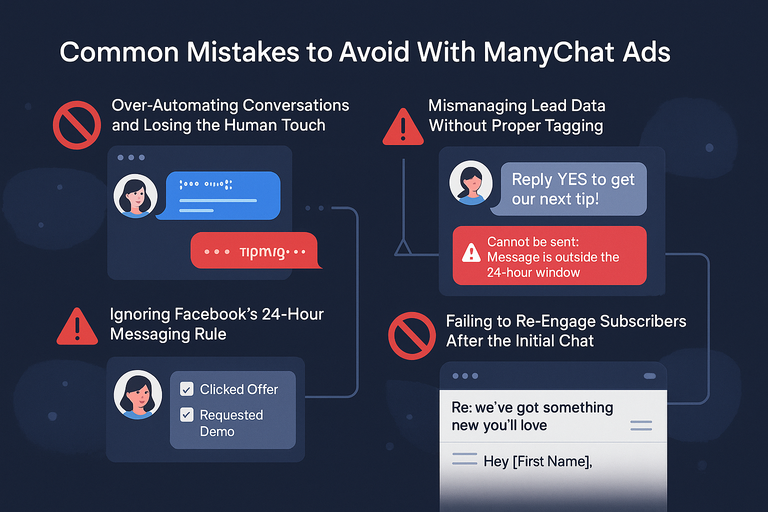
Over-Automating Conversations and Losing the Human Touch
Automation should enhance relationships, not replace them. When every response feels scripted, users disengage fast.
Avoid this by:
- Using typing delays to mimic natural pauses.
- Personalizing responses with first names.
- Adding “human handoffs” — messages like, “Want to chat with a real person?”
I believe the best bots sound warm, not perfect. A small typo or emoji can feel more human than flawless text.
Ignoring Facebook’s 24-Hour Messaging Rule
Facebook enforces a strict 24-hour rule: you can only send promotional messages within 24 hours of the user’s last interaction. Break it, and your Page might get restricted.
Here’s what to do instead:
- Send non-promotional updates using message tags (e.g., “POST_PURCHASE_UPDATE”).
- Encourage users to re-engage (“Reply YES to get our next tip!”).
- Use Sponsored Messages to recontact users outside the 24-hour window.
Compliance isn’t optional — it’s what keeps your automation running long-term.
Mismanaging Lead Data Without Proper Tagging
Without clear tagging, your follow-ups become chaos. Every user looks the same, and personalization vanishes.
Inside ManyChat:
- Tag based on actions (“Clicked Offer,” “Requested Demo”).
- Use custom fields to capture details like email or interest type.
- Review tags monthly to clean outdated or redundant ones.
This organization allows you to build smart segments for retargeting, emails, and SMS campaigns.
Failing to Re-Engage Subscribers After the Initial Chat
Most brands stop communicating after one Messenger flow — a huge missed opportunity.
To fix that:
- Build a monthly re-engagement sequence (e.g., “Hey {{first_name}}, we’ve got something new you’ll love.”).
- Use ManyChat’s Broadcasts feature for updates, events, or limited-time offers.
- Reconnect users through SMS or email if Messenger engagement drops.
The goal is to stay top-of-mind without being pushy. Consistency builds familiarity — and familiarity builds trust.
Expert Tips to Maximize Lead Automation Success
Once you’ve mastered the basics, these advanced strategies help you level up your automation system and get more value from every lead.
How to Combine ManyChat With Meta’s Advantage+ Campaigns
Meta’s Advantage+ campaigns use machine learning to automatically find high-performing audiences and placements. You can pair this with ManyChat for even better results.
Here’s how:
- Create a Click-to-Messenger ad inside an Advantage+ campaign.
- Connect it to your best-performing flow in ManyChat.
- Let Meta’s AI optimize delivery while your bot qualifies leads in real-time.
This hybrid approach combines automation’s personalization with Meta’s targeting intelligence — I’ve seen it cut lead costs by up to 25%.
Using Quizzes, Polls, or Mini-Games to Boost Engagement
Messenger isn’t just for lead forms — it’s interactive. ManyChat lets you create playful experiences that make users want to reply.
Examples:
- A quiz: “Find your perfect skincare routine — ready?”
- A poll: “Which feature do you value most? A) Price B) Speed C) Support.”
- A mini-game: “Guess our new product and win 10% off!”
These small touches create memorable moments — and gather valuable data along the way.
Testing Conversational Tones and Personalization Styles
Not every audience responds to the same tone. I suggest testing at least three styles:
- Friendly & informal: “Hey there! Let’s chat about your business goals.”
- Professional & polished: “Thanks for reaching out. I’ll guide you through a quick setup.”
- Playful & witty: “Got 30 seconds? Let’s make your ads work harder.”
Track response rates and flow completions to see which tone performs best. Over time, you’ll develop a unique brand voice that feels authentic, not automated.
Leveraging Messenger Broadcasts for Product Launches or Events
Messenger broadcasts are like newsletters for chat — great for re-engaging your audience during launches or announcements.
To send one:
- Go to Broadcasts → New Broadcast in ManyChat.
- Select your audience (e.g., “Leads from Ad Campaign A”).
- Write a short, conversational message.
Example: “Hey {{first_name}}, big news! Our new feature just dropped — want a quick walkthrough?”
Always check that your broadcast complies with the 24-hour rule or uses approved tags. Done right, these campaigns can achieve 70–80% open rates — far higher than email.
Final Takeaways and Pro Tip for Scaling Faster
By now, you should have a clear picture of how ManyChat Facebook ads can automate, personalize, and scale your lead generation system — all while keeping the human touch intact.
Key Lessons to Remember About ManyChat Facebook Ads
- Start small, test relentlessly, and refine.
- Keep conversations short, natural, and friendly.
- Always tag, segment, and track — data fuels smarter automation.
- Stay compliant with Messenger’s rules to protect your Page.
- Blend automation with human touchpoints for best results.
Pro Tip: Automate Smart, Then Humanize Your Follow-Up
Automation should do the heavy lifting, not all the talking. I always suggest blending ManyChat with human touch moments — a personal message after a lead books, or a check-in after purchase.
These small gestures turn cold automation into genuine relationships.
How to Keep Messenger Conversations Authentic as You Scale
Scaling doesn’t mean losing authenticity. Keep your brand voice consistent, your tone human, and your audience segmented. Use automation as a framework — not a crutch.
The truth is, people don’t fall in love with systems. They connect with brands that sound alive. If your Messenger chat can make someone smile, feel heard, or act immediately — that’s when automation becomes art.

I’m Juxhin, the voice behind The Justifiable.
I’ve spent 6+ years building blogs, managing affiliate campaigns, and testing the messy world of online business. Here, I cut the fluff and share the strategies that actually move the needle — so you can build income that’s sustainable, not speculative.