
Table of Contents
Some links on The Justifiable are affiliate links, meaning we may earn a small commission at no extra cost to you. Read full disclaimer.
Omnisend marketing is one of the fastest ways to turn casual visitors into paying customers using email, SMS, and automation.
If you’ve ever wondered how some online stores seem to grow sales overnight while you’re still wrestling with manual campaigns, the secret might just be smart automation.
In this guide, we’ll explore exactly how to use Omnisend marketing to drive more sales—quickly, effectively, and without burning hours on repetitive tasks.
Understanding How Omnisend Marketing Works
Omnisend marketing isn’t just another email tool—it’s a complete growth engine that helps eCommerce stores sell faster through automation.
It brings email, SMS, and push notifications together so you can reach your customers at the right time and place, automatically.
What Makes Omnisend Different From Other Platforms
I believe what truly sets Omnisend apart is its deep focus on eCommerce automation.
Unlike generic email tools, it’s built specifically for online stores using platforms like Shopify, WooCommerce, BigCommerce, and Ecwid.
- Ecommerce-first design: Every feature—like product recommendations or abandoned cart recovery—is crafted with eCommerce workflows in mind.
- Pre-built workflows: You don’t start from scratch. Omnisend gives ready-made automations such as Welcome Series, Post-Purchase, and Re-Engagement flows you can activate instantly.
- Unified communication: You can send email, SMS, and web push notifications all from one dashboard—no juggling between tools.
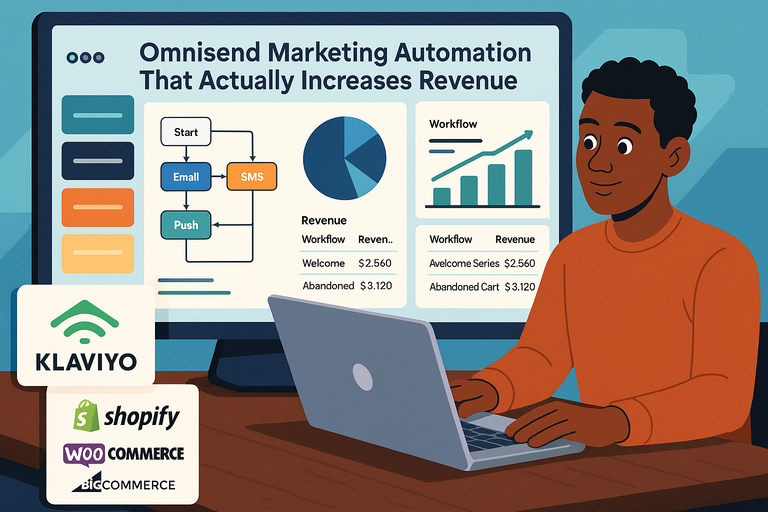
In practice, that means you can set up something like: Email → SMS reminder → Push notification for an abandoned cart, all triggered automatically.
It saves you time and builds consistent customer touchpoints without extra effort.
How Omnisend Combines Email, SMS, and Automation for Faster Sales
Omnisend’s power comes from combining multiple channels into a single automated system.
Let me break it down:
- Email handles storytelling, product drops, and offers.
- SMS creates urgency with time-sensitive deals or reminders.
- Push notifications bring shoppers back instantly, even without opening email or SMS.
These channels work in harmony using automation workflows.
For example:
- A visitor abandons a cart → They get an email in 1 hour.
- If unopened → They get an SMS reminder in 6 hours.
- Still inactive? → A push notification the next day closes the loop.
This seamless blend helps increase conversions while maintaining a personal customer experience. According to Omnisend’s data, automated messages drive 47.7% higher open rates compared to standard campaigns.
Start automating your emails, SMS, and push notifications in minutes. Try Omnisend’s Free Plan!
The Role of Segmentation and Customer Targeting in Omnisend
Segmentation is where Omnisend quietly becomes your secret weapon. Instead of blasting the same message to everyone, you can target customers based on:
- Shopping behavior: e.g., viewed products but didn’t purchase.
- Engagement level: e.g., opened last 3 emails but never clicked.
- Lifecycle stage: new subscriber vs. repeat buyer.
I recommend using Omnisend’s Customer Lifecycle Stages—a built-in feature that automatically groups customers into categories like Active, At-risk, and Loyal. You can then tailor offers to each segment.
Example: Send 10% off to at-risk customers while rewarding loyal ones with exclusive early access. Smart targeting like this doesn’t just increase sales—it builds trust and keeps your customers coming back.
Setting Up Omnisend for Fast Growth
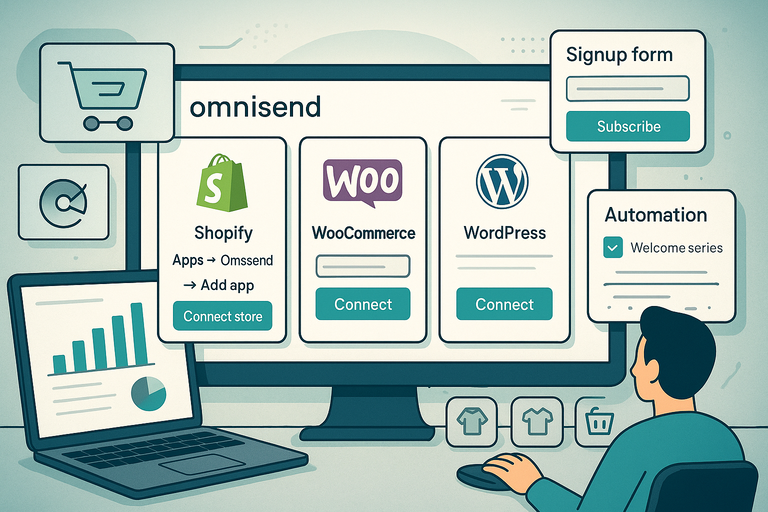
Once you understand the ecosystem, it’s time to connect your store. Thankfully, Omnisend’s setup is fast, visual, and requires zero coding skills.
How to Integrate Omnisend With Shopify, WooCommerce, and WordPress
If you’re using Shopify, the integration is practically plug-and-play.
- Shopify: Go to Shopify Admin → Apps → Search “Omnisend” → Add App → Connect Store. Omnisend automatically syncs your contacts, order data, and products.
- WooCommerce: Install the Omnisend for WooCommerce plugin via your WordPress dashboard, then connect your account using the API key from Omnisend.
- WordPress (non-WooCommerce): Use the Omnisend plugin to capture subscribers through popups, signup forms, and landing pages without needing WooCommerce installed.
Once connected, Omnisend automatically imports your existing customers and product data so you can start creating campaigns right away.
Using Omnisend With Ecwid and BigCommerce for Seamless Store Sync
Ecwid and BigCommerce users also get a direct integration.
- Ecwid: From your Ecwid Control Panel → Apps → Omnisend → Connect. This syncs your store’s contacts, products, and order history.
- BigCommerce: Simply download the Omnisend app from the BigCommerce Marketplace. With single-click installation, your contacts, products, and cart data are instantly available inside Omnisend.
What I really like here is how Omnisend’s automation triggers—like “cart abandoned” or “order shipped”—activate immediately after integration. You don’t need to map data manually, which saves hours.
Quick Setup Tips to Get Your Store Connected in Minutes
To get Omnisend up and running fast, here’s what I suggest:
- Import existing contacts: Upload your email list from Shopify, Mailerlite, or another platform.
- Activate pre-built workflows: Start with “Welcome” and “Abandoned Cart.”
- Enable SMS and Push: Even if you focus on email, these two channels amplify conversions.
- Use a default template: Customize the colors, add your logo, and you’re ready to send your first campaign.
In less than 30 minutes, most store owners can launch their first automation and start generating sales without lifting a finger.
Creating High-Converting Omnisend Campaigns
Omnisend marketing shines when you start building campaigns that truly connect with your audience.
The key is balancing personalization with automation—so your messages feel human, not robotic.
How to Use Email Templates to Drive More Clicks and Sales
Omnisend provides over 250+ pre-made email templates, all optimized for conversions.
I recommend starting with a template close to your brand’s tone and tweaking it with your own visuals.
Quick path: Dashboard → Campaigns → New Email Campaign → Choose Template.
Tips to boost performance:
- Add your brand colors and logo for instant recognition.
- Use short, conversational subject lines—for instance, “Hey [Name], did you forget something?” instead of “Your cart awaits.”
- Include one clear CTA (Call to Action) button per email, such as “Shop Now” or “Get Offer.”
Pro insight: Omnisend’s AI Subject Line Assistant helps you test catchy subject lines faster, often boosting open rates by up to 21%.
Crafting SMS Campaigns That Convert Without Spamming Customers
SMS can be incredibly powerful—but also risky if overused. Omnisend makes it easy to send compliant, targeted text messages.
Here’s how to do it right:
- Keep messages under 160 characters.
- Use personalization tags, like “Hi [First Name], your order is ready!”
- Schedule texts during business hours only.
- Add value—don’t just promote. Think: “Your item is back in stock!” or “You’ve earned a reward.”
Example setup: Automation → Create Workflow → Add SMS Node → Choose Event (e.g., Cart Abandoned).
Done right, SMS reminders convert 2–3x higher than regular email campaigns.
Using Web Push Notifications for Real-Time Engagement
Web push notifications let you connect instantly with site visitors even when they’ve left your store. They’re short, clickable alerts that appear on a user’s screen.
To enable them: Settings → Channels → Web Push → Activate.
Best practices I’ve learned over time:
- Use short headlines (under 40 characters).
- Send 1–2 notifications per week to avoid fatigue.
- Focus on limited-time deals and new product launches.
Example: “🔥 20% off ends in 3 hours—grab it before it’s gone!”
Web push notifications can increase recovered cart revenue by up to 18%, especially when combined with email and SMS in a single automation flow.
Automating Your Sales Funnel With Omnisend
Automation is where Omnisend marketing really shines. It helps you turn manual marketing into an engine that sells while you sleep.
Instead of spending hours sending one-off messages, you can create flows that automatically nurture leads, recover carts, and increase repeat purchases.
Setting Up Abandoned Cart Automation to Recover Lost Revenue
Abandoned cart automation is one of the most profitable features in Omnisend.
It automatically reminds shoppers who added items to their cart but didn’t complete checkout—something that happens to nearly 70% of online shoppers.
How it works: When a customer leaves without purchasing, Omnisend detects it and triggers a sequence of messages (email, SMS, or push).
Here’s a simple setup path: Dashboard → Automation → Create Workflow → Choose “Abandoned Cart.”
A typical workflow might look like:
- Email #1: Sent 1 hour after cart abandonment. A friendly reminder—“Hey, you left something behind.”
- Email #2 or SMS: After 12 hours, add urgency—“Your cart is waiting, but stock’s running low.”
- Push Notification: A quick nudge a day later—“Your cart expires soon!”
I suggest personalizing the email with product images and a direct checkout link. In my experience, even a small discount code in the second message can boost recovery rates by 20–30%.
Activate your first Omnisend automation and win back missed revenue automatically.
How Welcome Series Emails Build Instant Brand Trust
Your welcome series is the first impression your customers get—and Omnisend makes it effortless to automate. It introduces your brand and builds immediate trust, all while encouraging first-time purchases.
Setup path: Dashboard → Automation → Create Workflow → Welcome Series.
Here’s how I like to structure it:
- Email 1 (Instant): Thank the new subscriber and introduce your brand story.
- Email 2 (After 24 hours): Share your best-selling or most-loved products.
- Email 3 (After 48 hours): Offer a small incentive, like free shipping or a 10% discount.
Omnisend’s visual builder lets you drag and drop images, product blocks, and buttons, so you can design beautiful emails without coding.
From what I’ve seen, a good welcome flow can drive up to 45% higher engagement compared to a single introductory email.
Creating Cross-Sell and Upsell Automations That Boost Order Value
Once a customer buys, Omnisend can automatically suggest complementary products or upgrades—this is cross-selling and upselling at work.
How to create this workflow: Automation → New Workflow → Choose “Product Recommender” or “Order Follow-up.”
Example in action:
- A customer buys running shoes. Omnisend automatically emails them with matching socks or a fitness tracker.
- Two weeks later, the same customer receives a message suggesting higher-end gear or accessories.
I recommend using the Product Recommender block in the email builder—it dynamically pulls in related products from your store. It’s subtle, smart, and can increase average order value by up to 20%.
Personalization Tactics That Increase Sales Fast
The beauty of Omnisend marketing lies in how personal it can get. It allows you to speak to every customer like you know them—because, technically, you do.
Personalization isn’t just about adding first names; it’s about delivering the right message to the right person at the right time.
How To Use Dynamic Segmentation for Tailored Messaging
Dynamic segmentation in Omnisend automatically groups customers based on real-time behavior.
For example, if someone frequently buys skincare products, they’ll automatically join your “Skincare Lovers” segment.
You can find it here: Audience → Segments → Create New Segment.
Examples of smart segments I suggest setting up:
- High-value customers: Spent over $200.
- At-risk customers: No purchases in 60 days.
- Active subscribers: Opened 3+ emails in the last month.
Then tailor your campaigns accordingly: send loyalty rewards to high-value shoppers or reactivation discounts to inactive ones. Dynamic segmentation ensures your messaging always stays relevant and fresh.
Using Customer Lifecycle Stages To Send the Right Message at the Right Time
Omnisend’s Customer Lifecycle Stages automatically sort users into groups like New, Active, At-Risk, and Lapsed. This feature is powerful because it adapts your marketing to where the customer currently stands.
For example:
- New: Send educational content and welcome offers.
- Active: Share product launches and exclusive deals.
- At-Risk: Send reminders or “We miss you” discounts.
- Lapsed: Try win-back campaigns with personalized incentives.
This dynamic targeting lets you focus on retention instead of constantly chasing new leads—a key to sustainable growth.
AI-Powered Subject Lines and Product Recommendations in Omnisend
Omnisend’s AI tools are like having a personal marketing assistant on standby. They analyze data from past campaigns to generate optimized subject lines and product recommendations.
Here’s how you can use them:
- AI Subject Line Assistant: Located in the email editor under “Subject Line.” It suggests multiple options and predicts open-rate potential.
- AI Product Recommender: Found under “Content Blocks” in the email builder, it automatically curates products most likely to convert.
In my experience, these tools can easily save you 2–3 hours per campaign while improving engagement rates significantly. The AI assistant is especially useful during busy sale seasons when quick, data-backed decisions matter most.
Maximizing ROI With Omnisend Analytics and Reports
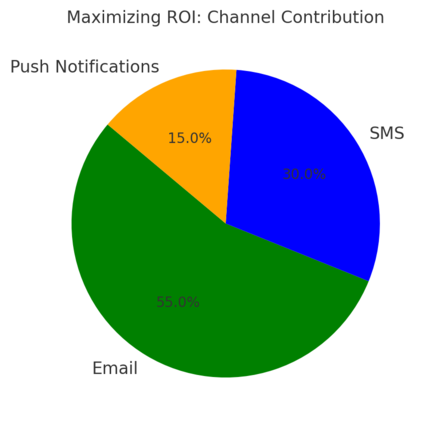
Once your automations are live, the next step is measuring what works.
Omnisend’s reporting dashboard helps you understand which messages drive the most engagement, conversions, and revenue—so you can keep improving.
Understanding Omnisend’s Advanced Reporting Dashboard
Omnisend’s Reports section gives you a visual breakdown of your campaign performance.
You’ll find data like open rates, click rates, revenue generated, and even how each channel (email, SMS, push) performs individually.
Navigation: Dashboard → Reports → Campaigns or Automations.
You can filter results by time period or automation type to see which workflows are performing best.
I often tell users to focus on revenue per email sent—a highly revealing metric that shows the real value of your automation strategy.
How To Track Campaign Performance and Customer Behavior
Beyond basic reports, Omnisend also tracks how customers interact with your messages—this includes email opens, clicks, and purchase behavior.
Here’s how I recommend using it:
- Check click maps to see which buttons or products draw attention.
- Use automation reports to spot underperforming emails and adjust timing or copy.
- Review channel performance to see if SMS or email generates higher ROI.
This kind of granular tracking gives you actionable insights—data you can actually use to fine-tune your approach rather than just admire charts.
Turning Data Insights Into Smarter, More Profitable Campaigns
All the data in the world means nothing if you don’t act on it. Omnisend’s reporting allows you to make data-driven changes quickly.
For example:
- If open rates are low, test new AI subject lines.
- If cart recovery emails perform poorly, adjust timing or offer value-added discounts.
- If push notifications convert well, scale that channel’s use in future workflows.
I believe the best approach is to review reports weekly. That rhythm helps you stay agile and continuously refine your campaigns for stronger ROI. Over time, you’ll notice clear revenue lifts just from these small optimizations.
Proven Omnisend Strategies for Faster Conversions
When you’ve mastered the basics, the next step is turning your campaigns into consistent conversion machines.
Omnisend marketing gives you the tools—you just need the right strategies to make them work harder for you.
Using A/B Testing To Find Winning Campaign Variations
A/B testing in Omnisend lets you test two or more versions of a campaign to see what drives the most clicks, opens, or sales. It’s a simple but powerful way to fine-tune your marketing messages.
Here’s how to do it: Go to Campaigns → Create Email → Turn on A/B Test.
From there, you can test:
- Subject lines (e.g., “Your exclusive deal” vs. “Ready for something special?”)
- Send times (morning vs. evening)
- Email layouts or calls-to-action
I recommend starting with one variable per test. That way, you can pinpoint what actually made the difference.
A small example from a real scenario: By changing the CTA from “Buy Now” to “Get Yours Today,” one of my clients saw a 14% boost in conversions. These little tweaks add up fast.
The Power of Automation Splits for Smarter Targeting
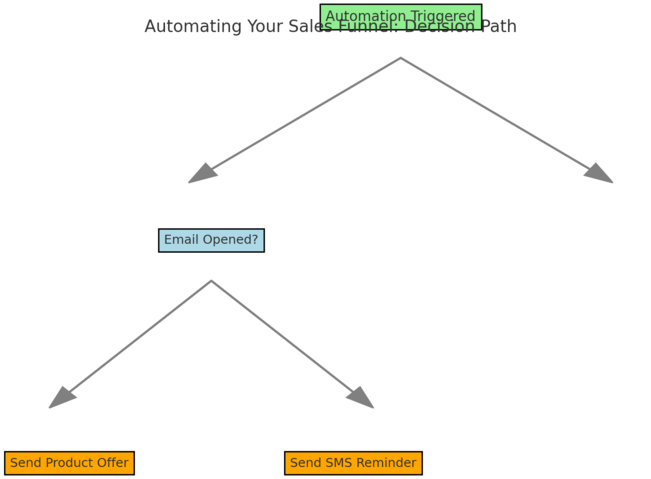
Automation splits are one of my favorite features in Omnisend because they let you personalize customer journeys based on behavior. Think of it like a “choose your own adventure” for your subscribers.
You can find it here: Automation → Choose Workflow → Add Split.
For example:
- If a customer opens an email, send them a product recommendation next.
- If they don’t open it, trigger an SMS reminder or a push notification.
This kind of branching logic ensures your messages always feel timely and relevant. I suggest reviewing your split data monthly to adjust the paths that aren’t converting well.
In my experience, using splits can increase workflow conversion rates by 25–40% simply because each customer receives a more personal journey.
How To Combine Email, SMS, and Push for a True Omnichannel Strategy
The real magic of Omnisend marketing lies in combining all communication channels—email, SMS, and push notifications—into one consistent experience.
Here’s how I usually set it up:
- Email: Start with a detailed message that includes visuals and links.
- SMS: Send a short, friendly reminder if there’s no action within 12 hours.
- Push Notification: Use it to follow up instantly with time-sensitive offers.
Example workflow: Abandoned Cart → Email (1 hr) → SMS (6 hrs) → Push (24 hrs).
This layered approach keeps your brand top-of-mind without overwhelming your customers. It’s proven to boost engagement rates across all channels and helps you capture attention no matter where your audience is.
Optimizing Omnisend for Long-Term Growth
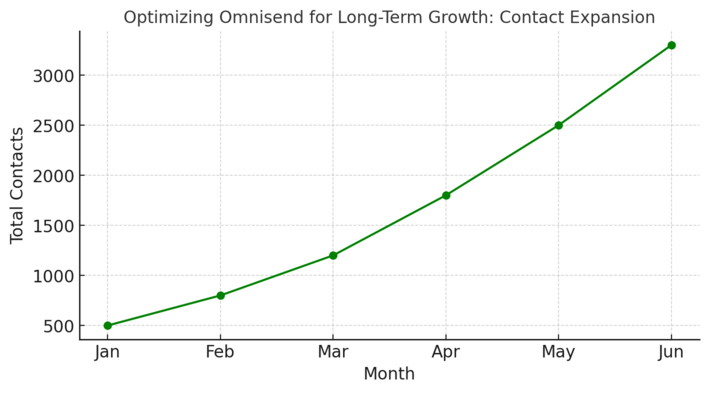
Once you’ve built a strong foundation, it’s time to scale your Omnisend marketing system. The goal is to grow your audience, personalize deeper, and refine automations without losing authenticity.
Scaling From 500 to 2,500+ Contacts Without Losing Quality
As your list grows, so should your segmentation and automation sophistication. The biggest mistake I see people make is sending the same message to everyone.
Here’s how I suggest scaling effectively:
- Use automatic contact syncing from Shopify or WooCommerce to keep your lists fresh.
- Activate engagement-based cleaning to remove inactive subscribers every 90 days.
- Expand automations gradually—start with core flows (Welcome, Cart Recovery, Re-Engagement), then add seasonal or loyalty-based sequences.
Omnisend’s pricing scales smoothly with your contacts, so you can grow from 500 to 2,500+ without breaking your budget or your email deliverability.
Leveraging Personalized Content Add-Ons To Build Loyalty
Omnisend offers a Personalized Content add-on that’s included in the Pro plan. It uses browsing and purchase behavior to show dynamic content—so every customer sees what’s most relevant to them.
Example: A repeat buyer of skincare products might see “Your top skincare picks,” while a first-time visitor sees “Bestsellers for new customers.”
I suggest pairing this with the Product Recommender block in your email builder. Together, they create a smooth, almost tailor-made experience that feels thoughtful and builds long-term loyalty.
How To Continuously Refine Workflows for Ongoing Sales Growth
Think of your automation workflows as living systems—they need regular attention. Omnisend’s reports help you identify which flows need improvement.
Here’s my maintenance checklist:
- Review open and click rates monthly.
- Replace low-performing content blocks or subject lines.
- Update timing triggers for seasonal changes (e.g., shorter delays during holidays).
- Add new customer segments as your audience evolves.
This constant fine-tuning keeps your automations sharp and ensures your marketing adapts as your business grows.
Pricing and Plans That Match Your Business Stage
Omnisend offers flexible pricing for different growth stages. Whether you’re just starting or running a high-volume store, there’s a plan that fits both your budget and your goals.
Comparing Omnisend’s Free, Standard, and Pro Plans
Here’s a quick comparison based on Omnisend’s current offerings:
| Plan | Best For | Key Features | Price (Monthly) |
| Free | New users | Up to 500 emails/month, basic automation | $0 |
| Standard | Growing stores | 6,000 emails/month, web push, basic SMS | $11.20 |
| Pro | Established brands | Unlimited emails, global SMS, advanced reporting | $41.30 |
The Free plan is great for testing. The Standard plan balances affordability and functionality. The Pro plan, however, includes advanced tools like SMS credits and priority support, making it ideal for scaling.
How To Choose the Right Plan Based on Your Contact List and Goals
I usually recommend basing your choice on two factors: list size and sales strategy.
- If you’re under 500 contacts, the Free plan is fine to start.
- Between 500–2,500 contacts and growing sales? Standard is perfect.
- If you’re scaling internationally or need SMS automation, Pro is worth every dollar.
It’s also smart to review your plan every 3–6 months. As your contacts grow, upgrading ensures your automations keep running smoothly.
Making the Most of Monthly SMS Credits and Add-Ons
With the Pro plan, Omnisend gives you monthly SMS credits equal to your plan value. That means if you pay $41.30/month, you get $41.30 in SMS credits back—essentially doubling your value.
Use these wisely for:
- Abandoned cart reminders
- Flash sales and limited offers
- Shipping or order updates
And if you’re using Personalized Content as an add-on (included in Pro), you can amplify SMS campaigns with hyper-relevant offers for each customer segment.
Expert Tips To Drive More Sales With Omnisend
Once your system is running, the final step is mastering the finer details. Small adjustments in data use, integrations, and creativity can create massive gains in performance.
How To Turn Customer Data Into Automated Profit
Omnisend’s data tools track everything from click behavior to purchase history. You can turn that into automatic profit by creating workflows based on patterns.
Example: If someone buys a winter coat, schedule an automated message two weeks later recommending scarves or gloves.
The Custom Events feature lets you trigger these automations instantly when certain actions occur, giving your customers a personal touch at just the right time.
Using Omnisend Integrations To Save Time and Boost Efficiency
Omnisend integrates directly with tools like Shopify, WooCommerce, and BigCommerce, but also connects to apps like Gorgias (customer support), Tidio (chat), and Recharge (subscriptions).
I recommend syncing your favorite tools early. The benefit is clear: your marketing data flows seamlessly between systems, saving time and reducing manual updates.
Example path: Integrations → Add Integration → Select App → Connect.
This automation saves hours every week and ensures every customer interaction feels consistent.
The Best Practices To Keep Campaigns Fresh, Engaging, and High-Performing
To keep Omnisend campaigns performing at their peak, I suggest a few best practices:
- Refresh designs every quarter to match current trends.
- Rotate promotions to avoid fatigue.
- Revisit segmentation rules to keep lists healthy.
- Experiment with humor or conversational tone to make your brand more relatable.
I believe your goal with Omnisend marketing isn’t just higher sales—it’s sustainable connection. When every message feels personal, you don’t just earn customers; you earn advocates who keep coming back.

I’m Juxhin, the voice behind The Justifiable.
I’ve spent 6+ years building blogs, managing affiliate campaigns, and testing the messy world of online business. Here, I cut the fluff and share the strategies that actually move the needle — so you can build income that’s sustainable, not speculative.
Related posts:
 How Omnisend WooCommerce Integration Performs
 Omnisend Automation: How to Scale Your Store on Autopilot
 Email Marketing Campaigns: 5 Secrets to Skyrocket Engagement
 How Do I Create An Email Newsletter And What Should It Include?
 Top 10 Email Service Providers: Powerful Tools for Businesses
 Omnisend Marketing Automation That Actually Increases Revenue