
Table of Contents
Some links on The Justifiable are affiliate links, meaning we may earn a small commission at no extra cost to you. Read full disclaimer.
If you’ve ever tried moving your WordPress site before, you know how nerve-wracking it can be. Between databases, plugins, and downtime risks, things can get messy fast. That’s why a clear, step-by-step WPEngine migration plan makes all the difference.
In this guide, I’ll walk you through exactly how to migrate your site to WPEngine without the stress—covering everything from prep work to testing your live site. Ready to move your WordPress site smoothly and safely?
Let’s dive in.
Understanding The WPEngine Migration Process
Before you dive in, it helps to understand what the WPEngine migration process actually involves. Think of it as moving homes — but for your website.
Every file, image, and database entry needs to be carefully packed, transferred, and unpacked so your site looks and performs exactly the same (or better) in its new environment.
Why WPEngine Is Different From Other Hosts
What sets WPEngine apart is that it’s not just another web host — it’s a managed WordPress platform. That means WPEngine handles the heavy lifting: security patches, caching, daily backups, and performance optimization, all tuned specifically for WordPress.
In my experience, this managed approach makes migrations far less stressful. You’re not juggling server configurations or worrying about downtime.
For example, WPEngine’s EverCache system automatically handles caching for you — so you don’t need separate caching plugins like W3 Total Cache or WP Rocket.
In short:
- WPEngine optimizes your site at the server level for WordPress.
- You get built-in tools for staging, backups, and SSL management.
- Their migration plugin simplifies the entire transfer process — no manual SQL exports or file moves.
Key Benefits Of Migrating To WPEngine
Migrating to WPEngine isn’t just about better hosting — it’s about long-term performance, scalability, and peace of mind.
Here’s what I’ve personally found most valuable:
- Speed and Reliability: WPEngine’s global CDN (content delivery network) ensures your site loads fast anywhere. I’ve seen load times drop by 40% after migration.
- Top-Tier Security: Daily backups, malware scanning, and a built-in firewall give your site strong protection without extra plugins.
- Scalability for Growth: Whether you’re handling 10K visitors or 1M, WPEngine scales automatically — no need to upgrade to a bigger server manually.
- 24/7 Expert Support: You get WordPress specialists (not general tech support) who understand themes, plugins, and code-level issues.
From what I’ve seen, WPEngine gives you a hosting environment designed for WordPress success, not just storage space on a server.
Common Fears About Website Migration (And Why They’re Overblown)
Let’s be honest — most people dread migrations because they’ve heard horror stories of downtime, broken links, or lost data. But here’s the truth: with WPEngine’s tools, those fears are mostly outdated.
Here’s why you shouldn’t panic:
- Downtime is minimal when you preview your site on WPEngine’s temporary domain before changing DNS.
- No data loss happens when you use their automated migration plugin — it copies your database and files directly via secure API calls.
- Broken URLs or redirects are easily fixed with WPEngine’s built-in redirect rules (found in the dashboard under Utilities → Redirect Rules).
In short, what used to be a nerve-wracking process is now automated, safe, and guided every step of the way.
Pre-Migration Preparation Checklist
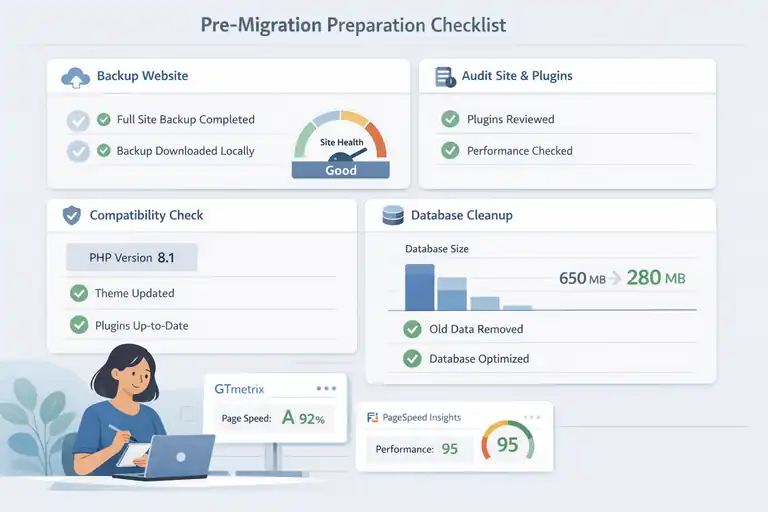
Preparation is where smooth migrations are made. Skipping this step is like moving without labeling boxes — you’ll waste hours later untangling what went wrong.
Back Up Your WordPress Website Properly
Even though WP Engine automatically backs up your site once it’s migrated, you should always create a manual backup before starting.
I suggest using tools like:
- UpdraftPlus — for easy full-site backups stored in Google Drive or Dropbox.
- BlogVault — offers incremental backups and one-click restores.
Once your backup is complete, download it locally. That way, even if something unexpected happens during migration, your site is safe.
Audit Your Current Site For Performance And Plugins
Before moving, take inventory of your current setup. This includes active plugins, themes, and performance metrics.
Here’s what to do:
- Visit Tools → Site Health in your WordPress dashboard to check for warnings.
- Deactivate unnecessary or duplicate plugins (especially caching or backup ones).
- Note your site speed using GTmetrix or PageSpeed Insights so you can compare after migration.
In my experience, cleaning up unused plugins before migration prevents potential conflicts with WP Engine’s managed features.
Check PHP, Theme, And Plugin Compatibility With WPEngine
WPEngine supports modern PHP versions (currently PHP 8.1+), so outdated code can break your site if not checked first.
Here’s how to test compatibility:
- Use the PHP Compatibility Checker plugin.
- Update your theme and all plugins to their latest versions.
- Avoid old plugins that haven’t been updated in over a year — they’re likely incompatible or insecure.
WPEngine also has a Smart Plugin Manager that automatically updates your plugins while testing them for compatibility — a lifesaver after migration.
Clean Up Your Database Before Migration
Migrating unnecessary junk (like old post revisions, spam comments, or transient data) can slow things down.
Use these quick-cleaning tools:
- WP-Optimize — cleans up post revisions and database tables safely.
- Advanced Database Cleaner — removes orphaned metadata and expired transients.
I usually recommend doing this step right before migration. A smaller, cleaner database means faster migration and a more efficient new site.
Using The WPEngine Automated Migration Plugin
WP Engine’s Automated Migration Plugin is hands-down the easiest and fastest way to move your site — no manual file transfers or SQL imports required.
How To Install And Configure The Migration Plugin
You can find the plugin by searching “WPEngine Automated Migration” in your WordPress admin panel under Plugins → Add New.
Once installed:
- Go to Tools → Site Migration.
- Enter your WPEngine SFTP credentials (you’ll find these in your WPEngine dashboard under Sites → SFTP Users).
- Click Migrate to start the process.
The plugin copies your site directly to WP Engine using a secure channel, so you can keep your live site running during the process.
Setting Up Your WPEngine SFTP Credentials
You’ll need your WPEngine SFTP details to connect the plugin.
Here’s how to find them:
- Log in to WPEngine’s User Portal.
- Navigate to your environment (like mywebsite.wpengine.com).
- Under SFTP Users, click Add SFTP User if you don’t already have one.
Enter these credentials into the plugin fields in WordPress, and you’re ready to go.
Pro tip: Create a dedicated SFTP user just for migration, then delete it afterward for better security.
Running The Automated Migration Step-By-Step
Once credentials are set, hit Start Migration. The plugin will:
- Copy all WordPress files.
- Export and import your database.
- Rewrite URLs to match your WP Engine domain.
Depending on your site size, this can take anywhere from 10 minutes to an hour. You’ll receive an email once the migration is complete.
Afterward, preview your site using WPEngine’s temporary URL (something like yourdomain.wpengine.com) to ensure everything looks right before changing DNS.
Troubleshooting Common Plugin Migration Errors
Occasionally, you may hit small snags. Here’s what I usually check first:
- Migration stops mid-way: Your hosting server might have low PHP limits. Increase max_execution_time and memory_limit in your php.ini.
- Database errors: Clear transient data using WP-Optimize before retrying.
- Login issues post-migration: Reset your permalinks (under Settings → Permalinks → Save Changes) to fix URL conflicts.
If all else fails, WPEngine’s migration team can assist — they handle these issues daily and usually resolve them quickly.
Manual WPEngine Migration (Advanced Method)
Sometimes automation isn’t the right fit — especially if your website is large, highly customized, or has unique server configurations.
In that case, a manual WPEngine migration gives you full control over every detail of the process. It takes more time but gives you precision.
When Manual Migration Is A Better Option
I usually recommend a manual migration when one of these applies:
- The automated migration plugin fails or times out due to large file sizes.
- You’re using non-standard file structures (for example, multisite setups or headless WordPress).
- You want granular control over which data gets migrated — like excluding staging data or old logs.
In those cases, doing things manually avoids plugin limitations and gives you the cleanest start possible. Think of it as “spring cleaning” while moving houses — you move only what matters.
Before starting, make sure you have access to:
- Your old hosting control panel (or SFTP and phpMyAdmin access).
- WPEngine’s SFTP credentials (found in User Portal → Sites → SFTP Users).
- A reliable FTP client such as FileZilla or Cyberduck.
How To Export Your Database Safely
The database is your site’s brain — it stores posts, pages, users, and settings. Exporting it properly ensures nothing gets lost in transit.
Here’s how I do it step-by-step:
- Log in to phpMyAdmin from your current host’s control panel.
- Select your WordPress database (usually named something like wp1234).
- Click Export → Quick → SQL → Go.
- Save the file as database.sql on your computer.
Pro tip: If your database is very large (over 100MB), choose Custom Export and enable compression (gzip). It makes the upload faster and reduces the chance of timeout errors later.
If you’re unsure which database your site uses, open wp-config.php in your WordPress root directory and look for:
define('DB_NAME', 'your_database_name');That’s the one to export.
Uploading Files Via SFTP To WPEngine
Next, we’ll move your actual website files — the wp-content folder, themes, plugins, and uploads — to WP Engine.
Steps to follow:
- Open FileZilla (or another SFTP client).
- Connect using the credentials from WPEngine’s SFTP Users section.
- On the right, you’ll see your WPEngine environment directory (like /wp-content/).
- On the left, navigate to your local WordPress files.
- Upload everything except the wp-config.php and wp-content/cache folders.
This can take 10–60 minutes depending on your site size. I usually suggest migrating during off-peak hours to minimize potential downtime.
Importing The Database And Updating wp-config.php
Once your files are uploaded, it’s time to import your database into WP Engine.
Here’s the simple way:
- Log in to your WPEngine phpMyAdmin (found under User Portal → Sites → phpMyAdmin).
- Choose your target database and click Import.
- Select your database.sql file and hit Go.
When it’s done, open the wp-config.php file in your WPEngine directory (you can edit it via SFTP) and update these lines:
define('DB_NAME', 'your_wpengine_db_name');

define('DB_USER', 'your_wpengine_db_user');

define('DB_PASSWORD', 'your_wpengine_db_password');

define('DB_HOST', '127.0.0.1');
You can find these values in WPEngine’s Environment → Database Access Info section.
After saving, try accessing your WPEngine site via the temporary URL (something like yoursite.wpengine.com). If it loads, the database is connected successfully.
Testing The Manual Migration For Accuracy
This is where most people skip ahead — but testing ensures your migration was actually successful. Don’t skip it.
Here’s what to test right away:
- Pages and posts: Click through menus and ensure all pages load.
- Forms and contact pages: Submit a test message.
- Plugins: Check dynamic features like sliders, membership logins, and popups.
- Media: Make sure all images display and aren’t missing.
You can use a plugin like Broken Link Checker or Ahrefs Webmaster Tools to scan for 404s.
If something looks off (like broken styling or missing fonts), double-check your wp-config.php and site URL settings under Settings → General to ensure both point to the correct WPEngine domain.
Once everything looks right, you’re ready for the final step: going live.
Updating DNS And Going Live Without Downtime
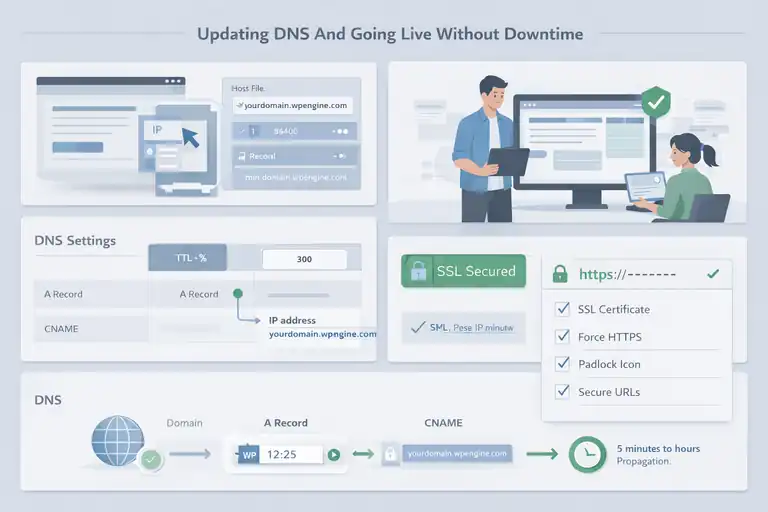
Switching DNS is the moment your site officially moves to WPEngine. If done right, your visitors won’t even notice the switch.
How To Preview Your Site Before Changing DNS
Before touching DNS settings, always preview your new WPEngine site to confirm everything works.
You can do this two ways:
- Use the WPEngine temporary URL (e.g., yourdomain.wpengine.com).
- Modify your hosts file locally to preview your domain as if it were live on WP Engine.
If you choose the second method, you’ll need your WPEngine IP address from the Overview tab in your User Portal. It’s a quick way to verify your site behaves exactly as expected before launch.
Setting TTL Values To Prevent Downtime
TTL (Time To Live) determines how long DNS records are cached by the internet. I always recommend lowering it 24 hours before launch to something like 300 seconds (5 minutes). That way, when you update DNS, the switch propagates quickly.
Most domain registrars let you adjust TTL under DNS Settings → Advanced Options. After the migration settles, you can raise it again to improve performance.
Pointing Your Domain To WPEngine
Once you’ve verified everything looks good, it’s time to point your domain.
Here’s how to do it:
- Log in to your domain registrar (Hostinger, Namecheap, Cloudflare, etc.).
- Locate your A Record and update it to WPEngine’s IP address.
- If you’re using CNAME records for subdomains (like www), point them to yourdomain.wpengine.com.
WPEngine provides these values under Domains → Add Domain in your User Portal. After updating, DNS propagation can take anywhere from 5 minutes to a few hours.
Verifying SSL And HTTPS Configuration After Launch
Once your DNS is fully pointing to WPEngine, you’ll want to secure your site with SSL.
WP Engine makes this easy:
- Go to User Portal → SSL → Add Certificates.
- Choose the free Let’s Encrypt SSL option and activate it.
- Then, force HTTPS sitewide using the Redirect HTTP to HTTPS toggle under Utilities → Redirect Rules.
You can confirm SSL is working by visiting your site with https:// and checking for the padlock icon in your browser.
If something doesn’t display correctly (like mixed content warnings), use the Better Search Replace plugin to update old HTTP URLs in your database.
Post-Migration Optimization And Testing
You’ve made it! Now that your site is live on WPEngine, the final step is to test, optimize, and fine-tune for performance. This is where the real magic happens.
Testing Site Speed And Core Web Vitals
I always run a performance check immediately after migration. You can use:
Compare your new results to your old host. On average, I’ve seen up to 40–60% faster load times after migrating to WPEngine, thanks to their built-in CDN and caching systems.
If you notice slower results, check for large images or unoptimized scripts. WPEngine’s Page Performance tool (under User Portal → Overview → Page Performance) can identify bottlenecks for you.
Checking For Broken Links Or Missing Images
After migration, small issues can appear — especially with image paths or plugin-generated URLs.
Here’s my go-to checklist:
- Use Screaming Frog to find 404 errors.
- Search your Media Library for missing thumbnails or duplicated files.
- Re-save permalinks (under Settings → Permalinks → Save Changes) to refresh the URL structure.
Most of the time, broken links are due to old hardcoded domain references in your database. Better Search Replace can fix these in a few clicks.
Reviewing Plugin Functionality And Security Settings
Once your site is stable, it’s time to test all interactive features — especially contact forms, checkout pages, and user logins.
I also advise disabling unnecessary security plugins like Wordfence or iThemes Security, since WPEngine already manages security at the server level. Too many overlapping protections can slow your site or cause false positives.
Instead, enable WPEngine’s built-in features like:
- Managed WAF (Web Application Firewall)
- Daily backups and restore points
- Login Protection and Brute Force prevention
Configuring WP Engine Caching And CDN Features
WPEngine handles caching automatically through its EverCache system, but you can still fine-tune it.
Under User Portal → Utilities → Clear Cache, you’ll find controls to purge caches manually when needed. I recommend doing this after design or content updates.
For global performance, make sure WPEngine’s CDN is enabled. It distributes your site’s files across multiple servers worldwide, ensuring your site loads quickly for visitors everywhere.
If your site uses dynamic content (like logged-in dashboards or membership areas), reach out to WPEngine support to adjust caching rules. They’ll help make sure nothing gets “over-cached.”
Common WP Engine Migration Issues And Fixes
Even with WPEngine’s smooth migration tools, small issues can pop up afterward — things like broken links, missing HTTPS, or confusion between staging and production environments.
The good news? Most of these are quick fixes once you know where to look.
Fixing URL Redirects And Permalink Problems
After a WPEngine migration, one of the most common hiccups is incorrect URLs or permalinks not working as expected. It usually happens when old domain paths still exist in the database.
Here’s what I recommend doing:
- Log into your WordPress dashboard and go to Settings → Permalinks.
- Without changing anything, click Save Changes. This refreshes your permalink structure and often resolves 404 errors immediately.
- If some URLs still point to your old domain, install Better Search Replace and run a search for your old URL (like https://oldsite.com) and replace it with your new WP Engine domain (like https://yourdomain.com).
If you still see issues, check for redirect conflicts inside WPEngine’s User Portal → Utilities → Redirect Rules. Sometimes multiple rules can overlap — I’ve seen it happen often when an old .htaccess file conflicts with WP Engine’s own redirect manager.
A quick test is to open your site in an incognito window or clear your cache after saving redirect rules. WPEngine also automatically clears caches when redirects are added, which is a small but helpful feature.
Handling Mixed Content Or HTTPS Errors
This one’s easy to spot — your site loads, but you see a “Not Secure” warning in the browser, or some images fail to display.
That’s a classic mixed content problem: parts of your site (like images or scripts) are still loading over HTTP instead of HTTPS.
Here’s how to fix it quickly:
- Install Better Search Replace and replace http://yourdomain.com with https://yourdomain.com.
- In your WordPress dashboard, go to Settings → General and confirm both WordPress Address (URL) and Site Address (URL) start with https://.
- Use a plugin like Really Simple SSL to automatically handle future mixed content and redirects.
If you’ve recently added an SSL through WPEngine (under SSL → Add Certificates), give it about 15–30 minutes to propagate. I’ve found it helps to clear the WP Engine cache afterward to see the change immediately.
Dealing With Staging vs. Production Environment Confusion
WP Engine offers a staging environment, which is a separate copy of your site where you can safely test updates or designs before pushing them live.
It’s incredibly useful — but it can cause confusion if you forget which environment you’re working in.
To stay organized, I suggest:
- Always name your environments clearly (for example, mydomain-staging and mydomain-production).
- Look at your WP Engine admin bar when logged in — it shows which environment you’re currently on.
- Never edit your staging environment and expect those changes to appear live. You’ll need to deploy staging to production from the User Portal → Sites → Staging → Copy Environment.
One mistake I see often: people mistakenly update plugins or content in staging and then wonder why the live site didn’t change. Always confirm the environment name before making edits.
Contacting WP Engine Support For Migration Help
If you ever hit a wall during migration, don’t hesitate to use WPEngine’s support chat — they’re genuinely excellent.
Here’s how to reach them:
- Log in to your User Portal.
- Click the Chat with Support bubble in the lower right corner.
- Choose Migrations as your topic, and a WordPress-trained technician will join you within minutes.
From my experience, WPEngine’s team can even access your account (with permission) and fix database mismatches or configuration errors directly.
It’s one of the biggest advantages of being on a managed platform — real humans who specialize in WordPress, not just general hosting.
Best Practices To Keep Your WP Engine Site Running Smoothly
Once your WPEngine migration is complete, the focus shifts from setup to stability.
The beauty of WPEngine is that it’s designed to stay fast, secure, and scalable — but a few smart habits can make sure it keeps performing like that long-term.
Setting Up Automated Backups And Monitoring
WPEngine automatically backs up your site daily, but I always recommend setting additional manual restore points before big updates.
To create one:
- Go to User Portal → Backups → Create Backup Point → Name it (e.g., “Before Plugin Update”).
- You can restore any version in one click if something breaks later.
If you want extra peace of mind, pair this with uptime monitoring tools like UptimeRobot or Pingdom. They’ll alert you instantly if your site ever goes offline.
Using WP Engine’s Staging Environment For Updates
Never test updates directly on your live site — that’s what WPEngine’s staging area is for. It’s a duplicate version of your site where you can safely experiment.
Here’s what I usually do:
- Copy your live site to staging.
- Update plugins, themes, or test new designs.
- Review everything — functionality, forms, checkout flow.
- Once it looks good, push staging to production.
You’ll find all these options under User Portal → Sites → Staging → Copy Environment. It’s one of WPEngine’s most valuable tools for keeping your live site stable while still moving fast on updates.
Enabling Advanced Caching And Performance Tools
WPEngine’s caching system, EverCache, works automatically, but you can control it manually when needed.
You can:
- Clear cache anytime under Utilities → Clear Cache.
- Use the WPEngine Admin Bar in your WordPress dashboard to purge cache without leaving your site.
- Enable the built-in CDN (Content Delivery Network) for global speed boosts.
If you’re using WooCommerce or membership plugins, WP ngine automatically excludes dynamic pages (like cart or account areas) from cache to avoid conflicts — one of those “it just works” features I really appreciate.
Keeping Plugins, Themes, And Core Files Updated
WPEngine offers a Smart Plugin Manager that automatically updates plugins while testing them for compatibility. If a new version breaks your site, it’ll roll back to the previous version — safely and automatically.
Still, I like to review my plugins monthly and remove any that aren’t actively maintained. Leaner sites load faster and encounter fewer bugs.
A simple rule I follow: if a plugin hasn’t been updated in over a year, I replace it with a modern alternative.
Pro Tips For A Seamless WP Engine Migration
After managing dozens of WPEngine migrations, I’ve gathered a few insights that consistently make the process smoother and safer.
How To Minimize Downtime During Migration
I suggest performing migrations during low-traffic hours — typically between midnight and 5 a.m. in your audience’s time zone.
Also, lower your DNS TTL value to 300 seconds (5 minutes) the day before migration. This ensures DNS changes propagate faster once you go live.
If you want zero downtime, migrate your site while it’s still live on your old host, test it on WP Engine’s temporary domain, then only switch DNS after you’re confident everything’s working.
What To Double-Check Before Making The Site Live
Before going live, do a quick sanity checklist:
- All pages load correctly (no 404s).
- SSL certificate is active.
- Forms, search, and login pages function properly.
- Google Analytics and tracking codes are present.
I always preview the site on multiple devices — phone, tablet, desktop — since caching can look different across them. A five-minute check here saves hours of fixes later.
Using W Engine Tools For Ongoing Optimization
WP Engine’s Page Performance tool (under User Portal → Overview → Page Performance) is one of the most underused features. It scans your site and highlights issues like uncompressed images or slow scripts.
They also offer an Application Performance tool that shows which plugins or queries slow your site the most. I’ve used it to spot bottlenecks in client sites that even premium speed plugins missed.
Run these reports monthly and note improvements — you’ll actually see performance gains quantified over time.
Recommended Maintenance Routine Post-Migration
Here’s a simple monthly maintenance checklist I suggest for all WP Engine users:
- Create a manual backup point.
- Update WordPress core, themes, and plugins.
- Test key pages and forms.
- Clear cache and CDN.
- Review security logs under Utilities → Error Logs.
Doing this regularly keeps your site fast, secure, and dependable — and it takes less than 15 minutes.
Final Steps: Confirming A Successful Migration
Before you close your laptop and call it done, let’s make sure your WPEngine migration is truly complete.
Verifying Functionality, Speed, And SEO Settings
After migration, test your site speed again using GTmetrix or PageSpeed Insights. Look for improved load times — they should drop noticeably, especially for image-heavy pages.
Next, ensure your SEO basics are intact:
- Title tags and meta descriptions still appear correctly.
- Canonical tags point to the right URLs.
- Robots.txt and sitemap are accessible.
If you’re using Yoast SEO or Rank Math, confirm settings didn’t reset during migration (it happens occasionally).
Updating Google Search Console And Analytics
Now that your site is live on WPEngine, update your property URLs in Google tools:
- In Google Search Console, add your new HTTPS version.In Google Analytics, go to Admin → Property Settings → Default URL and update to https://.
This ensures all tracking and indexing data aligns with your new WP Engine setup.
Creating A Post-Migration Checklist For Future Moves
I suggest saving your process as a personal migration checklist for next time. It might include:
- Pre-migration backup completed.
- DNS TTL adjusted.
- SSL verified.
- Page speed tested post-launch.
- Redirects reviewed.
That way, if you ever move environments again (like from staging to live or to another domain), you’ll already have a trusted playbook.
Pro tip: WP Engine also allows you to clone entire sites to new installs with a few clicks — perfect for creating future projects from your current configuration.
FAQ
How do I perform a WP Engine migration easily?
You can migrate your WordPress site to WP Engine using their free Automated Migration Plugin. It transfers your files and database securely without downtime or coding.
Does WP Engine offer manual migration options?
Yes. WP Engine allows manual migration using SFTP and phpMyAdmin for advanced users who prefer full control over the transfer process.
Will my site experience downtime during WP Engine migration?
No, if done correctly. You can test your site on a temporary WP Engine domain before updating DNS, ensuring a smooth, zero-downtime migration.

I’m Juxhin, the voice behind The Justifiable.
I’ve spent 6+ years building blogs, managing affiliate campaigns, and testing the messy world of online business. Here, I cut the fluff and share the strategies that actually move the needle — so you can build income that’s sustainable, not speculative.
Related posts:
 WP Engine Dedicated Server: Best Choice for Large Sites?
 How WP Engine Site Migration Works for WordPress Users
 InMotion WordPress Hosting: Fast, Secure, Reliable
 Best WPEngine Alternatives for Faster WordPress Sites
 WP Engine Pricing Explained: Is It Too Expensive?
 WPEngine Cost: Why It’s More Expensive Than Other Hosts