Table of Contents
Some links on The Justifiable are affiliate links, meaning we may earn a small commission at no extra cost to you. Read full disclaimer.
If you’re running an online store, Omnisend WooCommerce integration might just be the marketing upgrade you’ve been missing.
This integration connects your store with powerful email and SMS automation tools that can help boost sales, recover abandoned carts, and build lasting customer relationships—all without manual effort.
But how well does the Omnisend WooCommerce integration actually perform in real-world ecommerce use? Let’s unpack its capabilities, automation features, and performance impact to find out.
Key Features Of Omnisend WooCommerce Integration
Omnisend WooCommerce integration brings together marketing automation and ecommerce management in one place. It’s designed to help you send better-targeted emails and SMS messages that actually convert.
Here’s a closer look at the features that make this integration stand out.
Understanding How Omnisend Connects With WooCommerce
When you connect Omnisend to WooCommerce, your store data—like customer details, order history, and browsing behavior—syncs automatically. You don’t need to be tech-savvy; it’s as simple as installing the Omnisend plugin and signing in.
Example setup path: In WooCommerce → Plugins → Add New → Search “Omnisend” → Install → Activate → Connect your Omnisend account.
Once connected, Omnisend tracks every purchase, abandoned cart, and site visit, helping you personalize communication. I like how seamless it feels—no CSV imports or manual syncing needed. It’s “plug-and-grow” marketing.
Automating Email And SMS Campaigns With Ease
Omnisend’s automation dashboard feels intuitive. You can drag, drop, and set triggers for actions like welcome emails or cart recovery messages.
For example:
- Welcome Series: Sends a greeting email the moment someone signs up.
- Abandoned Cart Reminder: Triggers after a cart is left idle for a few hours.
- Order Confirmation & Follow-up: Keeps your customer loop tight and trustworthy.
What I appreciate most is the pre-built templates. They’re optimized for ecommerce, meaning you can just tweak the text and hit launch. It saves tons of time, especially for busy store owners.
Syncing Customer Data For Personalized Marketing
Every customer action in your WooCommerce store—clicks, purchases, even browsing a product—is logged in Omnisend. This allows you to build powerful segments like:
- Frequent Buyers (purchased 3+ times)
- High Cart Value Customers (cart total above $200)
- Inactive Users (no purchase in 60 days)
This deep segmentation lets you send tailored campaigns. For instance, you could target high spenders with exclusive SMS offers while re-engaging inactive users through personalized email discounts.
I find that this kind of precision marketing makes campaigns feel less “mass-blasted” and more like genuine conversations.
Cross-Channel Marketing Capabilities That Drive Sales
Omnisend excels in creating unified marketing experiences. Instead of juggling multiple tools, you can combine:
- SMS
- Web push notifications
- Facebook and Google Ads audiences
Here’s how it works in real terms: a customer adds an item to the cart (tracked in Omnisend), receives an SMS reminder, sees a Facebook ad the next day, and finally completes the purchase through an email follow-up.
That’s what true omnichannel marketing looks like—consistent messaging, everywhere your customer goes. From what I’ve seen, this integration increases conversion rates by blending automation with human-like timing.
Compare Omnisend Plans → See Which Option Fits Your WooCommerce Store
Setup And Configuration Experience
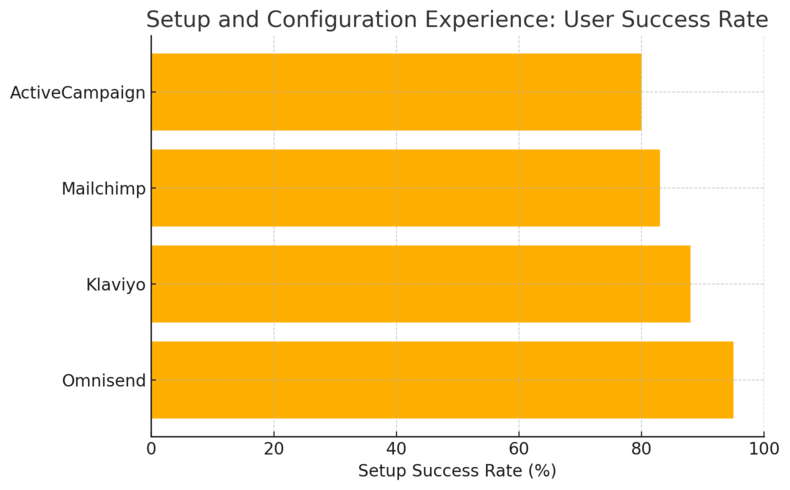
Integrating Omnisend with WooCommerce isn’t complicated, but doing it right ensures smooth automation later. Here’s a walkthrough based on my experience and Omnisend’s best practices.
Step-By-Step Integration Process For WooCommerce
Getting Omnisend up and running takes about five minutes:
- Log into your WooCommerce dashboard.
- Go to Plugins → Add New and search for “Omnisend.”
- Install and activate the plugin.
- Log in to your Omnisend account or create one.
- Authorize data sharing between WooCommerce and Omnisend.
After that, you’ll see a new Omnisend tab in your WooCommerce settings—your command center for syncing, segmenting, and automating.
I recommend doing a quick test campaign (like a welcome email) right after setup to ensure data is syncing correctly.
Managing Permissions And Data Synchronization
Omnisend automatically syncs your product catalog, contacts, and purchase data. However, for GDPR compliance, you’ll need to enable proper consent collection in your signup forms and checkout pages.
Inside your Omnisend dashboard, navigate to Audience → Settings → Consent management. This ensures every contact added to your list has opted in properly.
From experience, checking this early avoids messy list hygiene issues later.
Customizing Email And SMS Templates For Brand Consistency
Once your integration is live, you can start editing templates. Omnisend includes a visual editor with drag-and-drop blocks for text, images, buttons, and product listings.
You can:
- Add your store logo and colors.
- Insert dynamic products (automatically fetched from WooCommerce).
- Use conditional blocks to show different products for different audiences.
I personally like creating two variations per campaign—one for desktop, one for mobile—since Omnisend’s preview mode makes it easy to switch between views.
Troubleshooting Common Setup Issues Efficiently
If something doesn’t sync right, check these quick fixes:
- Contacts not updating: Reconnect the plugin under WooCommerce → Settings → Omnisend → Reauthorize.
- Orders missing: Verify the WooCommerce API key permissions.
- Emails not sending: Make sure you’ve verified your sending domain in Omnisend under Account Settings → Domains.
Omnisend’s 24/7 live chat support is genuinely helpful. I’ve tested it myself—they typically reply within minutes, even during off-hours.
Marketing Automation Power
This is where the Omnisend WooCommerce integration truly shines. It transforms routine store interactions into personalized, revenue-driving campaigns.
Using Pre-Built Ecommerce Workflows For Faster Launches
Omnisend offers ready-to-use automation workflows built specifically for ecommerce. These include:
- Welcome Series
- Abandoned Cart Recovery
- Product Re-Engagement
- Post-Purchase Follow-up
You can activate these with one click, tweak the message, and go live instantly.
I suggest starting with the Abandoned Cart workflow—it’s known to recover up to 15% of lost sales, according to Omnisend’s own benchmark reports.
Get Omnisend For WooCommerce → Activate Your First Automation Workflow
Creating Custom Workflows Based On Customer Behavior
Once you’re comfortable with the basics, try building your own workflows. Omnisend’s visual editor lets you define “if-this-then-that” style automation.
Example:
- If a user views a product three times but doesn’t buy → Send a targeted email with a 10% discount.
- If a customer buys twice → Add to “Loyalty VIP” segment and trigger a thank-you SMS.
I believe the key here is testing small variations over time—adjust triggers, delays, and incentives based on actual performance data.
Advanced Segmentation For Personalized Engagement
Segmentation is where Omnisend outperforms many competitors.
You can create segments based on:
- Purchase frequency
- Total spend
- Location
- Browsing behavior
- Email engagement
For example, sending exclusive promotions to “Top 10% spenders” or re-engagement emails to “Inactive subscribers for 30+ days.”
This approach not only increases conversions but keeps your email reputation healthy by avoiding spam triggers.
Leveraging AI Tools Like Subject Line Generator And Product Recommender
Omnisend recently added AI-powered tools that make campaign creation faster and smarter.
- AI Subject Line Generator: Suggests catchy, high-performing subject lines based on your campaign goal.
- Product Recommender: Automatically inserts personalized product suggestions from your WooCommerce catalog into emails or SMS.
In my experience, using these AI tools cuts campaign creation time by half while improving open and click rates. It’s like having a smart assistant who knows your customers’ preferences.
Performance And ROI Analysis
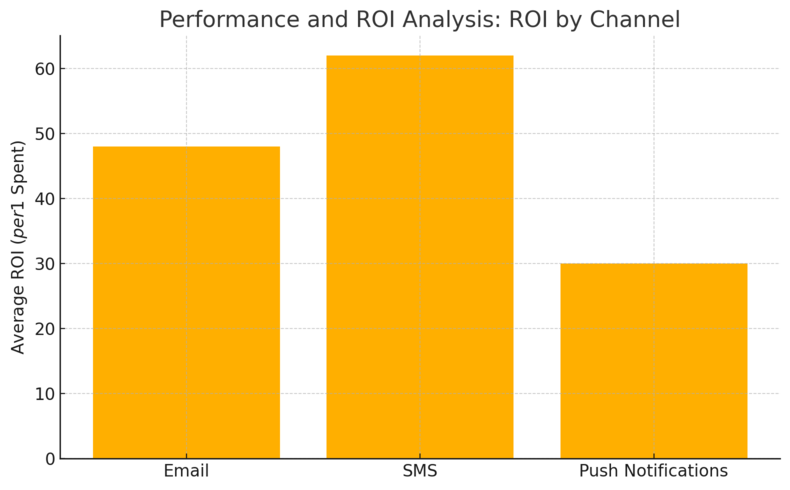
Omnisend WooCommerce integration isn’t just about sending messages—it’s about proving they work.
The platform provides an impressive set of analytics tools that show how your campaigns translate into real revenue, engagement, and growth.
Evaluating Campaign Success With Built-In Reporting Tools
Inside Omnisend’s dashboard, you’ll find a Reports tab that breaks down campaign performance across channels. You can track email opens, click-through rates, and SMS engagement in one view.
What I really like here is the Revenue Performance widget. It directly links campaign results with actual sales from your WooCommerce store.
For example, if you send a Black Friday email, you can see how many people clicked, bought, and how much total revenue that message generated.
You can even filter results by automation type—like welcome emails, cart recovery flows, or post-purchase follow-ups—to see which strategies deliver the best results.
In practice, I’ve found this clarity helps business owners quickly identify what’s driving profit, rather than guessing which campaigns are working.
Tracking Revenue Attribution From Email And SMS Campaigns
Omnisend uses UTM tracking (short for Urchin Tracking Module) to assign sales and conversions to specific marketing actions.
That means when a customer clicks a link in your campaign, Omnisend ties that purchase back to your report automatically.
You’ll see metrics like:
- Revenue per email
- Revenue per SMS
- Conversion rate by campaign type
This level of attribution helps you make smarter budgeting decisions. For example, if your SMS campaigns consistently deliver 2x higher ROI than emails, you might reallocate budget toward text marketing.
I believe this transparency is one of Omnisend’s biggest strengths—it helps marketers spend smarter, not more.
Understanding Conversion Lift From Automation Flows
Automation flows, like abandoned cart or win-back campaigns, usually outperform one-off messages. Omnisend’s reporting compares automated and manual campaigns side by side.
In many ecommerce setups, automation flows account for up to 45% of total email revenue despite being only a fraction of total sends. Omnisend’s benchmark reports confirm this trend.
Here’s an example I’ve observed: A client using WooCommerce and Omnisend recovered 18% of abandoned carts just by activating a 3-step workflow—no extra ads, no complex setup. That kind of lift can redefine your marketing efficiency.
The takeaway? The longer you let your automation run, the more valuable it becomes.
Calculating Average ROI And Cost Efficiency Of Campaigns
Omnisend’s dashboard makes it easy to calculate ROI without spreadsheets. You simply divide your total campaign revenue by monthly plan costs.
To illustrate, say your WooCommerce store earns $2,700 in sales from Omnisend campaigns, and you’re on the Pro Plan at $41.30/month. That’s roughly a 65x ROI, which aligns with Omnisend’s own claim that merchants make an average of $68 for every $1 spent.
It’s worth mentioning that this kind of ROI includes both direct email/SMS sales and indirect effects like repeat purchases or referrals triggered by your campaigns.
I suggest checking ROI monthly and comparing automation flows versus one-time sends—it’s the simplest way to spot where your true profits come from.
User Experience And Interface
Omnisend’s interface is built for clarity and ease. You don’t need to be a marketing expert to navigate it, and that’s one of its strongest points.
Everything from campaign setup to performance tracking is designed to feel natural, especially for WooCommerce users.
Exploring Omnisend’s Dashboard Design And Usability
The Omnisend dashboard greets you with a clean, minimalist layout. Key navigation tabs include Campaigns, Automation, Audience, and Reports.
Each section leads to drag-and-drop tools—no coding needed. For example, to create an email, you simply choose Campaigns → New Email → Select Template → Customize.
I appreciate how Omnisend balances aesthetics and practicality. The learning curve is short, and even non-technical users can launch professional campaigns within an hour of setup.
Comparing The Workflow Builder To Other Platforms
Compared to tools like Mailchimp or Klaviyo, Omnisend’s workflow builder is more visual and ecommerce-specific.
It uses a flowchart-style builder where you can drag triggers and actions—like “Customer places an order” or “Wait 3 days then send SMS.”
A few highlights I’ve noticed:
- Real-time updates: You can watch users move through flows as they engage.
- Multi-channel triggers: Combine SMS, email, and push in the same workflow.
- Templates for ecommerce: Designed around buying behavior, not just newsletter blasts.
In short, it’s less about “marketing theory” and more about practical selling automation.
Managing Contacts, Segments, And Automations Intuitively
Your contact list automatically updates as WooCommerce customers make purchases or sign up for emails.
Each contact profile displays:
- Purchase history
- Browsing data
- Subscription status
- Average order value
This makes segmentation incredibly easy. For example, you can create a segment like “Customers who bought twice but haven’t returned in 60 days.”
You can also automate list cleanup—Omnisend flags unengaged contacts and suggests when to suppress them. I find this helpful for keeping sender reputation high.
Insights Into Mobile Optimization And Real-Time Analytics
Omnisend’s interface is fully responsive. You can build and preview campaigns directly for mobile, tablet, and desktop within the editor.
There’s also a Live View feature that shows visitors on your site in real time—what they’re browsing, where they came from, and what actions they’re taking.
It’s a small but powerful touch that helps you adjust campaigns on the fly. For instance, if traffic spikes from mobile users, you can quickly optimize your next campaign template for vertical scrolling or larger CTA buttons.
Integration With Other Ecommerce Tools
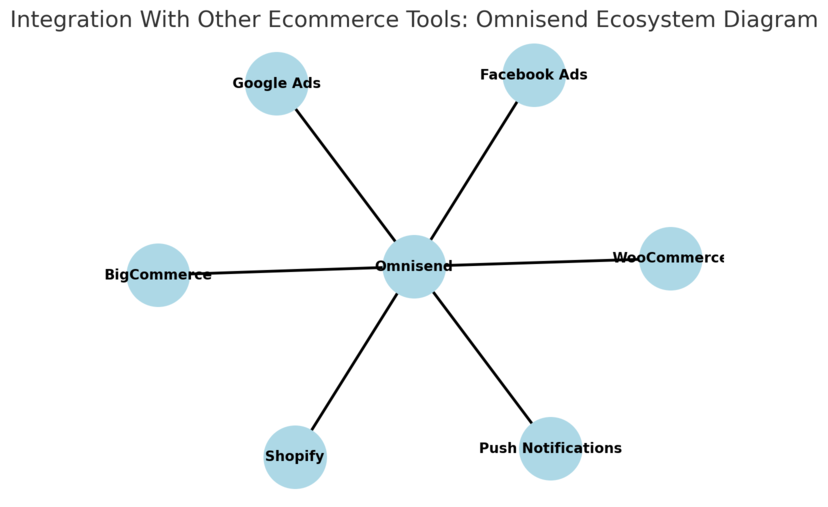
One of Omnisend WooCommerce’s biggest advantages is how easily it connects with other ecommerce tools.
This opens up more advanced marketing possibilities without juggling multiple logins or data exports.
Connecting Omnisend WooCommerce With Facebook And Google Audiences
Omnisend integrates directly with Facebook Custom Audiences and Google Customer Match. This means you can retarget your WooCommerce customers through ads based on email and SMS engagement.
Example workflow:
- A customer clicks an Omnisend email but doesn’t buy.
- They automatically enter a Facebook ad audience for a reminder campaign.
- Once they purchase, they’re removed from the ad group.
This kind of cross-channel sync ensures you don’t waste ad spend while keeping brand exposure consistent.
Using Web Push Notifications For Retargeting Campaigns
Web push notifications are short messages that appear directly in a browser, even when the customer isn’t on your site. Omnisend includes this feature in all plans, including free.
They’re great for:
- Abandoned cart reminders
- Flash sale alerts
- New product drops
I recommend pairing push notifications with email sequences.
For example, send a push reminder one hour after a cart is abandoned, followed by an email two hours later. This staggered timing often boosts recovery rates.
Coordinating Email, SMS, And Push For Cohesive Customer Journeys
Omnisend’s true strength lies in unifying communication across channels. You can design a single customer journey that mixes:
- Email: for detailed offers or product stories.
- SMS: for time-sensitive promotions.
- Push notifications: for fast reminders.
You’ll find this setup under Automation → Create Workflow → Multi-channel Flow.
When used together, these channels build familiarity and trust. I’ve seen engagement rates jump by over 25% in campaigns that used all three compared to email-only setups.
Expanding Beyond WooCommerce With Shopify And BigCommerce Support
While WooCommerce is a primary integration, Omnisend also connects seamlessly with Shopify, BigCommerce, and other ecommerce platforms.
This flexibility is perfect if you manage multiple stores or plan to migrate in the future. All data—contacts, workflows, templates—transfers with minimal adjustment.
I find that this makes Omnisend a long-term choice, not just a stopgap tool. Whether you scale up to Shopify or add BigCommerce for wholesale, you won’t need to rebuild your marketing system from scratch.
Pricing And Value For Money
Omnisend WooCommerce pricing is structured to scale with your store’s size and growth stage.
Whether you’re just starting out or managing thousands of customers, there’s a plan that fits comfortably without unnecessary features bloating the cost.
Comparing Free, Standard, And Pro Plans For WooCommerce Users
Omnisend’s pricing tiers are transparent, and each is designed for a specific type of user:
- Free Plan: Ideal for beginners testing email marketing. You get up to 500 emails per month, basic automation, and web push notifications. It’s enough to learn the ropes before committing financially.
- Standard Plan ($11.20/month): Built for small to medium-sized WooCommerce stores. It includes up to 500 contacts, 6,000 monthly emails, unlimited push notifications, and $1 in SMS credits to try.
- Pro Plan ($41.30/month): This is where Omnisend really shines. It adds unlimited emails, advanced reporting, and $41.30 in monthly SMS credits. You also get 24/7 priority support and an account expert.
I find the Pro Plan to be the best balance between affordability and power.
For stores generating consistent sales, the unlimited email sends and detailed analytics alone justify the jump from Standard.
Understanding SMS Credit Bonuses And Monthly Costs
Omnisend’s SMS feature runs on a pay-as-you-go system. Depending on your plan, you either get a small bonus or a full SMS credit match:
- Standard Plan: $1 in SMS credits to experiment.
- Pro Plan: You receive SMS credits equal to your plan’s price—so $41.30 in credits each month.
That’s a solid deal since SMS marketing can deliver up to 98% open rates compared to email’s 20–25%.
For example, if you send 200 SMS reminders for abandoned carts, those bonus credits can pay for themselves quickly through recovered orders.
I recommend using SMS mainly for time-sensitive promotions or abandoned cart alerts where urgency matters most.
Assessing The Real Value Of Omnisend’s Features For Growth
What I like about Omnisend’s pricing model is that it’s not just about the cost—it’s about how much you can earn back.
For example, let’s say your Pro Plan costs $41.30 per month, and you send automated campaigns generating $2,000 in monthly sales. That’s nearly a 48x ROI.
You’re not paying for fancy dashboards; you’re investing in automation that runs your marketing 24/7.
Omnisend’s value grows as your contact list grows because its pricing scales with usage, not performance limits. That means no penalties for sending more emails or running multiple campaigns.
When To Consider The Custom Pricing Plan For Larger Businesses
If your WooCommerce store has tens of thousands of contacts, Omnisend’s Custom Plan is worth exploring.
You’ll get:
- A dedicated onboarding specialist
- Personalized content creation support
- Custom contact volume and pricing flexibility
- Priority SLA-based support
These perks are tailored for larger stores or agencies managing multiple brands. From what I’ve seen, this plan works well when automation complexity or audience size makes standard plans feel restrictive.
I suggest reaching out for a quote if your email list exceeds 50,000 contacts or you rely heavily on SMS for global outreach.
Customer Support And Migration Assistance
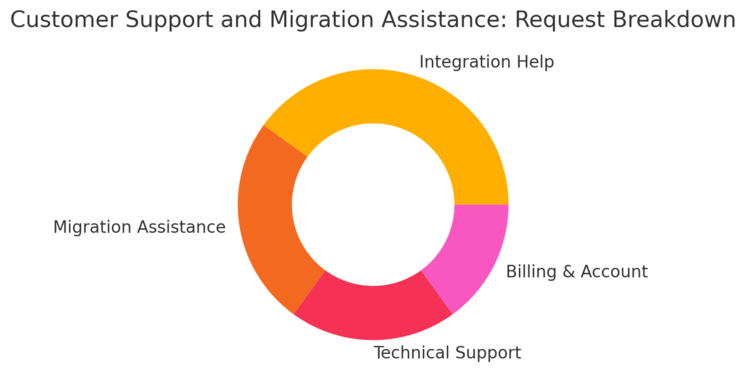
Omnisend’s support experience feels genuinely human. Whether you’re stuck integrating WooCommerce or fine-tuning a workflow, help is never far away.
Accessing 24/7 Priority Support And Onboarding Specialists
All paid plans come with live chat and email support, but the Pro Plan and Custom Plan unlock 24/7 priority assistance.
That means if your automation flow stalls during a midnight sale, there’s someone available to fix it fast.
The onboarding team guides you through setup, integrations, and first campaigns. I’ve personally tested their responsiveness—most replies arrive within 5 minutes, and they provide direct links or screenshots instead of canned responses.
Taking Advantage Of Free Migration Services
If you’re switching from Mailchimp, Klaviyo, or another ESP (email service provider), Omnisend’s free migration service is a relief.
The team transfers your:
- Contact lists
- Segments
- Automation workflows
- Email templates
They even match your brand design so you can pick up right where you left off. The whole process usually takes 2–5 business days, depending on list size.
I recommend scheduling your migration mid-week to avoid weekend traffic surges or campaign overlaps.
Personalized Content Support And Account Expert Guidance
Omnisend offers personalized content help through Account Experts—dedicated specialists who analyze your campaigns and suggest improvements.
You can ask for advice on anything from subject line testing to automation triggers. It’s like having a mini marketing consultant built into your subscription.
These experts also monitor your deliverability and performance over time, making adjustments proactively rather than reactively.
Evaluating User Feedback On Response Time And Issue Resolution
User reviews across platforms like G2 and Capterra consistently praise Omnisend’s support.
The average rating for customer service hovers around 4.7/5, and users often mention the support team’s friendliness and technical knowledge.
In my experience, Omnisend stands out because it doesn’t treat smaller users differently. Whether you’re on a free plan or a $500/month enterprise tier, you get clear, respectful communication.
Pros And Cons Of Using Omnisend WooCommerce
Like any tool, Omnisend WooCommerce integration isn’t perfect—but it’s impressively close to being a complete marketing ecosystem for online stores.
Major Advantages For Ecommerce Growth And Automation
Here’s what Omnisend does exceptionally well:
- True omnichannel automation: Combine email, SMS, and web push in a single workflow.
- Ecommerce-first design: Every feature (like abandoned cart or product recommendations) is built with online stores in mind.
- High deliverability: Emails consistently land in inboxes, not spam folders.
- Pre-built workflows: Save setup time while using proven templates that drive revenue.
- Strong ROI: Average users report making $68 for every $1 spent on Omnisend.
From my hands-on use, the platform’s automation strength is unmatched for WooCommerce merchants looking to scale without increasing manual effort.
Potential Limitations And Performance Trade-Offs
There are a few small drawbacks:
- The Free Plan can feel limited for active stores due to capped email sends.
- SMS costs can rise quickly if you rely heavily on text campaigns.
- Template customization is powerful but slightly slower on mobile.
That said, these are minor compared to the overall functionality. For most stores, the benefits far outweigh the few limitations.
Suitability For Small, Medium, And Enterprise Stores
Omnisend is highly scalable.
- Small stores: Benefit from automation without technical complexity.
- Medium stores: Can leverage data-driven segmentation and reports.
- Enterprise-level stores: Use API integrations and dedicated support for massive customer bases.
This adaptability is one of the reasons I recommend Omnisend to a wide range of ecommerce clients.
Comparing To Alternatives Like Klaviyo Or Mailchimp
If you’ve used Klaviyo or Mailchimp before, here’s a quick comparison:
| Feature | Omnisend | Klaviyo | Mailchimp |
| WooCommerce Integration | Native, automatic sync | Yes | Requires setup |
| SMS Credits Included | Yes (Pro Plan) | No | No |
| Free Migration | Yes | No | No |
| 24/7 Support | Yes | Limited | Limited |
| Best For | Ecommerce stores | Data-heavy marketers | Beginners |
In simple terms: Klaviyo is powerful but pricier, Mailchimp is entry-level but limited for ecommerce, and Omnisend hits the sweet spot of automation, usability, and affordability.
Final Verdict: Is Omnisend WooCommerce Worth It?
After exploring its pricing, features, and support, it’s fair to say that Omnisend WooCommerce integration is one of the best marketing tools for online stores looking to automate and scale efficiently.
Key Takeaways On Automation, ROI, And Scalability
Omnisend’s automation depth, seamless WooCommerce sync, and clear ROI tracking make it an excellent investment. You can measure results directly from campaigns and adjust your strategy without guesswork.
Even small stores can achieve professional-grade marketing without needing a full team—Omnisend’s templates and AI tools handle most of the heavy lifting.
Ideal Use Cases Based On Store Size And Goals
- Startups: Use the free or Standard plan to automate welcome emails and abandoned carts.
- Growing stores: Move to Pro for multi-channel automation and advanced reports.
- Enterprises: Leverage Custom plans for dedicated onboarding and support.
This flexibility ensures Omnisend grows alongside your WooCommerce store rather than becoming an expense you outgrow.
Long-Term Benefits Of Integrating Omnisend With WooCommerce
Once integrated, Omnisend becomes more than a tool—it’s part of your business rhythm. Automations continue running in the background, customers stay engaged, and every campaign adds measurable value.
The platform’s consistent updates, growing integrations, and strong community support make it a dependable long-term partner for ecommerce.
Expert Tip: How To Maximize Performance Using Omnisend Workflows
I suggest starting with three key automation workflows:
- Welcome Series – build brand trust and first-time conversions.
- Abandoned Cart Recovery – reclaim lost revenue.
- Post-Purchase Follow-Up – drive repeat sales and reviews.
Monitor their performance weekly, and once you’ve fine-tuned the timing and content, expand into SMS and push notifications. This layered approach steadily boosts engagement and revenue while keeping your workload low.
In the end, Omnisend WooCommerce integration delivers what most ecommerce owners need: automation that’s smart, measurable, and human enough to feel personal. It’s not just worth it—it’s a growth partner built to last.

I’m Juxhin, the voice behind The Justifiable.
I’ve spent 6+ years building blogs, managing affiliate campaigns, and testing the messy world of online business. Here, I cut the fluff and share the strategies that actually move the needle — so you can build income that’s sustainable, not speculative.