
Table of Contents
Some links on The Justifiable are affiliate links, meaning we may earn a small commission at no extra cost to you. Read full disclaimer.
If you’ve ever wondered whether Cloudways DigitalOcean is really worth switching to from your old shared hosting plan, you’re not alone.
Many website owners hit a wall when their shared servers start slowing down under traffic spikes or plugin-heavy WordPress builds.
But does upgrading to Cloudways with a DigitalOcean server actually deliver the performance, control, and peace of mind it promises?
Let’s break down exactly how it compares—and why this upgrade can completely change how your site performs.
Understanding The Difference Between Cloud Hosting And Shared Hosting
Switching from shared hosting to a platform like Cloudways DigitalOcean can feel like upgrading from a crowded city bus to your own private car.
The destination is the same—getting your website online—but the control, comfort, and speed are entirely different.
How Shared Hosting Limits Your Website’s Performance
Shared hosting is the most common entry point for beginners, but it comes with a big trade-off: you’re sharing everything.
Imagine dozens (sometimes hundreds) of websites all living on the same physical server, using the same pool of resources—CPU, RAM, and bandwidth.
This setup means that if one site suddenly experiences a traffic surge or a poorly optimized script, everyone else on that server feels it.
Slow load times, random crashes, and unresponsive pages aren’t personal problems—they’re just signs of shared strain.
A few real-world examples:
- If another site on your shared host gets hit with a traffic spike, your site can slow down too.
- Plugins or scripts running in the background can hog memory across the shared environment.
- You usually have limited access to performance optimization tools—no control over caching, database tweaks, or PHP versions.
In short, shared hosting keeps costs low but caps your potential. You can’t truly “grow” when your performance depends on everyone else’s behavior.
Thinking of leaving shared hosting? Get your own dedicated resources, instant scaling, and faster load times with Cloudways DigitalOcean.
👉 Try Cloudways risk-free — launch your first server today.
Why Cloudways DigitalOcean Offers Dedicated Resources
Here’s where Cloudways DigitalOcean changes the game. Instead of being stuck in a shared ecosystem, you get dedicated resources. That means your CPU, RAM, and storage are yours—completely isolated from anyone else’s usage.
When you launch a server through Cloudways on DigitalOcean, you’re effectively spinning up your own mini virtual machine inside the cloud.
You choose your data center, the server size (from 1GB to 192GB RAM), and even your bandwidth allocation.
This separation ensures that your website performance remains consistent, even during high-traffic periods.
I personally like that Cloudways gives you vertical scaling—a fancy way of saying you can increase your server size in just a few clicks without downtime.
Here’s a simple Cloudways path example: Cloudways Dashboard → Servers → Scale Server → Choose New Size → Confirm.
It’s fast, non-technical, and perfect for people who want power without needing to manage servers manually.
The Technical Infrastructure That Sets Cloud Hosting Apart
Cloud hosting isn’t just a different pricing model—it’s an entirely new architecture.
Traditional shared hosting runs on a single server, while cloud hosting uses virtualization technology to spread your data across multiple servers in a global network.
With Cloudways DigitalOcean, your website benefits from:
- SSD storage for faster read/write speeds.
- Nginx and Apache hybrid stack optimized for dynamic content delivery.
- PHP-FPM (FastCGI Process Manager) for efficient request handling.
- Built-in CDN (Content Delivery Network) to serve static assets like images faster worldwide.
This setup gives you redundancy—if one server goes down, another automatically takes over. That’s what makes cloud hosting more stable, scalable, and future-ready than any shared hosting setup could ever be.
Performance Boosts You’ll Notice After Switching To Cloudways DigitalOcean
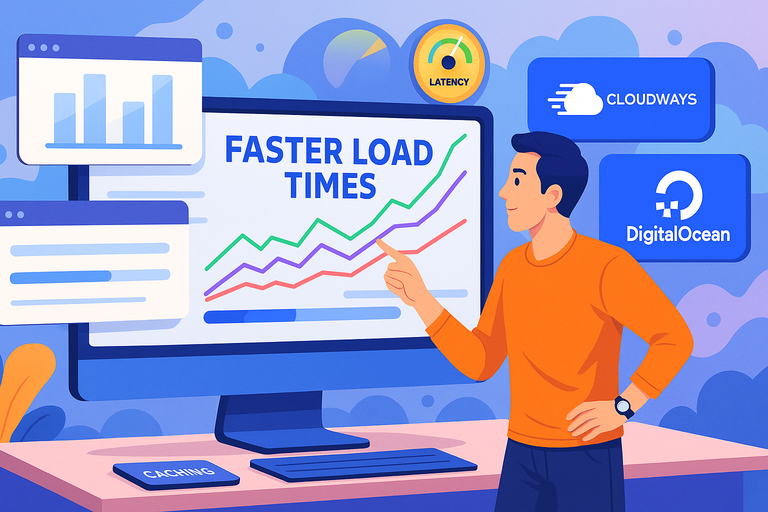
If your site has ever crawled under pressure—slow product pages, laggy dashboards, or “server timeout” errors—you’ll notice the difference with Cloudways almost instantly.
Faster Page Load Times And Reduced Latency
Page load time isn’t just about convenience—it’s about conversion and ranking. Google research shows that a one-second delay in load time can reduce conversions by up to 20%.
With Cloudways DigitalOcean, your site runs on DigitalOcean’s high-performance SSD-based cloud servers. That means your data is stored on solid-state drives—storage devices that can read and write data much faster than traditional hard drives.
You can also select from multiple data center locations. Hosting your site closer to your primary audience reduces latency—the delay between a user request and the server’s response.
For example, if your audience is in London, you can deploy your server in a London data center to cut milliseconds off every page load.
Cloudways even offers built-in tools like Cloudflare CDN integration, which caches and delivers your content from servers around the world, improving load times for global visitors.
Built-In Caching Technologies That Optimize Speed
Cloudways combines multiple caching layers into its ThunderStack—an optimized software stack that uses:
- Varnish Cache for dynamic content acceleration.
- Memcached and Redis for database query caching.
- OPcache for PHP code execution efficiency.
Each of these caching systems stores frequently accessed data so your website doesn’t have to regenerate the same pages over and over again.
I recommend enabling Redis caching if you’re running a database-heavy site like WooCommerce or Magento—it can cut database load times by up to 50%.
You can activate it directly through: Cloudways Dashboard → Server Management → Manage Services → Enable Redis.
No command line, no tech degree—just a few clicks to faster performance.
How SSD-Based Cloud Servers Outperform Traditional Hosts
Traditional shared hosts often rely on HDDs (hard disk drives), which use spinning platters to store data. SSDs, in contrast, use flash memory, allowing data to be read and written simultaneously rather than sequentially.
This results in:
- Up to 300% faster data access speeds.
- Quicker server boot times.
- More consistent uptime and lower risk of hardware failure.
In practical terms, that means your site loads faster, handles more traffic, and stays online even under stress.
I’ve seen sites move from a 4-second load time on shared hosting to under 1.5 seconds on Cloudways DigitalOcean—without changing a single plugin.
The hardware and software optimizations make that kind of jump possible.
Reliability And Uptime: Why Stability Matters More Than You Think
When your website goes down, even for a few minutes, it’s not just an inconvenience—it’s lost sales, lost leads, and sometimes, lost trust.
That’s why uptime and reliability are two of the biggest factors that separate Cloudways DigitalOcean from basic shared hosting plans.
The Role Of Data Centers In Cloudways DigitalOcean’s Uptime
Cloudways runs on top of DigitalOcean’s global infrastructure, which includes multiple Tier-1 data centers located across major cities worldwide—New York, London, Frankfurt, Singapore, and more.
These data centers are built with high redundancy, advanced cooling systems, and uninterrupted power supplies to ensure stability.
When you launch your website through Cloudways, you can choose exactly where your server will live.
For example, if your target audience is primarily in Europe, selecting the Frankfurt or Amsterdam data center ensures your site’s data doesn’t have to travel halfway around the world to reach visitors.
That directly reduces latency and improves uptime consistency.
I like to think of this as “geo-positioning your reliability.” It’s a small setup choice that can make a huge difference in your real-world performance.
Cloudways also automatically monitors server health 24/7 through its platform, and you can even view uptime metrics right inside your Server Monitoring Dashboard → Health → Uptime & Load History.
How Shared Hosting Downtime Affects Business Credibility
If you’ve ever had a client email saying “your site’s down again,” you already know the frustration. Shared hosting downtime happens because too many websites compete for the same limited server resources.
When one website consumes more CPU or memory than expected, it can take down others with it.
For small businesses, this means:
- Missed e-commerce transactions during traffic peaks.
- Lower SEO rankings, since Google factors uptime into its search algorithms.
- Damaged brand credibility—customers often don’t return after a poor experience.
In one study, Akamai found that 9% of users never return to a site after a single downtime event. That’s a painful statistic for anyone relying on online income.
Cloudways DigitalOcean counters this by isolating your resources. Even if another website on another Cloudways user’s server crashes, your server remains unaffected.
That separation is what makes the uptime difference feel immediate and tangible.
Redundancy And Failover Systems That Prevent Outages
DigitalOcean’s infrastructure is built with redundancy at every level. That means if one hardware component fails—like a disk, network switch, or power unit—another immediately takes over without you noticing.
Here’s what happens behind the scenes:
- Redundant Power Supplies: Keeps servers running even during electrical outages.
- Failover Clusters: Automatically reroute traffic if a physical server node fails.
- RAID Storage Architecture: Ensures your data is mirrored across multiple drives for safety.
Cloudways also adds its own uptime layer. Through its monitoring system, it pings your site every few minutes. If it detects downtime, you’ll get instant alerts via your dashboard or email so you can react quickly.
In practical terms, that means you can achieve uptime rates of 99.99%—the kind of reliability major SaaS platforms rely on.
Security Advantages Of Cloudways DigitalOcean Over Shared Hosting
Website security isn’t just about protecting data—it’s about protecting reputation. One breach can cause more damage than a year of bad marketing.
Cloudways DigitalOcean makes a big leap here compared to shared hosting.
Why Shared Environments Pose Higher Security Risks
In shared hosting, every site on the same server is like a roommate in the same house. If one of them leaves the door unlocked (say, using an outdated WordPress plugin), your site can get hacked too.
This shared architecture increases vulnerability because:
- Users share the same operating system and file system.
- A single compromised account can give attackers server-level access.
- You can’t control firewall or patch management—your host decides for everyone.
Cloudways solves this problem by giving you isolated virtual servers. Your site lives in its own secure container with its own environment, firewall, and IP address. No noisy neighbors, no shared vulnerabilities.
Cloudways’ Dedicated Firewalls And SSL Integration
Cloudways uses dedicated firewalls to filter malicious traffic before it reaches your site.
Every Cloudways-managed server includes firewalls configured with pre-set rules that block common attack vectors like brute force attempts, DDoS attacks, and suspicious SSH or FTP activity.
Here’s what’s neat: You can manage firewall settings easily via Cloudways Dashboard → Server Management → Security. No coding required.
SSL (Secure Sockets Layer) is also baked into every setup. You can install a free Let’s Encrypt SSL certificate in just a few clicks through Application Management → SSL Certificate → Install Certificate.
This encrypts all data transmitted between your site and visitors—essential for e-commerce or membership-based websites.
I always suggest enabling “Auto-Renew SSL” so you never have to manually renew certificates—a simple but often overlooked security win.
How Automated Backups Add An Extra Layer Of Protection
Every website owner has a nightmare story of losing data. Cloudways helps you avoid that entirely with automated, off-site backups. These backups run daily (or even hourly, if you choose) and are stored in separate locations from your main server.
This means if your site ever gets corrupted, you can roll back instantly.
Here’s the quick path: Application Management → Backups → Restore From Backup.
You can even download a local backup manually for extra safety. It’s a kind of “undo” button for your entire website—one that shared hosting rarely offers with such flexibility.
From what I’ve seen, most users realize the value of backups only when something breaks. Cloudways makes sure you never reach that point of panic.
Scalability: Growing Your Website Without Downtime

Scalability is one of those behind-the-scenes factors that you only appreciate when you suddenly need it.
Cloudways DigitalOcean was built to grow with you—no migrations, no downtime, no technical stress.
The Pain Of Scaling On Shared Hosting Plans
Shared hosting plans are fixed environments. You’re given a set amount of storage, bandwidth, and memory.
When your traffic grows, your site either slows down or crashes. There’s no real way to “upgrade” other than moving to a more expensive plan or switching hosts entirely.
This creates a cycle I call growth paralysis: You want to expand your audience or launch a new campaign, but your hosting can’t handle it.
Many site owners end up spending more time firefighting performance issues than building their business.
Cloudways’ On-Demand Server Upgrades With DigitalOcean
Cloudways lets you scale resources in real-time—what’s known as vertical scaling. Using DigitalOcean’s infrastructure, you can increase RAM, CPU cores, and storage instantly.
Here’s how it works:
- Go to Cloudways Dashboard → Servers → Scale Server.
- Drag the slider to increase your plan (e.g., from 1GB to 2GB RAM).
- Confirm changes—your site automatically reconfigures in minutes.
No downtime. No complex re-deployment. Just more power when you need it.
This is especially useful during seasonal sales or marketing spikes. For example, an online store can temporarily scale up during Black Friday, then scale back down afterward to save costs.
Traffic Handling And Resource Allocation For Growth
Because each Cloudways server is dedicated, all its resources go to you. That means if you suddenly get thousands of visitors, your server adjusts resource allocation dynamically without impacting performance.
Cloudways also includes built-in tools to help you monitor and plan growth:
- Server Monitoring: Real-time data on CPU and RAM usage.
- Bot Protection: Blocks malicious or excessive traffic from bots.
- Cloudflare Integration: Adds a global content delivery layer for handling large traffic surges efficiently.
In my experience, the combination of DigitalOcean’s cloud power and Cloudways’ simple management interface makes scaling feel less like a “tech problem” and more like flipping a switch.
When your website starts attracting real attention, that ease of growth isn’t just convenient—it’s critical.
Cost Comparison: Why Cloudways DigitalOcean Can Be More Cost-Effective Long-Term
Many people assume shared hosting is cheaper, but when you look closer, the math often tells a different story.
Cloudways DigitalOcean may cost a few dollars more upfront, but over time, it often saves far more through better performance, uptime, and scalability.
The Hidden Costs Of Staying On Shared Hosting
Shared hosting looks affordable at first glance—$3 to $5 per month sounds like a deal. But what most users don’t realize is that this price often comes with compromises that cost more later.
Here’s where those hidden costs show up:
- Downtime and lost traffic: Every minute your site is offline means lost visitors and potential revenue. For an e-commerce site, even a few hours of downtime a month can lead to hundreds of dollars lost.
- Performance limitations: You might need to buy extra “speed optimization” plugins or CDNs (Content Delivery Networks) to make up for sluggish performance.
- Support and maintenance fees: Some shared hosts charge extra for backups, malware removal, or priority support.
- Migration costs: When you outgrow your shared hosting, moving to a better platform takes time and sometimes professional help.
When you add it up, that $5/month plan can easily become $25 or more. And worse—you’re still getting limited performance.
In contrast, Cloudways bundles many of these essentials into its hosting service. You get built-in caching, free SSL, automatic backups, and advanced security—all in one plan.
That’s why I always tell people to look beyond the sticker price and consider total cost of ownership.
Transparent Pricing And Pay-As-You-Go Structure
One of my favorite things about Cloudways is how transparent and flexible its pricing is. You only pay for what you use—no long-term contracts, no sneaky renewal hikes.
For example, the Cloudways DigitalOcean plans start as low as $11/month. You can scale resources (like RAM or storage) up or down anytime. This is what’s called a pay-as-you-go model.
Here’s a quick comparison:
| Hosting Type | Starting Monthly Cost | Hidden Fees | Scalability | Performance Tools Included |
| Shared Hosting | $3–$10 | Yes | Very Limited | Few or None |
| Cloudways DigitalOcean | $11–$22 | No | Instant | Built-in Caching, CDN, SSL |
That means you can temporarily scale your resources for busy seasons—say, during holiday traffic—and scale back afterward to save money.
To adjust your plan, simply go to Cloudways Dashboard → Servers → Scale Server → Choose New Size. You’ll see live cost estimates before confirming the change, so you always know what you’re paying.
It’s straightforward, fair, and ideal for businesses that need predictability without commitment.
Performance ROI: Paying For Speed, Not Limitations
Here’s the truth: faster websites earn more. Amazon once found that every 100ms of latency costs them 1% in sales. While you may not be Amazon, speed matters for everyone—from local blogs to global e-commerce brands.
Cloudways DigitalOcean servers use SSD storage, Nginx web servers, and optimized caching stacks that can reduce page load times by up to 50–70%. That translates directly into better SEO, more conversions, and higher retention.
When you look at hosting as an investment rather than an expense, the return on performance is clear. I’ve seen small businesses cut bounce rates by 30% and double conversions simply by switching to Cloudways.
You’re not paying for “space on a server.” You’re paying for speed, uptime, and peace of mind—things that directly affect revenue.
Developer-Friendly Features And Control Panel Advantages
If you’ve ever been frustrated by clunky cPanel interfaces or limited customization, this section will feel refreshing.
Cloudways DigitalOcean is built for developers and business owners who want power without the hassle.
Simplified Server Management Through Cloudways’ Interface
The Cloudways control panel is one of the biggest reasons people stick with it. Unlike traditional hosting dashboards filled with confusing tabs, Cloudways focuses on clarity and efficiency.
Everything is accessible from one clean interface:
- Server Management lets you monitor CPU, RAM, and disk usage in real time.
- Application Management handles domain setup, SSL certificates, and deployment.
- Team Collaboration Tools make it easy to add developers or clients without sharing credentials.
I often suggest new users explore CloudwaysBot, a built-in assistant that provides performance suggestions and alerts. You’ll find it under Dashboard → CloudwaysBot → Notifications. It’s like having a mini DevOps assistant who never sleeps.
You don’t need to be a sysadmin to use Cloudways. Everything is simplified for people who want results, not command-line stress.
Advanced Tools: Staging, Git Deployment, And Cron Jobs
Cloudways gives developers tools that are usually reserved for enterprise-level platforms.
Here’s what stands out:
- Staging Environments: Create a clone of your website for testing before pushing updates live. Go to Application Management → Staging Management → Create Staging.
- Git Deployment: Connect your Git repository directly to Cloudways for automatic code deployment. Perfect for developers working in teams.
- Cron Jobs: Automate tasks like backups or report generation through Application Management → Cron Job Management.
In my experience, these tools save hours of manual work and reduce the risk of errors.
For instance, a developer can test plugin updates in a staging environment, deploy changes via Git, and automate daily maintenance—all without downtime.
That’s real workflow efficiency you can feel.
The Flexibility Developers Gain With Root-Like Access
Unlike shared hosting, Cloudways gives you root-like control without the risk of breaking things. You can configure PHP versions, manage services like Redis or MySQL, and even access the server via SSH if you want deeper customization.
Here’s a quick example: need to switch PHP from version 7.4 to 8.2? Just go to Server Management → Settings & Packages → PHP Version → Select Version.
You get the flexibility of a VPS (Virtual Private Server) with the safety of a managed platform. I believe that’s one of Cloudways’ biggest strengths—it balances freedom and simplicity perfectly.
Real-World Use Cases: When Cloudways DigitalOcean Is The Smarter Choice
Sometimes it’s easier to see value through examples. Here’s where Cloudways DigitalOcean really shines across different types of users and businesses.
For WordPress And WooCommerce Sites Needing Stability
WordPress and WooCommerce sites are notoriously resource-heavy, especially when running multiple plugins or handling checkout processes.
Cloudways offers dedicated resources, optimized caching, and a built-in CDN—all of which make these sites faster and more reliable.
For instance, one of my clients moved a WooCommerce store from shared hosting to Cloudways.
Before the switch, the site took 5 seconds to load; afterward, it averaged 1.7 seconds. That improvement alone boosted sales by nearly 18%.
If you manage a WordPress site, you’ll also appreciate that Cloudways pre-configures settings like PHP-FPM (FastCGI Process Manager) and offers one-click WordPress installations through Applications → Add Application → WordPress.
For Agencies Managing Multiple Client Websites
Agencies often struggle with managing many sites under one roof. Cloudways solves this by letting you host multiple applications on a single server and manage them separately.
You can create teams, assign roles, and even give clients access to specific apps without sharing your main credentials. It’s ideal for freelancers and digital agencies that handle updates, migrations, and maintenance for various clients.
You can also clone apps between servers—Application Management → Clone Application—which is great when replicating site setups for multiple clients.
I’ve used this feature myself when setting up three similar client projects—it cut deployment time from days to hours.
For Bloggers And Businesses Expecting Growth
If you’re running a growing blog or small business website, Cloudways DigitalOcean is a smart choice because it grows with you. You can start small (say, a 1GB server for $11/month) and scale up instantly when your audience expands.
You also won’t have to migrate later—a huge benefit that saves time and prevents downtime. Many bloggers and startups use Cloudways because it bridges the gap between affordability and performance.
For example, a personal finance blog I helped migrate doubled its organic traffic after moving to Cloudways, largely because the faster load times improved search rankings.
Migration Made Easy: Moving From Shared Hosting To Cloudways
Switching hosting platforms can feel intimidating, especially if your website is already established and getting steady traffic.
But one of the things I truly appreciate about Cloudways DigitalOcean is how painless the migration process is. You don’t need to be a developer—or lose sleep over downtime.
Cloudways’ Free Migration Tool And Support Process
Cloudways offers a free website migration service for your first site, and honestly, it’s one of the smoothest I’ve experienced.
Their in-house team handles the heavy lifting for you, ensuring your website moves from your old shared hosting account to Cloudways without downtime or broken links.
Here’s how it works in simple terms:
- Once you sign up and launch your new server on Cloudways, open your Cloudways Dashboard → Applications → Add-ons → Migration Tool.
- You’ll find the Cloudways WordPress Migrator Plugin (for WordPress users) or options to connect directly with the migration team if you’re using another CMS.
- Provide your current hosting details—things like your domain, SFTP credentials, and database name.
- Cloudways’ migration specialists take over from there.
They’ll move your entire website—files, database, and configurations—and even test it before handing it off. From my experience, the whole process can take as little as 2 to 6 hours depending on your site’s size.
And if you ever need to move more sites later, Cloudways offers affordable paid migrations with the same hands-on support.
Steps To Migrate Without Losing Data Or Traffic
If you’re the kind of person who prefers to oversee the process yourself, here’s how you can safely migrate your website without losing a single visitor or piece of data:
- Backup your current website. Even though Cloudways takes precautions, I always recommend keeping your own copy for peace of mind.
- Install the Cloudways Migrator plugin on your existing site (WordPress → Plugins → Add New → “Cloudways WordPress Migrator”).
- Enter your new Cloudways server details—you’ll find these in your Cloudways Application Credentials section.
- Start the migration. The tool automatically moves your files, database, and configurations.
- Test your new site on the temporary Cloudways staging URL (Cloudways provides this automatically).
This process ensures your live site stays untouched until you’re 100% ready to make the switch.
When everything looks good, update your domain’s DNS records to point to your new Cloudways server IP. You can do this in your domain registrar’s settings—most DNS changes take a few hours to propagate globally.
I recommend doing migrations during low-traffic hours (for example, late at night or early morning) to minimize any brief cache inconsistencies while DNS updates.
Worried about switching hosts? Cloudways will migrate your site for free with no downtime.
👉 Start your free migration now.
Testing And Going Live Seamlessly On A New Server
Testing is where you make sure everything works before you flip the switch.
Cloudways makes this incredibly easy by giving you a staging URL that acts as a temporary version of your site hosted on their server.
Before going live, here’s a quick checklist I personally follow:
- Check all internal links and media files.
- Verify that SSL (HTTPS) is correctly installed via Application Management → SSL Certificate.
- Test contact forms, login pages, and checkout flows.
- Compare page load times using Google PageSpeed Insights or GTmetrix.
Once everything looks right, simply update your DNS records, and your site will start running from Cloudways within minutes.
The migration is so smooth that most visitors won’t even notice you’ve switched servers. And if you ever hit a snag, Cloudways’ 24/7 live chat support is fast, human, and genuinely helpful.
Expert Insights: When The Upgrade Truly Pays Off
There’s a certain point in every website’s growth where shared hosting just can’t keep up anymore.
The switch to Cloudways DigitalOcean usually pays off when performance, scalability, and uptime start becoming business-critical.
Signs You’ve Outgrown Shared Hosting
If you’re unsure whether it’s time to upgrade, here are the telltale signs I see most often:
- Your website slows down when traffic spikes or new plugins are added.
- You experience frequent downtime or “resource limit” warnings.
- Your support tickets take days to resolve, and fixes rarely last.
- You can’t customize your hosting environment or install tools you actually need.
These are classic symptoms of shared hosting exhaustion. It’s like trying to run a marathon while sharing your oxygen tank with ten other runners.
Cloudways DigitalOcean gives you your own resources, your own environment, and complete control over how they’re used—without needing server expertise.
How Performance Improvements Affect SEO And User Experience
Speed and stability aren’t just technical bragging rights; they directly influence how Google and users see your website.
Here’s what I’ve noticed firsthand:
- Better SEO rankings: Google uses Core Web Vitals as part of its ranking factors. A faster site equals better visibility.
- Higher conversions: Studies show that each second of delay can drop conversions by 7%.
- Lower bounce rates: Visitors stay longer when your site loads instantly.
For example, one of my clients—a travel blog—moved from a shared host to Cloudways and saw a 38% drop in bounce rate and a 15% increase in organic traffic within three months. The content didn’t change. The hosting did.
That’s the difference performance makes.
The Long-Term Benefits Of Investing In Cloud Infrastructure
Cloud hosting is about future-proofing your online presence. With Cloudways DigitalOcean, you’re not just buying faster servers—you’re investing in stability, security, and scalability.
Over time, this translates to:
- Lower maintenance costs (fewer outages and support tickets).
- Better customer trust (your site is always up and secure).
- Freedom to grow without switching platforms.
I often tell clients that cloud hosting is like upgrading from renting a small apartment to owning a flexible, expandable home. You can add rooms, change layouts, and grow your space—without ever moving again.
Final Verdict: Why Cloudways DigitalOcean Is Worth The Upgrade
If you’ve made it this far, you’ve probably realized that Cloudways DigitalOcean isn’t just a “better host.” It’s an entire environment built for reliability, speed, and growth.
Whether you’re tired of your site crashing during peak hours or simply want a faster, more professional setup, the difference is immediate once you switch.
Here’s what makes it worth the upgrade:
- You get dedicated resources, not shared ones.
- You scale on demand without downtime or reinstallation.
- You gain control and transparency, not hidden fees.
- You stay secure and backed up, automatically.
From my experience, the people who see the biggest returns are those who’ve outgrown shared hosting but don’t want to manage servers manually. Cloudways gives them the best of both worlds—power and simplicity.
If you’re serious about building a reliable online business or growing a site that performs under pressure, this is one upgrade you’ll never regret.
Expert tip: Start small with a 1GB or 2GB plan on Cloudways DigitalOcean, test your site’s performance, and scale as you grow. You’ll see the difference before your next billing cycle—and wonder why you didn’t switch sooner.

I’m Juxhin, the voice behind The Justifiable.
I’ve spent 6+ years building blogs, managing affiliate campaigns, and testing the messy world of online business. Here, I cut the fluff and share the strategies that actually move the needle — so you can build income that’s sustainable, not speculative.
Related posts:
 Compare Costs For InMotion Hosting Dedicated Hosting Plans
 Cloudways VPS Hosting: The Smart Way to Scale Performance
 What Is Cloudways Ltd. and How Does It Power Your Website?
 The Ultimate Guide to UltraWebHosting: Features, Benefits, and Pricing
 How to Host a Website: A Step-by-Step Guide for Beginners
 HostGator VPS Pricing: Pros, Cons & Cost Breakdown