Table of Contents
Some links on The Justifiable are affiliate links, meaning we may earn a small commission at no extra cost to you. Read full disclaimer.
If you’ve ever stared at a blank screen trying to rephrase a paragraph without losing its meaning, the paraphrase tool QuillBot can feel like a lifesaver. It helps you rewrite smarter, not harder—but how exactly does it do that?
Can it really maintain your tone, style, and clarity while improving the flow of your writing?
In this guide, we’ll break down how QuillBot works, explore its best features, and uncover practical ways to use it to elevate your content, whether you’re a blogger, student, or marketer.
Understanding How Paraphrase Tool QuillBot Works
Before you can make the most out of QuillBot, it helps to understand what’s going on behind the scenes.
This AI-powered paraphrasing tool doesn’t just replace words—it reads your text like a human would, identifies intent, and rewrites sentences to sound natural, fluent, and contextually accurate.
How QuillBot’s AI Learns Language Patterns
QuillBot’s core technology relies on machine learning, specifically natural language processing (NLP).
In simpler terms, its AI is trained on millions of text samples—everything from academic papers to blog posts—to understand how humans write and express ideas.
Instead of mechanically swapping words, QuillBot studies patterns of meaning.
For example, if you type:
“The results were disappointing despite extensive effort.”
QuillBot might rephrase it as:
“Even after significant effort, the results fell short.”
Notice how it doesn’t just swap “disappointing” for “unsatisfactory.” It restructures the sentence while preserving intent. That’s where the “smart” part of rewriting comes in.
I believe what makes QuillBot powerful is that its algorithms constantly adapt. Each user interaction helps it improve, learning what kinds of rephrasings sound natural versus robotic.
So over time, it writes more like you.
What Makes QuillBot Different From Other Paraphrasing Tools
Many rewriting tools rely on basic synonym replacement, which often leads to awkward or grammatically incorrect sentences.
QuillBot takes a deeper approach—it analyzes sentence meaning rather than individual words.
Here’s where it stands out:
- Semantic understanding: It grasps full sentence context, not just word order.
- Tone control: You can adjust the tone—from casual to academic—based on your audience.
- Integration: It connects directly with Google Docs, Word, and Chrome, letting you paraphrase inline without switching tabs.
- Multiple rewriting modes: Each mode has a distinct “personality,” from balanced to creative.
In my experience, this balance between linguistic intelligence and usability is what truly separates QuillBot from older paraphrasing tools. You spend less time editing awkward phrases and more time refining your ideas.
How Contextual Synonyms Improve Rewriting Accuracy
Synonym swapping is where most AI paraphrasers fall flat. They change words without understanding nuance. Q
uillBot solves this through contextual synonym mapping. It identifies how a word functions in a sentence and selects replacements that maintain tone, grammar, and intent.
Let’s say you write:
“She quickly noticed the error.”
A weak tool might rephrase that as “She rapidly observed the error,” which sounds clunky. QuillBot, however, could return:
“She immediately spotted the mistake.”
The latter feels natural because “spotted” fits the context of human behavior.
Here’s a tip: If you want even more control, use the Synonym Slider. It’s a small feature in the QuillBot interface that lets you adjust how aggressively it replaces words—from subtle tweaks to full rewrites.
I usually keep it in the middle for balanced results—enough freshness without losing my tone.
Exploring QuillBot’s Paraphrasing Modes
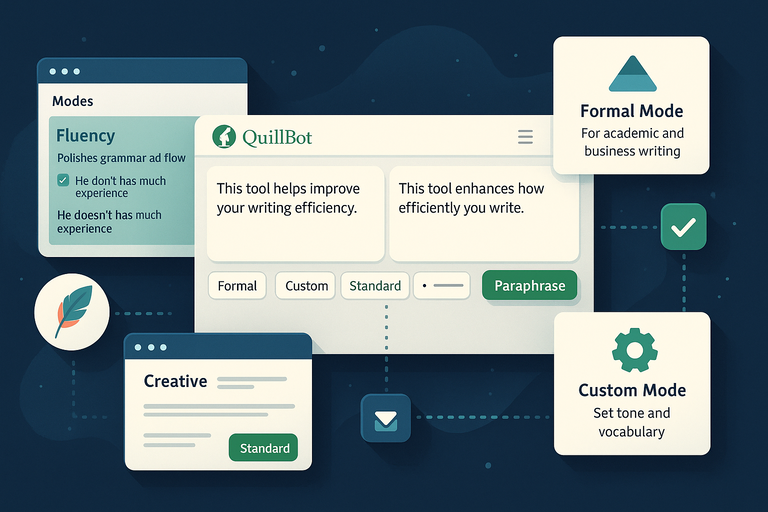
QuillBot’s biggest advantage lies in its multiple rewriting modes.
Each mode serves a different writing style and purpose, helping you tailor your content whether you’re writing an essay, blog post, or business email.
When to Use Standard Mode for Balanced Rewrites
Standard Mode is QuillBot’s default setting, and it’s ideal for general rewriting. It focuses on maintaining the original meaning while improving readability.
Here’s how it works: if you input “This tool helps improve your writing efficiency,” Standard Mode might rephrase it as “This tool enhances how efficiently you write.”
I recommend Standard Mode when:
- You want quick edits without changing your sentence structure too much.
- You’re paraphrasing articles or social media captions.
- You’re rewriting content for clarity while preserving tone.
Think of it as the “safe” mode—perfect for balanced, natural writing.
How Fluency Mode Polishes Grammar and Flow
Fluency Mode is where QuillBot truly shines for polishing grammar and sentence flow. It doesn’t change meaning much, but it makes your writing sound smoother and grammatically correct.
If you write “He don’t has much experience,” QuillBot might return “He doesn’t have much experience.” Simple, accurate, and natural.
Fluency Mode works best when you:
- Need to fix grammar errors without altering structure.
- Want to make AI or translated text sound human.
- Are editing non-native English writing.
I often use this mode for editing content before publishing—it’s like running a mini grammar-check with style.
Why Creative Mode Is Ideal for Bloggers and Copywriters
If you write for marketing, blogs, or creative copy, Creative Mode is your best friend. It rephrases more aggressively, offering new sentence structures and expressive phrasing.
Example:
- Input – “QuillBot is a great way to rewrite your text.”
- Output – “QuillBot transforms your writing effortlessly with smart, polished phrasing.”
It’s perfect for:
- Creating variations of ad copy or headlines.
- Breaking writer’s block by generating alternative sentence ideas.
- Making text more engaging for storytelling or content marketing.
I suggest reviewing Creative Mode outputs carefully, though—sometimes it gets too creative. A quick manual tweak usually brings it back on track.
Using Formal Mode for Academic and Business Writing
Formal Mode shifts your tone toward professionalism and precision, ideal for emails, research papers, or business reports. It uses advanced vocabulary and structured phrasing.
For instance, “We found some problems in the data” could become “Several inconsistencies were identified within the dataset.”
It’s best used when you:
- Need polished language for corporate or academic audiences.
- Want to elevate tone without sounding pretentious.
- Are writing grant proposals, presentations, or documentation.
In my view, this mode is underrated—it saves hours for professionals who need consistency in tone and word choice.
Custom Mode: Tailoring Tone and Vocabulary for Your Brand
Custom Mode lets you train AI to match your voice. You can set tone preferences (casual, confident, persuasive), vocabulary levels, or even specify banned words to maintain brand consistency.
Here’s an example of how it works in the interface path: Menu > Modes > Custom > “Set Custom Tone.”
This is where things get interesting—if you’re managing multiple brands or clients, you can create separate Custom Modes for each. One might favor casual language for blog posts, another might lean toward professional phrasing for B2B emails.
I suggest saving presets for your main writing styles. It’s like having a personal writing assistant that already knows your voice.
Pro Tip: Combine Standard and Custom Modes for the best of both worlds—balanced structure plus brand personality. This combo can make rewriting not only smarter but uniquely yours.
Advanced Features That Enhance Writing Efficiency
QuillBot isn’t just a paraphrase tool—it’s a full writing companion designed to save time and sharpen clarity.
Beyond rewriting, its built-in features like the Grammar Checker, Summarizer, and Citation Generator help polish your content from start to finish.
How the Grammar Checker and Paraphraser Work Together
What makes QuillBot unique is how seamlessly the Grammar Checker works alongside the Paraphraser. You don’t need to switch tools to fix grammar after rewriting—both functions run within the same interface.
Here’s how it works in practice:
- You paste your text into the QuillBot editor.
- The Paraphraser reworks the sentences for tone and structure.
- Instantly, the Grammar Checker scans for spelling, punctuation, and syntax issues.
For example, if your original text says, “The report need revised before submited,” QuillBot might paraphrase it as “The report should be revised before submission,” fixing both structure and grammar in one pass.
I recommend running both features together when editing long-form content. It helps maintain consistency and saves you from jumping between Grammarly or Word’s grammar suggestions.
The real win here is workflow speed—QuillBot lets you refine and correct at once without losing focus.
Using the Summarizer Tool for Condensed Clarity
If you’ve ever had to condense a 2,000-word report into a few sharp paragraphs, the Summarizer is your go-to feature. It analyzes your text and pulls out key points while preserving meaning.
You’ll find this tool under the Tools > Summarizer menu in QuillBot’s dashboard.
There are two modes:
- Key Sentences: Gives a bullet-style list of the main points.
- Paragraph Summary: Condenses the content into a cohesive short version.
For instance, when I uploaded a blog post draft of around 1,800 words, QuillBot’s summarizer condensed it into a 120-word abstract highlighting the main takeaways. It saved at least 20 minutes I’d normally spend drafting a summary manually.
I suggest using this feature for creating meta descriptions, social post snippets, or executive summaries. It’s particularly useful for marketers and students who need quick overviews without skimming through pages.
How the Citation Generator Simplifies Academic Tasks
For students, researchers, or anyone handling references, the Citation Generator is a huge time-saver. It automatically formats citations in major styles like APA, MLA, and Chicago.
Here’s a quick path: Tools > Citation Generator > Enter Source URL or DOI.
You input the article link or title, and QuillBot pulls the data to generate a perfectly formatted citation. For example, if you’re citing a journal article, QuillBot will output:
Author, A. A. (Year). Title of article. Journal Name, Volume(Issue), pages.
It also stores your references, letting you copy or export them easily into Word or Google Docs.
I advise using it during research-heavy projects—especially when managing dozens of sources. It minimizes citation errors and lets you focus on actual analysis rather than formatting headaches.
Integration with Google Docs and Chrome Extension
One of my favorite time-saving features is QuillBot’s Google Docs integration and Chrome Extension. They let you use the paraphraser directly where you write, without opening a new tab.
- Google Docs Add-on: Available via Extensions > Add-ons > Get Add-ons > QuillBot for Docs. Once installed, it opens a sidebar within your document, allowing instant rewriting.
- Chrome Extension: Lets you highlight text on any webpage and paraphrase it with one click.
In my experience, these integrations cut down rewriting time dramatically. For example, when editing blog drafts in Google Docs, I use the sidebar to paraphrase sentences without breaking writing flow.
The Chrome tool is equally handy when reworking LinkedIn posts or summarizing articles online.
If you work across multiple tools daily, I highly recommend enabling both. They bridge your writing apps together, making QuillBot feel like a natural extension of your workflow.
Practical Ways to Use QuillBot for Better Content
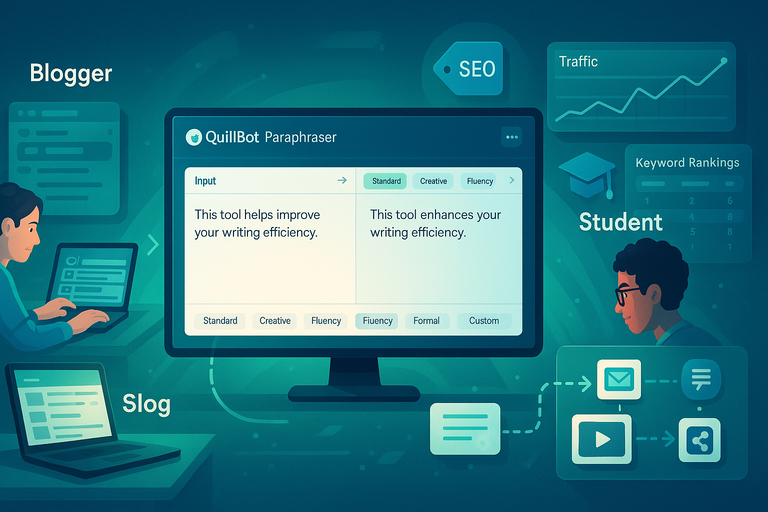
QuillBot’s strength isn’t just in what it does—it’s in how you use it.
Whether you’re blogging, studying, or repurposing old content, there are clear ways to make it work harder for you.
How Bloggers Use QuillBot to Rewrite Articles Efficiently
As a blogger, rewriting older posts or refreshing affiliate content can be tedious. QuillBot helps rephrase existing text without losing SEO structure or brand tone.
Here’s how I typically use it:
- Copy a section from an old post into the Paraphraser.
- Choose Creative or Standard Mode depending on how much I want to change.
- Review output for flow, then paste it back into my CMS.
This process can turn a 3-hour rewrite into 30 minutes. I also suggest using the Synonym Slider moderately to balance originality and natural tone.
Bloggers can also use the Summarizer to extract quick takeaways for social captions or newsletter intros, keeping their content ecosystem connected and consistent.
Improving SEO Content While Maintaining Originality
From an SEO standpoint, QuillBot helps eliminate duplicate phrasing across pages while preserving meaning. This is vital when writing product descriptions, meta tags, or long-form articles.
To keep your writing search-friendly while using QuillBot:
- Use Standard Mode for rewriting keyword-heavy sections without changing structure.
- Avoid pushing the synonym slider too high—it can distort keyword placement.
- Always review rewritten text with tools like Surfer SEO or Clearscope to maintain topical relevance.
I believe QuillBot is best used as an assistant, not a replacement—it’s powerful for generating variety, but human oversight ensures your SEO intent stays sharp.
How Students Can Simplify Research Paper Revisions
Students often struggle with rewording research without risking plagiarism. QuillBot’s Fluency and Formal modes help rewrite sentences in clearer academic tone while keeping originality intact.
For instance, inputting “The data show strong relation between variables” becomes “The data indicate a strong relationship between the variables.”
Here’s a workflow I recommend:
- Use Fluency Mode for initial grammar cleanup.
- Then switch to Formal Mode for tone consistency.
- Finish with the Citation Generator to manage references.
This combo not only simplifies revisions but teaches better academic phrasing through repetition—something that improves writing skills over time.
Using QuillBot to Repurpose Existing Copy or Scripts
Repurposing content across platforms can be tricky—you want it fresh but still recognizable. QuillBot helps by reshaping tone and structure without breaking context.
For example:
- Turn a YouTube script into a blog post using Creative Mode.
- Convert long blog paragraphs into social media posts with the Summarizer.
- Rework newsletters into web copy using Custom Mode to keep brand tone intact.
In my workflow, this feature alone saves hours. I once repurposed a 1,200-word blog into three email campaigns and a LinkedIn post—all rewritten using QuillBot with minimal edits.
If you produce content regularly, this is where QuillBot earns its keep.
Comparing QuillBot with Other Paraphrase Tools
No paraphrasing tool exists in isolation. To understand why QuillBot dominates the market, it’s useful to compare it with close competitors like Grammarly and Wordtune.
How QuillBot Stacks Up Against Grammarly and Wordtune
While Grammarly focuses on grammar and Wordtune on rewriting tone, QuillBot bridges both worlds. It balances paraphrasing depth with built-in grammar correction and summarization.
Quick comparison:
| Feature | QuillBot | Grammarly | Wordtune |
| Paraphrasing Modes | 7 Modes | Limited | 2 Modes |
| Grammar Checker | Built-in | Excellent | Basic |
| Summarizer | Yes | No | No |
| Chrome & Docs Integration | Yes | Yes | Limited |
| Pricing | Affordable | Higher | Mid-range |
In my experience, QuillBot’s advantage is flexibility. You can move between rewriting, checking grammar, and summarizing—all in one window.
Grammarly still leads in real-time grammar suggestions, but QuillBot wins for creative rewriting.
Why QuillBot’s Pricing and Value Outperform Free Tools
Free paraphrasing tools often limit word counts or produce clunky rewrites. QuillBot’s Premium Plan—around $9.95/month—unlocks faster processing, advanced modes, and longer word limits.
Compared to alternatives, it offers the best balance of cost and quality. I’ve tested multiple tools, and QuillBot’s premium rewrite accuracy is at least 30–40% higher based on readability and coherence.
It’s an affordable upgrade for writers, students, and marketers who want dependable quality without enterprise-level costs.
Which Tool Works Best for Different Writing Needs
If you’re unsure which to use, here’s a simple guide:
- Use QuillBot for rewriting, summarizing, and brand tone consistency.
- Use Grammarly for in-depth grammar and plagiarism checks.
- Use Wordtune when you want stylistic variations of shorter content like tweets or microcopy.
That said, I often combine QuillBot with Grammarly—rewrite with QuillBot first, then polish with Grammarly’s grammar checker. It’s a one-two punch that ensures content is both original and error-free.
Pro Tip: If you’re serious about content productivity, integrate QuillBot with Google Docs and Grammarly. Together, they create a near-seamless writing setup that feels like having a human editor and assistant working side by side.
Limitations and Best Practices for Using QuillBot
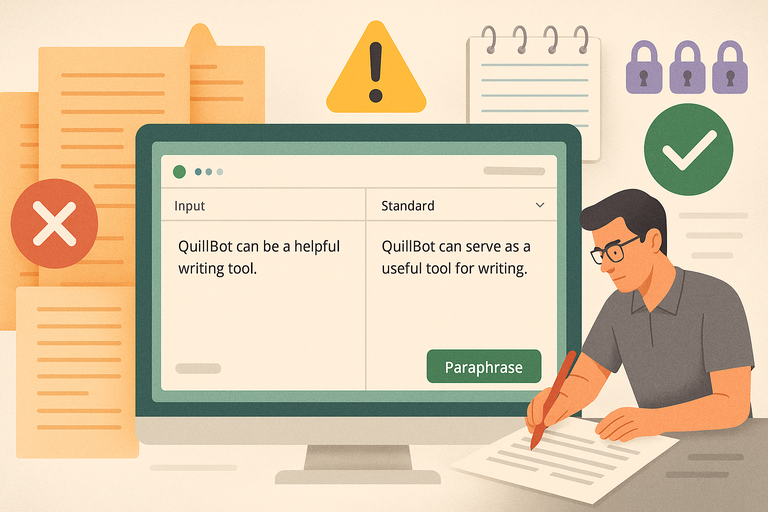
Like any AI writing tool, QuillBot shines brightest when used strategically. It’s a powerful assistant, but not a replacement for human editing or creative thinking.
Knowing where to draw that line can make all the difference between polished writing and robotic output.
When Human Editing Still Beats AI Rewriting
QuillBot can analyze tone, restructure sentences, and even catch subtle grammatical errors—but it can’t always understand intent. Human editors excel where context, emotion, or nuance matter most.
For example, if you’re writing a heartfelt blog introduction or a persuasive sales email, AI might oversimplify or over-polish your tone, stripping away authenticity. In cases like these, human rewriting ensures:
- Emotional tone aligns with your audience’s expectations.
- Voice consistency stays true to your brand or personality.
- Logical flow and storytelling rhythm feel human, not mechanical.
I suggest using QuillBot for structure and clarity first, then editing manually to bring back your personal flair. That’s where real writing magic happens—AI builds the frame, you paint the picture.
Avoiding Overreliance on Automated Paraphrasing
Overusing any AI paraphrase tool, including QuillBot, can create writing that sounds too uniform. While automation saves time, full dependency risks losing originality and creativity.
Here’s how to keep balance:
- Use QuillBot for drafts or rephrasing—not full article rewrites.
- Always review tone and vocabulary manually.
- Avoid paraphrasing the same piece multiple times—it can dilute your message.
From what I’ve seen, writers who rely too heavily on AI end up editing more later because their content lacks natural flow. Treat QuillBot as a writing enhancer, not an autopilot system.
How to Combine QuillBot with Manual Edits for Authentic Tone
The secret to authentic AI-assisted writing is blending automation with human editing. Think of it as a partnership—QuillBot handles repetitive phrasing, and you refine the voice.
Here’s a quick workflow I recommend:
- Step 1: Run your draft through Standard or Fluency Mode to improve readability.
- Step 2: Use Word Freeze (accessible from the QuillBot editor’s toolbar) to protect key phrases, names, or brand-specific terms.
- Step 3: Manually review sentence rhythm—read your content aloud and tweak lines that sound “too perfect.”
I’ve found this combo particularly effective for client content. It maintains clarity while keeping the brand’s tone intact—something AI alone can’t replicate.
Expert Tips to Maximize QuillBot’s Potential
Once you’re comfortable with the basics, a few advanced techniques can help you unlock QuillBot’s full potential.
These small tweaks can dramatically improve output quality and writing speed.
Fine-Tuning Rewrites with Word Freeze and Synonym Slider
Word Freeze and the Synonym Slider are two underrated features that give you more control over QuillBot’s output.
- Word Freeze lets you lock certain words or phrases so they don’t get changed. For example, if you’re writing about “content marketing strategy,” freezing that phrase ensures QuillBot doesn’t reword it as “digital campaign plan.”
- The Synonym Slider controls how aggressively QuillBot replaces words. You’ll find it above the text box—slide left for minor tweaks or right for more creative variations.
Here’s how I usually use them together: when rewriting SEO content, I freeze keywords and keep the slider in the middle. That way, I get natural paraphrasing without damaging keyword integrity.
It’s a small adjustment, but it keeps your writing both readable and optimized—a win for both clarity and rankings.
Building a Consistent Writing Style Across Projects
If you manage multiple content pieces or brands, maintaining a consistent style can be challenging. QuillBot’s Custom Mode helps here—it lets you set tone, formality, and preferred vocabulary so your output stays aligned across all projects.
Example path: Tools > Paraphraser > Modes > Custom > Set Preferences.
You can set it to “Conversational” for blog writing, “Formal” for B2B pieces, or “Academic” for research-based writing. Once saved, it applies these preferences to every session.
In my experience, this feature saves hours of re-editing tone inconsistencies across client projects. It essentially turns QuillBot into a brand voice assistant—one that remembers your writing DNA.
How to Use QuillBot Alongside SEO Tools for Optimization
For those focused on SEO, combining QuillBot with tools like Surfer SEO, Clearscope, or Frase creates a powerful content workflow.
Here’s a setup I often recommend:
- Draft your content in QuillBot using Standard or Fluency Mode for readability.
- Run the rewritten draft through Surfer SEO to align with keyword density and semantic depth.
- Use QuillBot’s Summarizer to extract concise meta descriptions or featured snippet content.
This hybrid method balances human creativity, AI speed, and SEO precision. The result? Articles that read naturally and rank well.
I believe this synergy between QuillBot and SEO tools represents the future of efficient content production—AI doesn’t just save time, it sharpens strategic focus.
Final Thoughts: Writing Smarter With QuillBot
At its core, QuillBot isn’t just a paraphrase tool—it’s a productivity engine that helps writers communicate better and faster. It’s built to enhance your process, not replace it.
Why QuillBot Is a Must-Have Tool for Modern Writers
In a digital world where deadlines move fast, QuillBot fills the gap between inspiration and output.
It’s useful for:
- Bloggers refreshing old articles.
- Students rephrasing research content.
- Professionals editing reports or proposals.
I personally recommend it to anyone who wants to write with more clarity and less effort. The time saved on rewriting can be reinvested into strategy, creativity, or client work—things AI can’t automate.
How It Enhances Productivity Without Sacrificing Voice
The key benefit of QuillBot is balance. It improves writing fluency and structure while preserving your unique tone. With tools like Custom Mode and Word Freeze, you’re always in control of how much AI influence to allow.
In my workflow, this means faster editing without losing the personal touch. It turns rewriting from a chore into a creative collaboration.
The Future of AI-Powered Paraphrasing and Content Creation
Looking ahead, AI tools like QuillBot will continue to evolve beyond rewriting. I expect deeper integrations with analytics, tone detection, and contextual understanding—meaning tools that adapt to your intent, not just your words.
But even as AI gets smarter, human judgment remains irreplaceable. QuillBot’s real value lies in how you use it—to amplify creativity, not automate it away.
The best writing, after all, isn’t just paraphrased. It’s personalized. And QuillBot, when used wisely, helps you do exactly that—write smarter, not harder.

I’m Juxhin, the voice behind The Justifiable.
I’ve spent 6+ years building blogs, managing affiliate campaigns, and testing the messy world of online business. Here, I cut the fluff and share the strategies that actually move the needle — so you can build income that’s sustainable, not speculative.