
Table of Contents
Some links on The Justifiable are affiliate links, meaning we may earn a small commission at no extra cost to you. Read full disclaimer.
Bubble workflows not working fix usually comes down to one of a few causes: the event never fires, an Only When condition evaluates to no, the data is empty or protected, or the workflow runs somewhere you are not checking.
I’ve seen builders lose hours changing random steps when the real problem was just one hidden condition or privacy rule.
In this guide, I’ll walk you through a practical debugging process you can use in Bubble today, from quick checks to deeper backend and scaling issues, so you can find the actual root cause faster.
Understand What “Not Working” Actually Means
When a Bubble workflow “doesn’t work,” that phrase is usually too broad to be useful. Bubble workflows are made of an event plus one or more actions, and debugging gets easier the moment you define which part failed.
Bubble’s workflow model is event-driven, and actions can also be blocked by conditions, missing data, or server-side constraints.
Event Not Triggering vs Action Not Running
Start Here: Separate the problem into one of two buckets. Either the event never started, or the workflow started but one or more actions did not run.
A simple example helps. Imagine a “Submit Order” button. You click it, nothing happens, and you assume the whole workflow is broken. But there are several possible realities:
- The button click event never triggered.
- The workflow triggered, but Step 1 was blocked by an Only When rule.
- Step 1 ran, but Step 2 failed because required data was empty.
- The action completed, but the page state did not visibly update.
This is why I suggest describing the bug in a sentence like this: “When the user clicks X, I expect Y, but instead Z happens.” That one sentence often cuts debugging time in half because it forces you to compare expected behavior against actual behavior.
In practice, Bubble’s debugger is best for tracing current behavior step by step, while server logs are better for checking what happened earlier or on the live app. Bubble itself describes the debugger as a way to run workflows action by action and inspect data, while server logs let you inspect past server-side activity.
Why Bubble Bugs Often Feel Random
The Real Reason: Bubble bugs often feel random because the logic is dynamic. Conditions, custom states, searches, user roles, privacy rules, and previous workflow results can all change what happens at runtime.
For many of us, that is the frustrating part. The editor setup can look perfectly valid, but the live value at runtime is different from what we assume. A search may return empty. A user may not have permission to see the thing. A button may be hidden behind a condition you forgot existed.
Bubble’s Issue Checker can catch editor-level inconsistencies and invalid expressions while you build, but it does not replace runtime debugging. It is designed to surface setup issues in real time inside the editor.
That means your mindset matters. Don’t ask, “Why is Bubble broken?” Ask, “Which condition, data source, or action result is different from what I think it is?” In my experience, that shift makes Bubble much easier to troubleshoot.
Start With The Fastest Checks First
Before you touch advanced logs or rebuild anything, do the quick checks. Most workflow failures are caused by a small setup issue that is easy to miss and easy to fix once you slow down.
Check The Event, Conditions, And Element Setup
Step 1: Confirm the event is attached to the correct element. It sounds obvious, but duplicated buttons, reusable elements, and copied groups create a lot of false assumptions.
Step 2: Inspect every Only When condition on both the workflow and the individual actions. Bubble’s condition system stops a workflow or action if the expression does not return yes. Bubble explicitly documents that Only When conditions are used to stop workflows or actions from running when the condition is false.
Step 3: Check visibility and clickability. A hidden element, disabled button, or overlapping floating group can make a workflow appear broken when the click never truly lands.
Here is a quick mental checklist I recommend:
- Correct Element: Are you clicking the exact button tied to the event?
- Correct Page/Reusable Context: Is the workflow on this page or inside a reusable element?
- Only When Rule: Does the condition actually evaluate to yes right now?
- Input Values: Are the fields you rely on empty, formatted wrong, or not changing when expected?
One small example: A login workflow may depend on “Input Email’s value is not empty.” That looks fine in the editor. But if the actual input lives inside a reusable element and you reference the wrong input, the condition will never pass.
Use Bubble’s Issue Checker Before You Guess
Why It Matters: The Issue Checker is one of the fastest ways to catch structural setup problems before you chase the wrong theory.
Bubble says the Issue Checker automatically checks for inconsistencies and errors in your app and updates dynamically as you build. That makes it especially useful when you have recently edited a page, deleted a field, renamed a data type, or changed a reusable element’s setup.
I recommend using it early for problems like:
- Missing fields in dynamic expressions
- Invalid references after deleting elements
- Broken property chains
- Configuration gaps before publishing
This will not solve every runtime bug, but it can save you from spending 30 minutes “debugging” a workflow that is already flagged as invalid in the editor.
A practical habit I like is this: Before opening the debugger, clear every visible issue in the Issue Checker unless you know for sure it is unrelated. That removes noise and gives you a cleaner debugging session.
Use The Debugger The Right Way
Bubble’s debugger is still one of the best places to troubleshoot live workflow behavior because it lets you inspect actions and data as the app runs.
Bubble’s manual says the debugger helps you examine each workflow step and inspect element details during use.
Run The Workflow Step By Step
The Goal: Stop guessing and watch the workflow execute in order.
When you preview your app with the debugger open, you can step through actions and inspect values as Bubble processes them.
This is where you catch the hidden truth, such as a search returning zero results or a condition evaluating to no even though you expected yes. Bubble describes this action-by-action inspection as a core purpose of the debugger.
Here is how I usually do it:
- Trigger the problem in preview mode.
- Watch whether the event appears at all.
- Step through each action slowly.
- Check the data coming into each step.
- Note the first place where reality stops matching your expectation.
That “first place” is the real bug zone. Not the final symptom. Not the action you are emotionally suspicious of. The first mismatch.
A realistic example: A search box workflow should display products after typing. In the debugger, you discover the “Do a Search For Products” result is empty because the constraint uses the wrong field. The repeating group is fine. The event is fine. The bug is the search expression.
Inspect Data, Searches, And Page State
What To Watch: Bubble bugs often hide in data sources, not actions.
As you debug, look closely at:
- Search results
- Current page thing
- Parent group data source
- Custom state values
- Result of previous step
- Current user and permission-sensitive fields
Bubble ties many expressions to dynamic data, and that data can be empty, stale, or inaccessible. Bubble also notes that if an action produces output, it can be referenced as “Result of previous step,” which is powerful but also easy to misuse.
I believe this is one of the biggest beginner-to-intermediate mistakes: trusting the expression builder more than the runtime value. Just because the expression looks correct does not mean the live data exists.
One clean tactic is to temporarily simplify the logic. Replace a long expression with a fixed value or a shorter search. If the workflow starts working, you have proven the issue sits inside the expression chain rather than the event itself.
Diagnose Data And Privacy Problems
A huge number of Bubble workflow issues are really data access issues in disguise. The workflow runs, but the action cannot find, modify, or display the thing you think it should.
Make Sure The Data Source Is Actually Returning Something
Common Failure: Searches that silently return empty results.
This happens all the time with repeating groups, dropdown-driven filters, and parent group references. A workflow step may depend on “Search For Orders:first item,” but if the search returns an empty list, the next action has nothing meaningful to use.
The fix is not to stare harder at the workflow. The fix is to validate each data source:
- Is the constraint correct?
- Is the field type correct?
- Does the page or group already have the data you need?
- Are you accidentally searching for text when you need a thing?
- Are you pulling “first item” from an empty list?
Bubble’s debugger is especially useful here because it lets you inspect search results during runtime. That is often faster than reworking the entire workflow blind.
Here is a small scenario. A user clicks “Save Profile,” and nothing updates. The action “Make changes to Current User” runs, but the inputs are inside a reusable element and the expression points to old inputs on the page. The workflow is not broken. The values are empty.
Check Privacy Rules And Server-Side Access
The Hidden Blocker: Privacy rules can make data appear missing even when it exists.
This is one of those Bubble behaviors that feels confusing until you’ve been burned by it once. A search might work in the editor preview under your admin account, then fail for normal users in live mode because privacy rules prevent access.
Bubble’s documentation highlights privacy tooling in its security dashboard, and its API workflow docs also note that API workflows can override privacy rules, which makes server-side behavior different from regular frontend workflows.
That difference matters a lot. If a frontend workflow cannot access a field due to privacy constraints, it may look like the workflow failed. In reality, the data was unavailable.
I suggest testing with a non-admin account whenever you debug user-facing workflows. Many issues only show up once the app runs under real permissions. That is especially true for marketplaces, CRMs, client portals, and membership apps.
Fix “Only When” Conditions That Quietly Block Actions
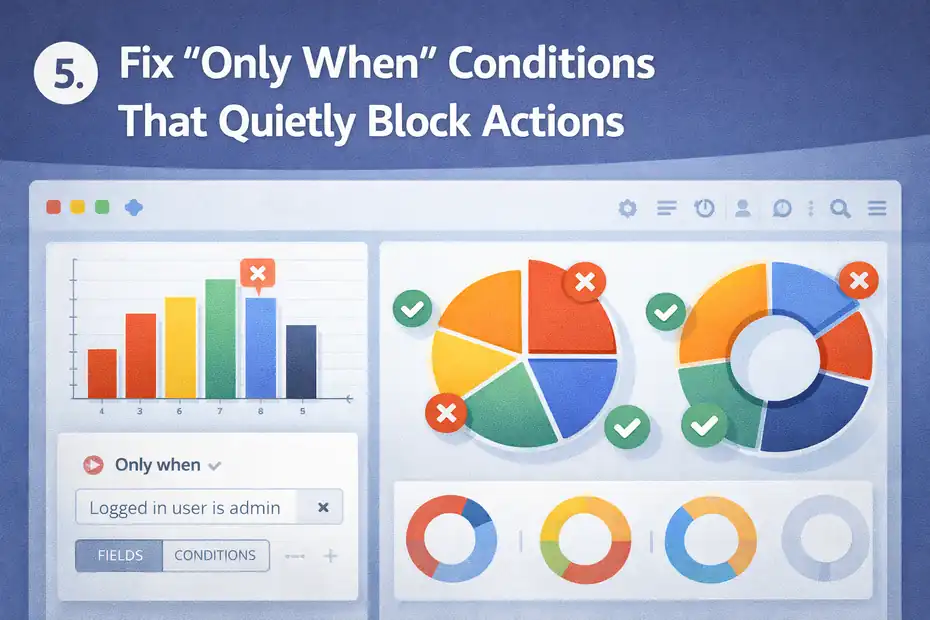
If I had to name one repeat offender in Bubble debugging, it would be the Only When condition. It is useful, necessary, and very easy to overcomplicate.
Reduce Complex Conditions To One Truth Test
Better Approach: Replace long conditions with a single simple test you can verify.
Bubble uses Only When conditions to stop workflows or actions from running when the condition is false. That means one hidden no is enough to block the whole step.
A condition like this may be technically valid but hard to debug:
- Current User is logged in
- Search For Team:first item’s plan is paid
- Dropdown Role’s value is Admin
- Input Email’s value:trimmed is not empty
- Parent group’s Project is not empty
When that fails, you do not know which part returned no. My advice is to break it apart. Test each condition separately. You can temporarily surface values in text elements, use custom states, or simplify the workflow into smaller branches.
For example, instead of one long action-level condition, create earlier validation logic:
- Step 1: Confirm user is logged in
- Step 2: Confirm project exists
- Step 3: Confirm permission is valid
- Step 4: Run the main action
This takes a little more setup, but it saves time later because each failure point becomes visible.
Watch For Empty, Null, And Wrong-Type Values
Why It Breaks: Bubble conditions often fail not because the logic is “wrong,” but because a value is empty or the expression type is not what you think it is.
A dropdown might return an option set, while your condition compares it to plain text. A search may return a list, while your action expects a single thing. A custom state may never have been set before the condition checks it.
These are not flashy bugs, but they waste the most time. I recommend checking the data type of every dynamic value involved in the condition, especially when using:
- Option sets
- Lists vs single things
- Date comparisons
- Yes/no custom states
- Search:first item chains
In my experience, conditions become much more reliable once you simplify the data they depend on. The less your action depends on five dynamic sources at once, the less likely it is to fail silently.
Debug Backend, API, And Scheduled Workflows
Frontend workflows are easier because you can watch them live. Backend workflows are different. They run server-side, may continue after the page closes, and can behave differently from regular page workflows.
Bubble describes API workflows as server-side workflows that can be scheduled or triggered internally or externally, with important differences from regular workflows.
Use Server Logs To See What Already Happened
Best Tool For Past Runs: Server logs.
Bubble says server logs let you explore issues in the past, including what happened when a live user experienced a problem. That makes them essential for debugging backend actions, database changes, and API workflow activity that you cannot inspect from the page debugger.
This is where I look for:
- Whether the API workflow ran at all
- Which user or trigger initiated it
- What actions happened on the server
- Whether the expected object was created or changed
- Timing issues between scheduled events
A realistic scenario: You schedule a reminder email workflow for tomorrow, then later edit the workflow. Bubble documents that scheduled API workflows keep a snapshot of the workflow structure from the time they were scheduled, so later edits do not automatically change already scheduled runs.
That one detail explains a lot of “I fixed it, but it still uses the old version” confusion.
Check Authentication, Parameters, And Scheduling Behavior
Where Backend Workflows Break: Parameters, auth, or stale scheduling.
Bubble’s Workflow API docs note that API workflows run after authentication passes and can also use conditions to restrict execution. That means a backend workflow may fail for reasons unrelated to the logic inside the actions:
- The endpoint authentication is wrong
- A required parameter is missing
- The parameter type is wrong
- The workflow is scheduled but never rescheduled after edits
- The event is looking for server-side data that no longer matches
I suggest auditing backend workflows in this order:
- Confirm the workflow endpoint or internal trigger is correct.
- Validate all parameters and their types.
- Check whether authentication or privacy assumptions changed.
- Review server logs for evidence of execution.
- Re-schedule test runs after structural changes.
This is not glamorous work, but it is usually where the answer lives.
Common Bubble Workflow Mistakes That Waste Hours
You do not need a giant bug to lose a full afternoon in Bubble. Most painful issues come from small logic mistakes that stack quietly.
Reusable Elements, Duplicate IDs, And Wrong Data Context
Very Common: The expression is correct, but in the wrong context.
Reusable elements are powerful, but they are also one of the easiest ways to reference the wrong parent group, current cell, or input field. You may think you are pulling the current page’s product, while Bubble is actually evaluating the reusable’s local data source.
This is why copied UI blocks can become dangerous. A button looks identical to the original, but its workflow references a different group or input. The event fires, yet the data context is wrong.
I’ve seen this happen in dashboard apps where a modal is reused across pages. The workflow “Create Invoice” works on one page and fails on another because the reusable element never received the invoice’s customer thing as data.
When something works in one place but not another, I suggest comparing context before comparing logic. Same workflow, different context, different result.
Workflow Order And Result Of Previous Step Errors
Another Classic: A later action depends on data that a previous action did not actually produce.
Bubble allows later steps to reference earlier outputs using “Result of previous step.” That is useful, but it can create fragile chains if Step 1 sometimes returns nothing or runs conditionally. Bubble’s workflows reference explains this output dependency directly.
For example:
- Step 1: Search for subscription
- Step 2: Make changes to Result of Step 1
- Step 3: Show success popup
If Step 1 returns empty, Step 2 has nothing to change. Bubble may not fail in a dramatic way. It just does not do what you expected.
My advice is simple: Never trust downstream steps until you verify upstream output. In many cases, adding a separate validation branch is cleaner than chaining everything together.
A Step-By-Step Bubble Workflows Not Working Fix Process
This is the exact process I would use if you handed me a Bubble app and said, “This workflow stopped working.”
The 10-Minute Triage Process
Step 1: Reproduce the issue in preview mode. Don’t rely on memory.
Step 2: Define the expected outcome in one sentence. Example: “When a user clicks Save, their profile should update and the success alert should show.”
Step 3: Open the debugger and watch whether the event fires. Bubble’s debugger is built for tracing workflow execution and inspecting live data.
Step 4: Find the first failed assumption. Is it the event, condition, search, data source, or action result?
Step 5: Check the Issue Checker for editor-level issues. Bubble says it continuously monitors the app for inconsistencies and errors.
Step 6: Simplify the logic. Remove nonessential conditions and reduce long dynamic expressions.
Step 7: Validate data context. Check parent group, current page thing, current cell, and current user.
Step 8: Test with a non-admin account if permissions matter.
Step 9: For backend workflows, inspect server logs. Bubble positions server logs as the tool for understanding past server-side activity.
Step 10: Retest after each single fix. Don’t batch five changes at once, or you will not know which one solved it.
A Practical Example You Can Copy
Scenario: A signup button should create a user, send them to onboarding, and create a starter workspace.
You click the button. Nothing visible happens.
Here is how I would debug it:
- Check Event: Button click fires correctly.
- Check Step 1: Signup action has an Only When condition requiring a plan dropdown value.
- Check Runtime Value: Dropdown is visually selected, but the expression points to a dropdown inside an old group.
- Fix: Update the condition to reference the actual dropdown in the current modal.
- Retest: User now signs up, but workspace is still not created.
- Check Step 2: “Create Workspace” depends on Result of Step 1, but Step 1 was moved and the reference now points to a different action.
- Fix: Reconnect the action to the actual user created in the signup step.
- Retest: Entire workflow works.
That is the pattern: find one broken assumption at a time.
Optimize Your Workflows So They Break Less Often
A real Bubble workflows not working fix is not just about repairing today’s bug. It is also about making tomorrow’s bug easier to find.
Build Smaller, Clearer Workflow Branches
Better Design: Shorter workflows are easier to debug than giant ones.
Bubble’s workload guidance reminds builders to think about events and actions individually rather than treating the workflow as one monolithic unit. That is useful for performance, but it also helps debugging.
I recommend splitting large workflows into smaller branches based on purpose:
- Validation steps
- Data creation steps
- UI feedback steps
- Server-side follow-up steps
This makes the logic easier to read and easier to test. It also reduces the chance that one deeply nested condition silently blocks everything.
A clean workflow is not just prettier. It is safer. When each part has one job, you can isolate failures faster.
Add Debug-Friendly Structure From The Beginning
Think Ahead: Build your app so future-you can troubleshoot it quickly.
Here are a few habits I strongly recommend:
- Name Workflows Clearly: “Save Profile – Validate Inputs” is better than “Button Click.”
- Keep Conditions Simple: Use separate checks instead of giant one-line expressions.
- Prefer Explicit Data Sources: Don’t rely on vague parent chains if you can pass a clear thing directly.
- Document Critical Logic: Even a short note in your own system helps on complex pages.
- Retest Scheduled Workflows After Edits: Bubble stores scheduled API workflow snapshots at schedule time.
From what I’ve seen, the best Bubble apps are not the ones with the fanciest logic. They are the ones where a bug can be found in five minutes because the builder respected clarity.
When The Problem Is Not Your Workflow At All
Sometimes the workflow is fine. The issue is elsewhere, and that distinction matters.
UI, Mobile, And Environment Differences
Possible Cause: The workflow works, but the interface or environment makes it look broken.
This can happen when:
- The action succeeds but no visible confirmation appears
- A mobile-specific interaction behaves differently from web
- A page transition hides the result
- A condition changes the UI after the action, making you think nothing happened
Bubble introduced a native mobile debugger for inspecting workflows, runtime issues, and layout directly in web preview for mobile apps, which is useful if your issue only appears in mobile behavior. Bubble also recently added server log and workflow run filtering by platform for projects with both web and mobile.
That matters because debugging web behavior and debugging mobile behavior are no longer exactly the same exercise.
When To Escalate, Report, Or Rebuild
Last Resort: Only escalate after you can clearly prove the root cause is not in your app logic.
Bubble has a bug report process and explicitly encourages detailed reports because they help identify platform issues faster. I would only go there after you can answer these questions:
- Can I reproduce the issue consistently?
- Can I isolate the exact step where behavior diverges?
- Have I ruled out Only When conditions, data context, and privacy?
- Have I tested in the correct environment?
- Do server logs or debugger output suggest platform-level inconsistency?
If yes, then document the problem clearly with steps, expected result, actual result, and screenshots or logs. That will get you a better answer than saying “my workflow is broken.”
Final Thoughts
The best bubble workflows not working fix is usually not a secret workaround. It is a repeatable debugging method. Start by identifying whether the event fired. Then inspect conditions, data, and outputs.
Use the debugger for live workflow tracing, the Issue Checker for setup problems, and server logs for backend and past behavior. Bubble’s own docs position those tools exactly for those use cases.
If you take one thing from this guide, let it be this: don’t debug the entire workflow at once. Find the first assumption that fails. That is where the real fix starts.
FAQ
Why are my Bubble workflows not working?
Bubble workflows usually fail because the event is not triggering, an Only When condition evaluates to no, or the data source returns empty. In many cases, the workflow actually runs, but the expected result does not appear due to missing data or incorrect context.
How do I debug a Bubble workflow step by step?
Start by opening the debugger in preview mode and triggering the workflow. Watch each step execute, inspect the data passed between actions, and identify where the result differs from your expectation. The first mismatch is usually where the issue originates.
What is the most common Bubble workflow mistake?
The most common mistake is using complex Only When conditions that silently block actions. If any part of the condition evaluates to no, the action will not run. Simplifying conditions and testing each part individually helps identify the exact failure point quickly.
Can privacy rules break Bubble workflows?
Yes, privacy rules can prevent workflows from accessing or modifying data. Even if the workflow is correctly set up, restricted data can make it seem like nothing is happening. Testing with different user roles helps confirm if permissions are causing the issue.
Why does my Bubble workflow work in preview but not live?
This usually happens due to differences in user permissions, missing live database data, or environment-specific conditions. Preview mode often runs with higher access, so workflows may behave differently when real users interact with the live version.

I’m Juxhin, the voice behind The Justifiable.
I’ve spent 6+ years building blogs, managing affiliate campaigns, and testing the messy world of online business. Here, I cut the fluff and share the strategies that actually move the needle — so you can build income that’s sustainable, not speculative.
Related posts:
 SurveyMonkey Real User Experience For Lead Generation: What To Expect
 Bubble App Builder Review: Can You Build Real Apps?
 Hello Bar Vs OptinMonster Comparison For Conversions
 SurveyMonkey Review For Startups Collecting Data: Hidden Pros
 Is SurveyMonkey Better For Surveys Or Forms: What To Choose
 LearnWorlds Features Overview: Tools That Power Online Courses